App Store screenshots: the complete guide

By Alistair CooperPublished October 27, 2026
Facts checked against the stores’ own documentation on October 26, 2026.
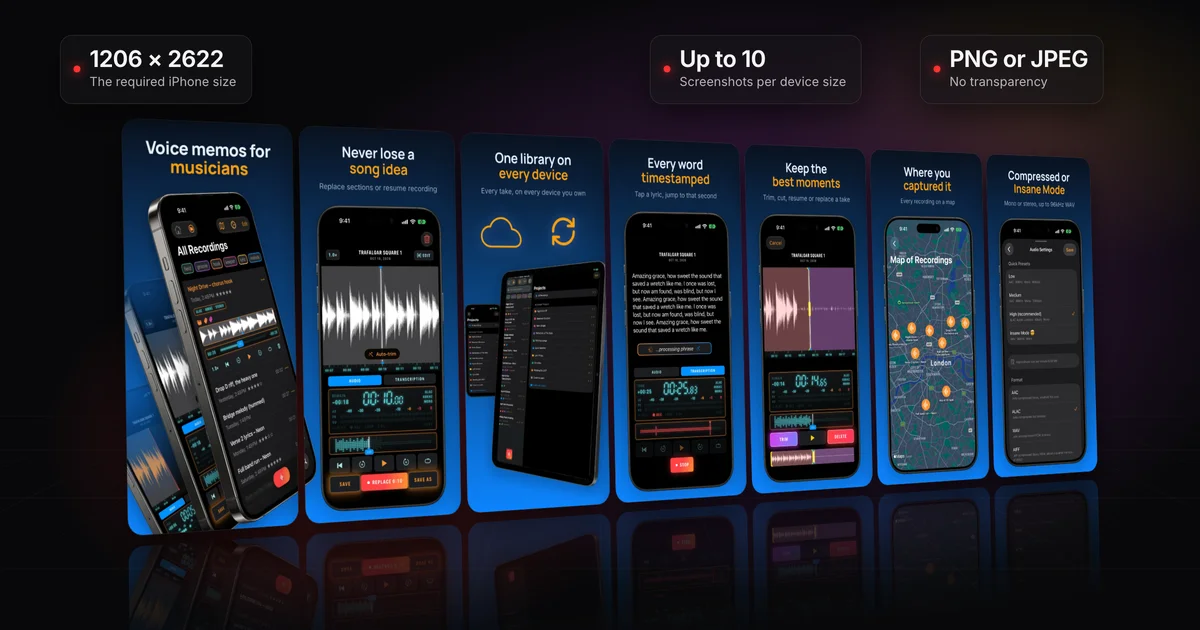
App Store screenshots are the 1 to 10 images per device size on your product page.
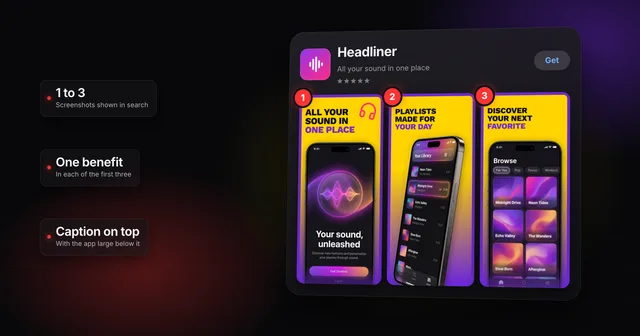
- The first one to three also appear in search results, unless you have an app preview or a search result asset.
- You need at least one iPhone screenshot at 1206 x 2622 or 1179 x 2556.
- Add a 13-inch iPad set if your app supports iPadOS.
- Use PNG or JPEG, with no transparency.
- More than half of each set must show the app in use.
On this page
- What are App Store screenshots, and where do people see them?
- Which screenshot sizes do you need?
- How many screenshots can you upload, and in what format?
- What does App Review check in screenshots?
- What makes App Store screenshots work?
- App previews, product page headers and search result assets
- Localizing App Store screenshots
- How to make App Store screenshots, step by step
- Why make your set in Screenodon?
- Frequently asked questions
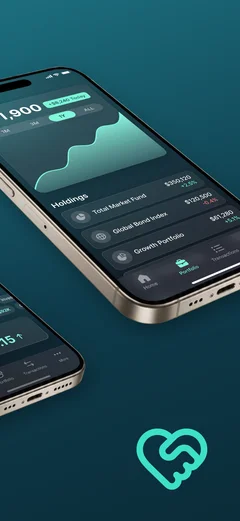
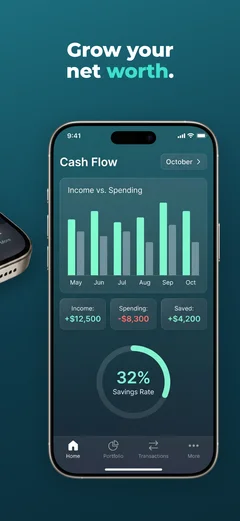
They're product page metadata: images of your app's interface, often framed and captioned, that explain the app before anyone installs it. People see them in two places.
Two places people see your screenshots
 1
1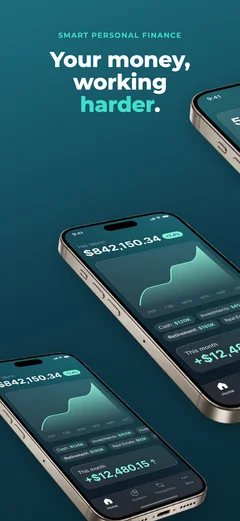
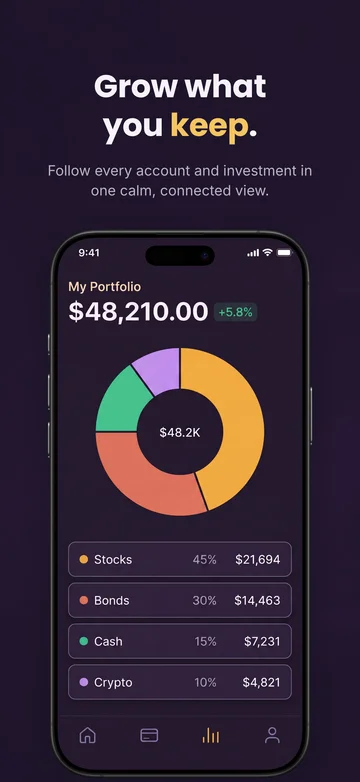
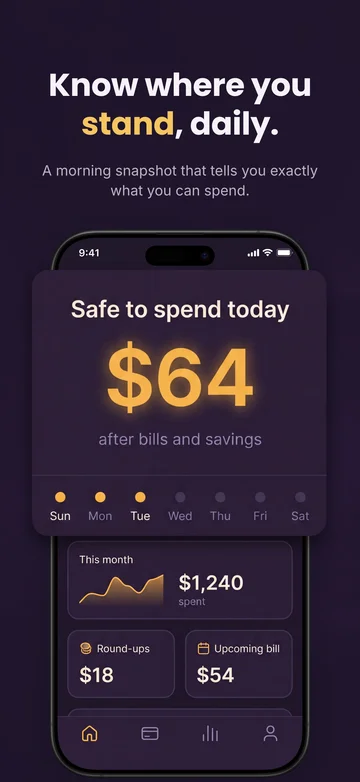
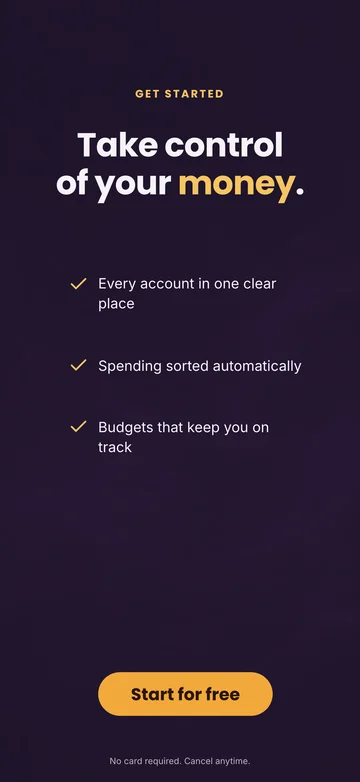
- 1
Search results
The first one to three screenshots, unless an app preview or a search result asset takes their place.
- 2
Product page
The whole set, up to 10 per device size, in the order you upload them.
Search results. A result shows your icon, name, subtitle and rating, then visuals. On iOS 27 and iPadOS 27 and later, those visuals are your search result asset if you've added one (covered below). Otherwise Apple shows your In-App Events, app previews and screenshots; with no preview, you get the first one to three screenshots, depending on their orientation. Search is where a lot of App Store downloads start. Apple Ads says almost 65% of App Store downloads happen directly after a search, based on worldwide App Store data from 2022.[1] It's an old advertising claim: read it as a sign of where attention goes, not a benchmark. Anyone who downloads straight from a search result, or scrolls past it, sees only what that result shows.
The product page. Tap a result and the full set sits on the product page, up to 10 images per device size. Apple's advice on order: make the first ones highlight the essence of the app, and focus each later one on a main benefit or feature.
Whether you show up in a search at all is a ranking question, covered in how App Store ranking works.
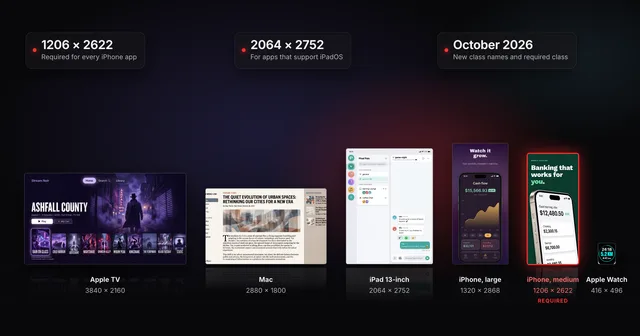
Apple's spec page now groups iPhone sizes by display class rather than by screen size in inches, so the labels in older checklists may not match. What's required today:
- iPhone (required): at least one screenshot for iPhone with Dynamic Island (medium display). Accepted sizes are 1206 x 2622 or 1179 x 2556 in portrait, and 2622 x 1206 or 2556 x 1179 in landscape. The class covers recent models such as iPhone 17 and iPhone 17 Pro.
- iPad (required if your app supports iPadOS): at least one screenshot for the 13-inch iPad display, at 2064 x 2752 or 2048 x 2732 in portrait (or the same sizes turned sideways).
- Mac, Apple TV, Apple Vision Pro and Apple Watch: required for apps on those platforms, each with its own accepted sizes.
- iPhone Duo: two displays, two sets of sizes. Not required yet: Apple's spec page says they will be from April 2027 for apps using the iOS 27.1 SDK or later, while its news post says any app or game submitted from then. Submitting them adds a badge marking the app as optimized for iPhone Duo. Details in iPhone Duo App Store screenshots.
The two sizes most apps need, drawn to scale
iPhone with Dynamic Island (medium display)
Required
1206 × 2622 or 1179 × 2556
iPad 13" display
Required if app runs on iPad.
2064 × 2752 or 2048 × 2732
If your interface looks the same across device sizes and languages, Apple says you only need to provide the highest required resolution, and App Store Connect scales those images down for smaller devices.
Every class and every accepted size is in App Store screenshot sizes. If you ship on iPad, read iPad App Store screenshot sizes too: an iPad set needs its own layout, not a stretched iPhone one.
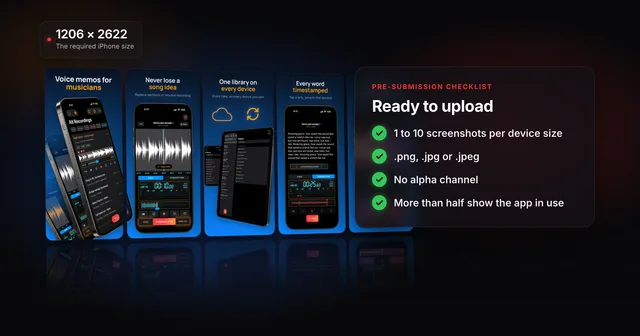
The file rules are short:
| Rule | What Apple accepts |
|---|---|
| Count | At least 1, up to 10 per device size |
| File types | .png, .jpg or .jpeg |
| Transparency | Not allowed: no alpha channel, no transparent areas |
| Orientation | Portrait or landscape, at an accepted size for the class |
Ten is a ceiling, not a target.
Nearly half
of app store visitors never look past the first two screenshots
7%
reach the fifth screenshot
Put the most work into the first two or three frames, and add more only when each one shows something the others don't.
Every rule in one place is in the App Store screenshot requirements checklist.
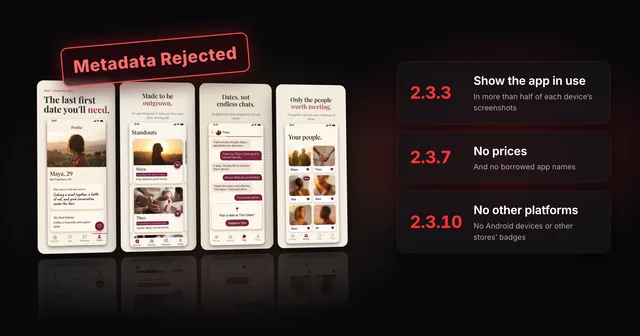
Screenshots fall under section 2.3 of the App Review Guidelines, Accurate Metadata. The core rule is 2.3.3: "Screenshots should show the app in use." A set made only of title art, a login screen or a splash screen doesn't meet it. Apple's guidance page for 2.3.3 turns the rule into a count: App Review approves a device's set only when more than half of its screenshots show the app in use (two of three, or three of four). The rest can be marketing images, and each language's set is judged on its own. Text and image overlays are allowed as long as they don't hide the app, so a caption over a real view of the app is fine.
Counting the screenshots that show the app in use
App in use Marketing image
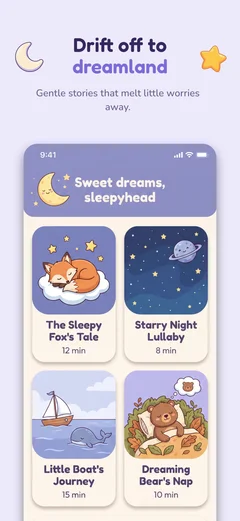 App in use
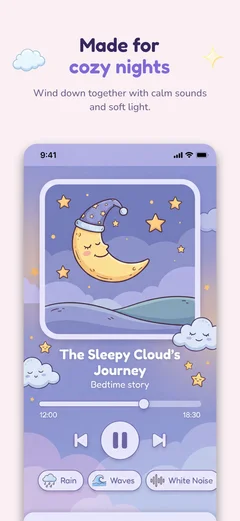 App in use
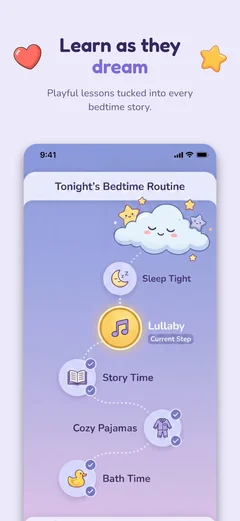 App in use
 Marketing
3 of 4More than half: meets 2.3.3
App in useApp in use MarketingMarketing
2 of 4Exactly half is not more than half
The other rules that touch screenshots, paraphrased:
- 2.3 itself: screenshots should accurately reflect the app's core experience and be kept up to date with new versions.
- 2.3.2: if featured items, levels or subscriptions cost extra, the screenshots have to make that clear.
- 2.3.7: screenshots shouldn't carry prices, terms or descriptions that don't belong in that kind of metadata.
- 2.3.8: screenshots must suit a 4+ audience even if the app is rated higher.
- 2.3.9: you need the rights to everything in them, and you should show fictional account details, not a real person's data.
- 2.3.10: no names, icons or imagery of other mobile platforms or app marketplaces. An Android phone frame has no place in an App Store set.
What these look like in practice, and how to answer a metadata rejection, is in why App Store screenshots get rejected.
3 to 6 seconds
is about how long most visitors scan a store page before deciding to install or leave
In that time the first frames have to say what the app does without help from the description. A few habits help:
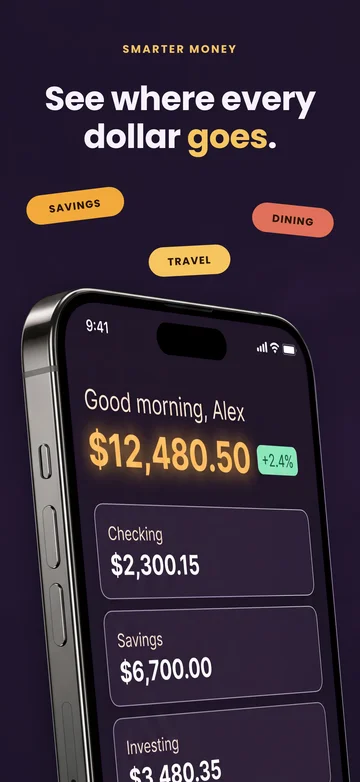
- Lead with the job. The first screenshot says what the app does for the person looking, in a few words, over a real view of the app. "See where every dollar goes" over an account overview tells a stranger more than an app name over a logo.
- One idea per frame. Each later screenshot shows one feature or benefit. If a caption needs "and", it's probably two screenshots.
- Make captions readable at search-result size. Short lines, large type, checked on a phone rather than zoomed in on a monitor.
- Show Dark Mode if you support it. Apple suggests including at least one screenshot of the Dark Mode experience.
What a caption looks like at search size
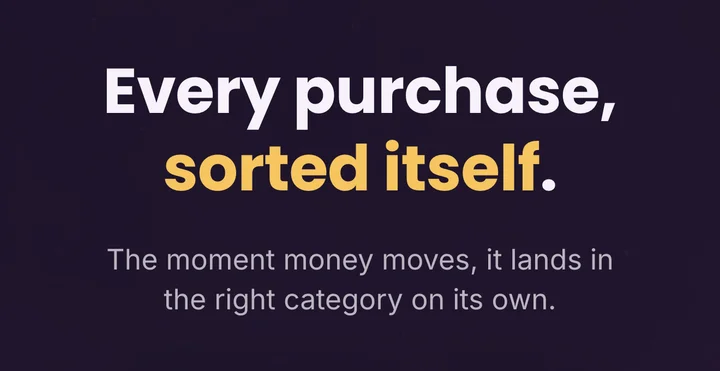
Up close
Search result size on an iPhone
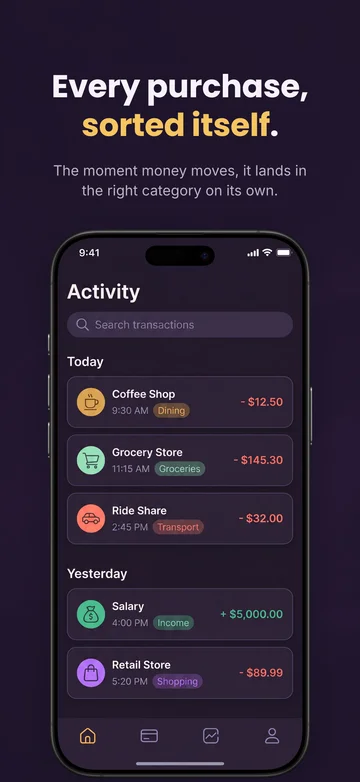
- CaptionEvery purchase, sorted itself.Reads at search size
- Small lineThe moment money moves, it lands in the right category on its own.Too small to read in search
Sets chosen for their design mostly build on the real interface too. Of 148 App Store apps we picked for their screenshot design, 93 (63%) used the app’s own interface as the main image in their screenshots.[4] Real screens also keep you clear of the more-than-half rule in guideline 2.3.3.
The method in full, frame by frame, is in how to make App Store screenshots that convert. Three design mistakes worth checking your set for, each with a fix, are in 3 App Store screenshot design mistakes.
Not from a before-and-after alone.
Know which number you're reading first: App Store Connect's conversion rate divides downloads by unique device impressions, not by page views, as App Store conversion rate explains. For a cleaner read, product page optimization tests alternate screenshots against your default page, showing each version to randomly selected visitors.
App previews are short videos of your app. You can have up to three per device size and language, each 15 to 30 seconds long. They autoplay with the sound off on the product page and in search results, and people who turned off autoplay see a poster frame instead. Guideline 2.3.4 says previews may only use video screen captures of the app itself, though narration and text overlays are allowed. Specs, and whether to make one before your screenshots, are in App Store app preview specs.
Product page headers and search result assets were announced on October 5, 2026 and appear on iOS 27 and iPadOS 27 and later. Apple calls them creative assets: images or videos that can go beyond app-in-use views to show your brand, a season or new content. A search result asset replaces your previews and screenshots in search, and Apple's advice is to make the app's purpose obvious at a glance. Guideline 2.3.14 sets their rules: they must relate to your app or brand, and they can't carry unverifiable claims or specific or discounted prices. Sizes, video rules and what to keep inside the crop are in App Store product page header and search result assets.
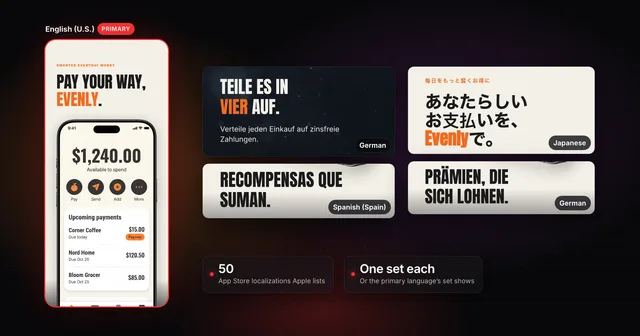
When you add a language in App Store Connect, its screenshots default to your primary language's set. So if English is your primary language and you upload nothing for French, your French listing shows your English screenshots. Apple's product page guidance is to localize screenshots, previews, description and keywords for each market you sell in.
A language with no screenshots shows your primary set
- English (U.S.)Primary3 screenshots
- German3 screenshots
- Spanish (Spain)3 screenshots
- Japanese3 screenshots
- FrenchNo screenshotsUses English (U.S.)
The product page in that language
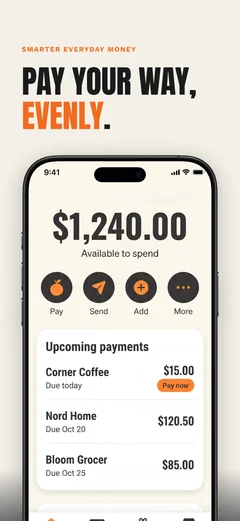
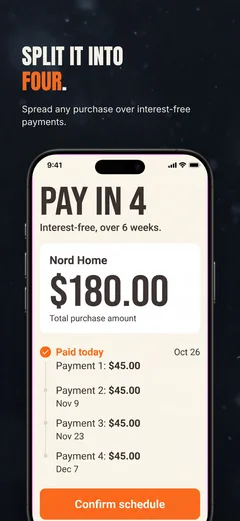
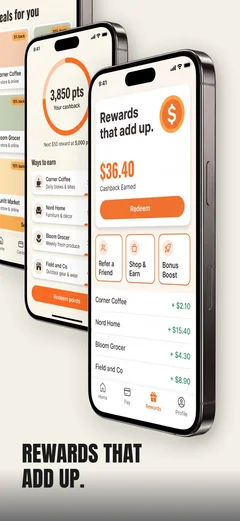
English (U.S.) set
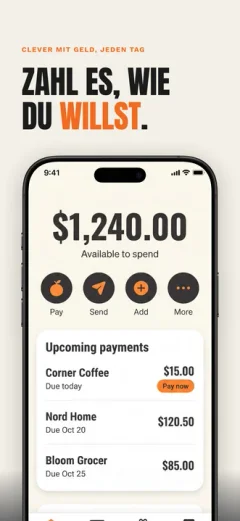
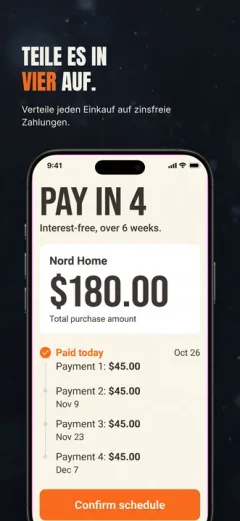
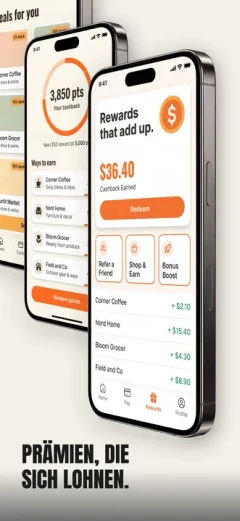
German set
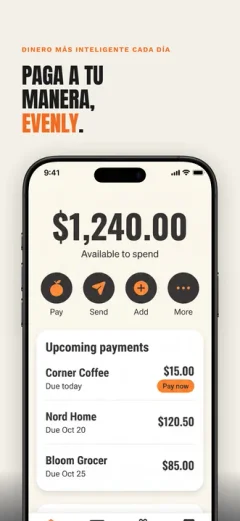
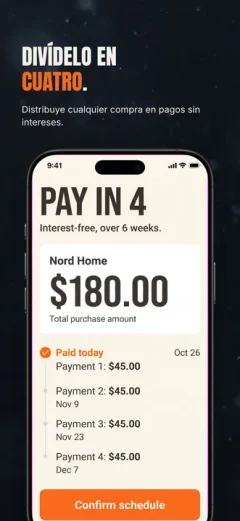
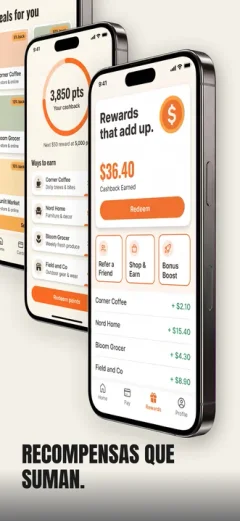
Spanish (Spain) set
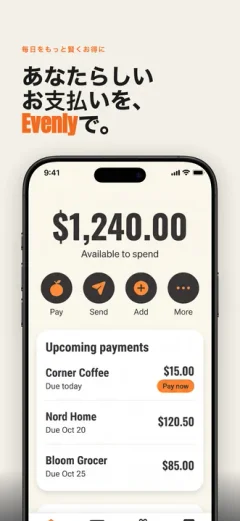
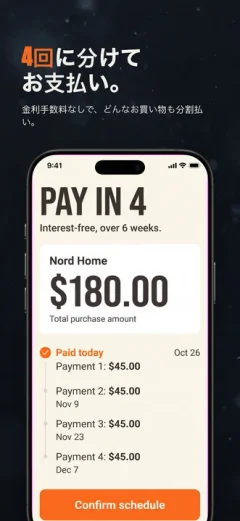
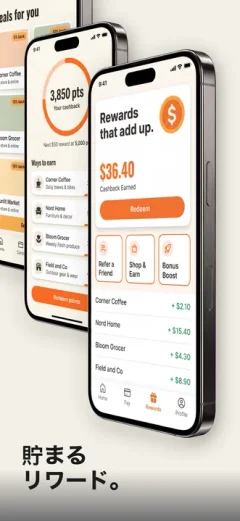
Japanese set
French listing, English (U.S.) screenshots
A localized set is more than translated captions: rewrite them in the words that market uses, allow for longer text, mirror layouts for right-to-left languages, and check that your font covers every script you ship.
Which languages to start with, and how to keep a dozen sets in step, is in how to localize your App Store screenshots.
From a plan to an uploaded set
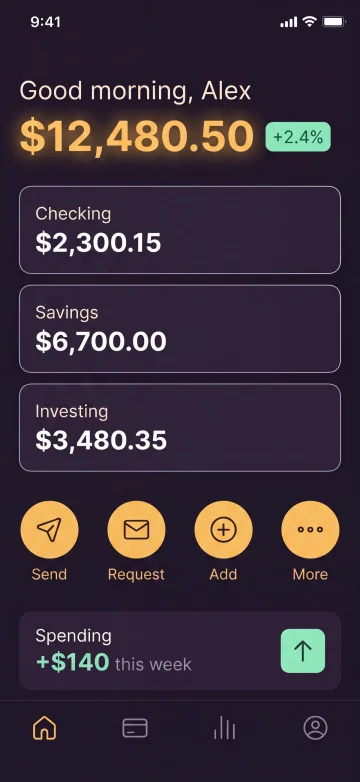
“See where every dollar goes”
over the account overview
1Plan
One caption per frame, in order.
2Capture
A simulated iPhone with a clean status bar.
3Design
Frame and caption at the store size.
01.pnghasAlpha: no
4Export
PNG or JPEG at 1206 × 2622, no alpha.
- iPhone
5Upload
Into App Store Connect, in order.
List the features a stranger needs to understand, in the order they need them, and write one short caption for each. For a fictional budgeting app, the plan might be:
- "See where every dollar goes" over the account overview
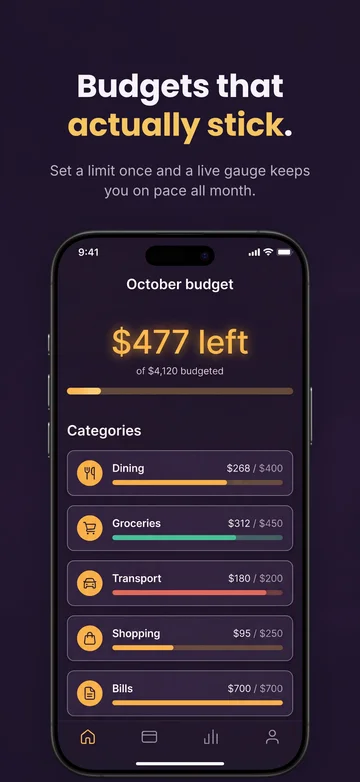
- "Budgets that actually stick" over the monthly budget
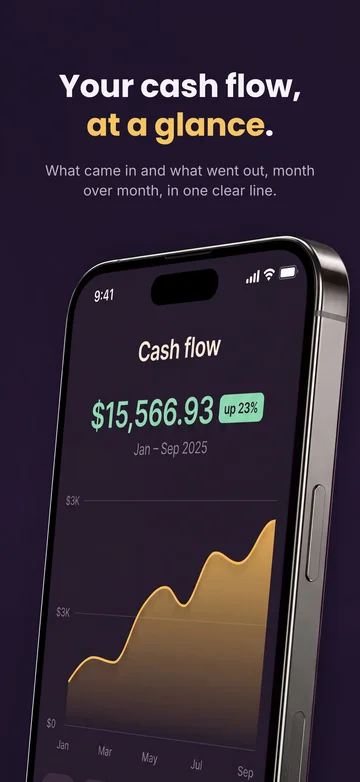
- "Your cash flow, at a glance" over the cash flow chart
Decide on orientation now: a game played sideways may read better in landscape, and orientation changes how many screenshots fit in a search result. This list is the real work. The design steps only carry it out.
In Xcode 27, simulated devices run in Device Hub (earlier versions of Xcode use the Simulator app). Run your app on a device in the required class, such as iPhone 17 Pro, whose display is 1206 x 2622 pixels in portrait. Fill it with fictional demo data (guideline 2.3.9), close debug overlays, and set a clean status bar. Then click the Screenshot button below the device: Device Hub captures at the device's full resolution and saves the file to your Desktop. Or capture from Terminal:
# Clean status bar on the booted simulator
xcrun simctl status_bar booted override --time "9:41" --batteryState charged --batteryLevel 100

# Save a PNG of the screen
xcrun simctl io booted screenshot home.png

# Put the normal status bar back
xcrun simctl status_bar booted clear
For Google Play, the Android Studio emulator does the same job.
In Screenodon, start from one of the templates and drop your captures into its screens. Every canvas is already at a store size, so there's no frame size to look up and nothing to scale up later: you design the iPhone set once and it exports at the required 1206 x 2622. Set your brand colors and fonts once for the app and every screen follows them, so type, colors and device treatment stay the same across the set. Add an iPad or a Google Play device and Screenodon lays the same design out on that canvas.
Screenodon takes care of this step. It exports every screenshot as a PNG at an accepted store size with no transparency, numbered in screen order in a folder for each device and language, and checks every file before the export finishes.
Whatever made your files, the rules are the same: PNG or JPEG, no transparency, in the order you want them shown. On a Mac you can check size and alpha before you upload:
sips -g pixelWidth -g pixelHeight -g hasAlpha *.png
Every file should report an accepted size and hasAlpha: no.
Screenodon can publish the set straight to App Store Connect, every device and language in one run, in your screen order. To upload by hand:
- Open your app and select the version under its platform in the sidebar.
- Open the App Previews and Screenshots tab under Product Page Information.
- Pick the device tab, drag your files into the well and sort them into order.
- Switch languages from the menu at the top right and repeat.
View All Sizes in Media Manager is where you manage the scaled sizes, and the new Asset Library holds screenshots outside any one version so you can reuse them, for example on a custom product page.
Then open the new preview tool in App Store Connect to see the set on the product page and in search results, in Dark Mode and on different devices.
- At least one iPhone screenshot at an accepted size for the required class
- A 13-inch iPad set, if the app supports iPadOS
- PNG or JPEG, no alpha channel
- More than half of each device's screenshots show the app in use
- Fictional account data only, no real person's details
- No other platform's devices, names or icons
- Each language checked on a phone
A screenshot set is never finished once. Each device, each language and every interface change means another round of exports, and that's the job Screenodon is built for: it designs and exports App Store and Google Play screenshot sets in the browser, translates captions into all 50 of Apple's App Store languages with a set per language, and publishes straight to App Store Connect. It won't plan the story for you, so step one is still yours. The templates show the layouts it starts from.
Not as they are. Play's general rules are JPEG or 24-bit PNG with no alpha, sides from 320 to 3840 pixels, up to 8 per device type, and a long side no more than twice the short side; Apple's required iPhone sizes are more than twice as tall as they are wide, so they fail that last rule. Re-export the same design on a canvas Play accepts.
Why an App Store iPhone screenshot fails on Google Play
Yes. Apple lets you publish up to 70 custom product pages for iPhone and iPad, each with its own screenshots, app previews, promotional text and URL, and you can assign keywords so a custom page appears in search for those terms instead of your default page. Each one goes through review, but you can submit it without an app update.
Whenever they stop matching the app. Guideline 2.3 asks you to keep screenshots up to date with new versions, so a redesign, a new headline feature, a new language or a new required size (such as iPhone Duo from April 2027) is reason enough. Between those, a set that still matches the app can stay.
Alistair Cooper
Founder of Screenodon
I’ve spent over ten years shipping iOS apps, from a blank Xcode project to the App Store, on my own and on large teams. At Fender I was a technical lead on Fender Play and worked on apps used by millions of people.
More about me and how I write these guidesSources
- Apple Ads, Ads on the App Store
- SplitMetrics, ASO Benchmarks & Mobile Trends Report 2024
- Storemaven, Bible of User Behavior: The Apple App Store (archived)
- Screenodon design study: 148 App Store screenshot setsApps hand-picked from the US App Store for well-designed screenshots (23 categories, thin categories filled deliberately), 4 to 10 iPhone screenshots saved per listing between June 22 and July 15, 2026 (800 in total), then each app’s set tagged against a fixed list of design categories by an AI vision pass. Counts are tallies of those tags.
- Apple Developer, Creating your product page
- App Store Connect Help, Screenshot specifications
- Apple Developer, App Review Guidelines (section 2.3, Accurate Metadata)
- App Review, 2.3.3: Show your app in use with screenshots
- Apple Developer, Product page optimization
- App Store Connect Help, Manage your App Store assets
- App Store Connect Help, Localize app information
- Apple Developer, Show more with app previews
- App Store Connect Help, Creative assets specifications
- Apple Developer News, Showcase your apps with new assets on the App Store (October 5, 2026)
- Apple Developer News, Prepare and submit your apps for iPhone Duo (October 5, 2026)
- Apple Developer, Custom product pages
- Play Console Help, Add preview assets to showcase your app
- Apple Developer, App Store asset best practices and resources
- Xcode documentation, Device Hub
- Xcode documentation, Capturing screenshots and videos from devices
- Apple Support, iPhone 17 Pro Tech Specs
- App Store Connect Help, Metrics definitions
Put this into practice on your own set
Start a free account, drop in your raw screenshots, and Screenodon lays out a first draft of the whole set for you to edit. Saving and export at every store size need Pro.
Keep reading
 App Store screenshot sizes for every iPhone, iPad and Apple deviceApp Store screenshot sizes after Apple's October 2026 rename: required iPhone 1206 x 2622 or 1179 x 2556, iPad 13-inch, plus Mac, TV, Vision Pro and Watch.
 App Store screenshot requirements: the pre-submission checklistApp Store screenshot requirements as a checklist: 1 to 10 per device size, PNG or JPEG without alpha, the exact iPhone and iPad sizes and the 2.3.3 rule.
 How to make App Store screenshots that actually convertHow to make App Store screenshots that convert: one benefit in each of the first three, captions for people and search, and a layout that stands out.
 Why App Store screenshots get rejected (guideline 2.3 explained)Guideline 2.3.3 needs more than half of each device's screenshots to show your app in use. The other 2.3 rules, a checklist and how to fix a rejection.
 How to localize your App Store screenshotsApple supports 50 App Store localizations. How to add one, upload a screenshot set per language, and fix what breaks in German, Japanese and Arabic.