App Store product page header and search result assets: specs

By Alistair CooperPublished October 27, 2026
Facts checked against the stores’ own documentation on October 26, 2026.
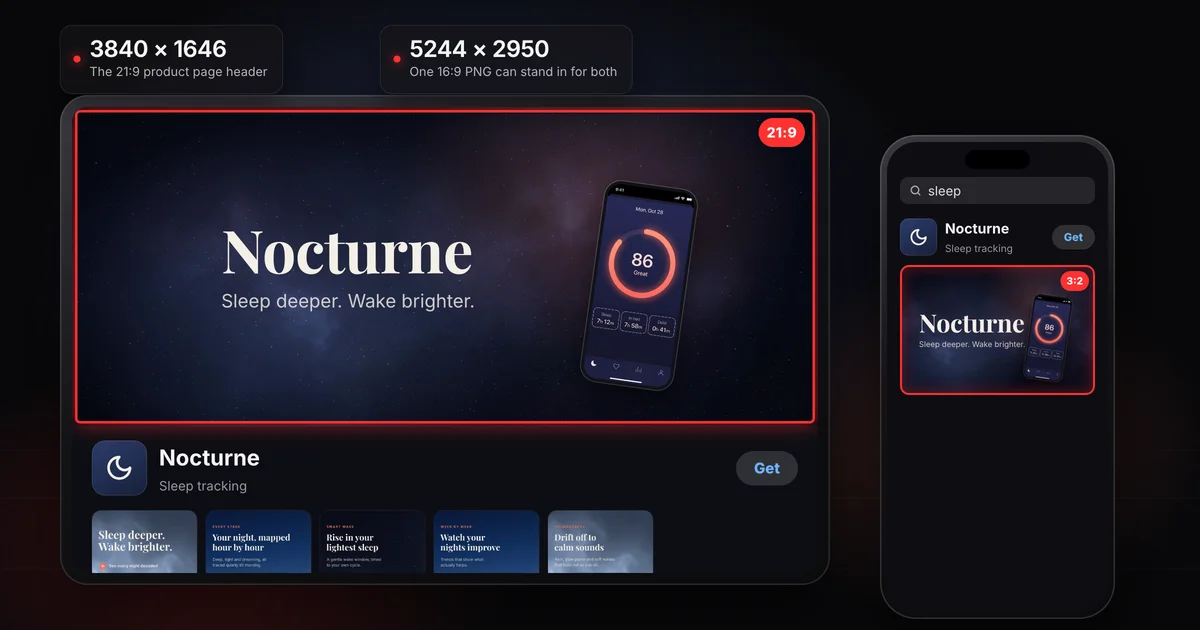
The App Store product page header and the search results asset are both optional.
- Product page header: a 21:9 image or video at 3840 x 1646 pixels.
- Search results asset: 3:2, from 1920 x 1280 to 3840 x 2560.
- One 16:9 PNG at 5244 x 2950 can serve both.
- Videos run 5 to 30 seconds at 30 or 60 fps.
- Both show on iOS 27 and iPadOS 27 and later, and are reviewed under guideline 2.3.14.
On this page
- What are the product page header and search results asset?
- App Store product page header and search results asset sizes
- Can one universal image work for both placements?
- Video rules: muted, looping, 5 to 30 seconds
- What shows if you don't add one?
- The Asset Library: get assets approved before you need them
- Guideline 2.3.14: what App Review checks in creative assets
- Frequently asked questions
The product page header is the wide image or video at the top of your product page. The search results asset is the image or video that shows for your app on the Search tab. Apple announced both on October 5, 2026.
Apple calls both creative assets: images or videos that show your brand, a seasonal offer or new content. That's the difference from screenshots and app previews, which have to show the app in use. Creative assets don't, though guideline 2.3.14 still asks them to relate to the app's content and functionality or its brand. They're separate from your screenshots and previews, and available for iOS and iPadOS apps and games.
- Product page header. Apple says it's the first thing people notice when they land on your page, and advises one clear idea, designed for someone who has never heard of your app.
- Search results asset. What shows for your app on the Search tab, before anyone opens your page. Apple's advice is to make the app's purpose obvious at a glance and to consider showing the interface, content or gameplay.
almost 65%
of App Store downloads happen directly after a search
The search results asset sits on that path, so give it the plainer of the two jobs: say what the app does.
| Placement | Shape | Image size (pixels) | Image formats | Video size (pixels) |
|---|---|---|---|---|
| Product page header | 21:9 | 3840 x 1646 | .jpeg, .jpg, .png | 3840 x 1646 |
| Search results | 3:2 | 1920 x 1280 to 3840 x 2560 | .jpeg, .jpg, .png | 1920 x 1280 to 3840 x 2560 |
| Universal (header and search) | 16:9 | 5244 x 2950 | .png only | not listed |
Apple's spec page also says:
- Images can't include alpha channels or transparency.
- Videos are .mov, .m4v or .mp4, at 30 or 60 fps, between 5 and 30 seconds long.
PNG is accepted at every size, so it's the simplest export. Before you upload, check the pixel size and the alpha channel in Terminal:
sips -g pixelWidth -g pixelHeight -g hasAlpha header-en.png
The same spec page lists in-app event media, whose videos run 15 to 30 seconds, so don't borrow those numbers. Screenshot sizes are a separate list, covered in App Store screenshot sizes for every Apple device.
Upload a universal asset and the version page offers a "Use header asset in search results" option. That saves a second file, but one 16:9 image then stands in for a 21:9 header and a 3:2 search result, and Apple doesn't say exactly how it fits the image to either.
Apple's asset best practices page asks you to keep the focal point in the center so it isn't clipped, to design key elements with a safe area in mind because assets look different across devices and orientations, and to keep key art inside the safe area marked in Apple's templates. The page doesn't print the safe area's dimensions, but the template does: in Apple's header template, the Art Safe Area layer is a 1646 x 661 box centered on the 3840 x 1646 header. That leaves 1097 pixels on each side, 493 above and 492 below, any of which can be cropped. Keep the subject, the app name and any text inside the box.
The header’s art safe area
Header, 3840 × 1646 px (21:9)Keep the subject, the name and any text inside the box
This is geometry, not documented Apple behavior. Suppose each placement took a plain center crop of a 5244 x 2950 universal image:
- 21:9 header crop, at full width: keeps 5244 x 2248 (5244 x 1646 / 3840 is about 2248), cutting about 351 pixels from the top and the bottom.
- 3:2 search crop, at full height: keeps 4425 x 2950 (2950 x 3 / 2), cutting about 410 pixels from each side.
- What both keep: about 4425 x 2248 in the middle. Anything outside it would be lost in at least one placement.
One universal image, two crops

Nocturne
Sleep deeper. Wake brighter.
- 21:9 header crop keeps 5244 × 2248, about 351 px off the top and the bottom.
- 3:2 search crop keeps 4425 × 2950, about 410 px off each side.
- Shared middle, about 4425 × 2248: keep the name, any text and the subject in here.
Apple asks you to localize any text in these assets for every language your app supports, the same work as localizing your App Store screenshots, and suggests a shared palette, iconography and fonts across your icon, header, screenshots and previews. Screenodon designs and exports App Store and Google Play screenshot sets in the browser, but it has no canvas for the header or search results asset yet, so build these in Apple's templates.
- Muted by default. On your product page people can unmute the header video. In search results they currently can't. Apple's guidance is that "your creative must work silently first."
- Looping. Videos loop continuously in both placements, so Apple asks for a loop with no visible jump.
- Poster frame. The first image someone sees before the video plays. You set it in the Asset Library, and it applies everywhere the asset is used.
- Pacing. Apple says to lead with your value proposition or most compelling feature and to avoid quick cuts. If you add sound, it prefers a short music loop over heavy sound effects.
These videos are not app previews. Previews are screen captures of the app with their own rules, covered in App Store app preview specs.
In search, Apple documents the fallback: without a search results asset, your in-app events, app previews and screenshots appear. Its product page guidance adds that when no preview is available, the first one to three screenshots show in search results, depending on orientation. So if you skip the asset, your opening screenshots keep doing that job. How App Store ranking works covers what decides whether your app shows up in those results at all.
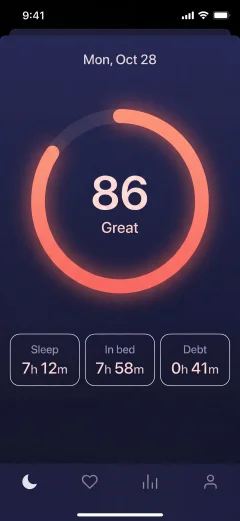
A search result with and without the asset
Nocturne
Sleep deeper. Wake brighter.
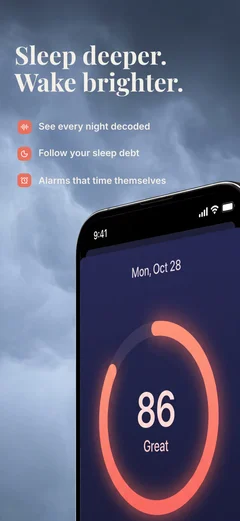
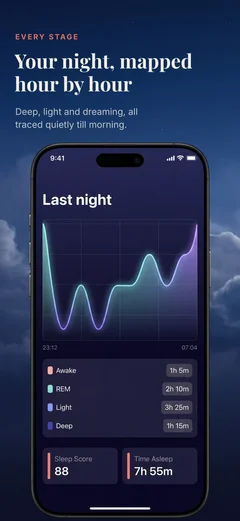
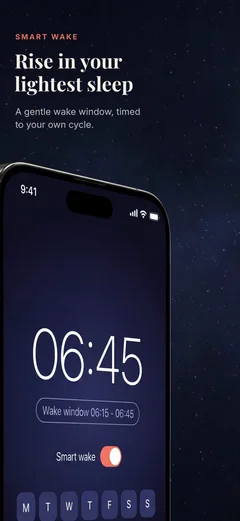

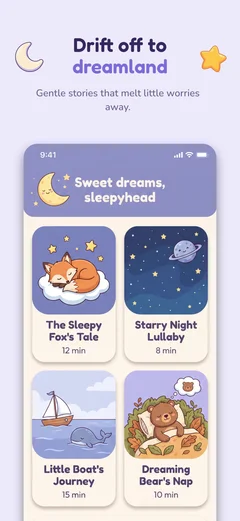
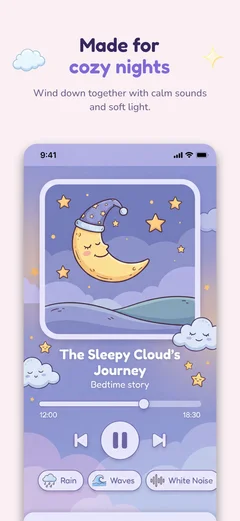
- 1
With a search results asset
One 3:2 image or video takes the place of your previews and screenshots, on iOS 27 and iPadOS 27 and later.
- 2
Without one
Your in-app events, app previews and screenshots appear, so your opening screenshots keep doing the job.
For the header, Apple doesn't describe what your page shows without one, or what people on iOS 26 and earlier see. Plan for your screenshots to do the full job on their own.
The Asset Library holds your previews, screenshots and creative assets in one place, independent of any app version. To add a creative asset, select your app, click Asset Library in the sidebar, click the add button (+) and choose Upload Creative Assets. Apple's own example is a seasonal campaign approved now and switched on when the season starts.
- Standalone review. After your app has an approved version, you can submit assets from the Asset Library without creating a new app version, and without saying where you'll use them. Apple reviews them against your app's latest version.
- Swapping on a live version. If the current version is live on the App Store, select it, open the Header and Search Results tab, choose Header or Search Results, click Browse Assets, pick an approved asset, click Next, then Publish. No new version is needed.
- Through a new version. Assets you place on the version page go live when that version is approved and released.
- Bundled items. An asset assigned to a version, custom product page, product page optimization test or in-app event is reviewed with that item, and can't go on its own while that item is in an active submission.
- Clean-up. You can delete an asset only while it's Prepared for Submission. Otherwise you can archive it, which keeps it out of new placements.
To try a different header image, Apple suggests a product page optimization test.
Apple added guideline 2.3.14 on October 16, 2026. Creative assets must relate to your app's content and functionality or its overall brand, follow the standard metadata rules, and suit all audiences. They shouldn't include inappropriate content, references to other apps meant to mislead, product claims that can't be verified, or specific or discounted pricing.
Apple's asset best practices add a checklist worth running before you upload:
- No specific prices, discounts, website URLs or copyright symbols.
- Only awards the app has really received. Apple asks you to skip its own, such as Editor's Choice, since they already show beside your app.
- No logos of or references to other platforms or marketplaces.
- Suitable for a 4+ age rating, even if your app is rated higher.
The rest of section 2.3, which still governs your screenshots, is in why App Store screenshots get rejected.
No. Creative assets are optional and separate from your screenshots, so a header doesn't replace any screenshot you have to upload. App Store screenshots: the complete guide covers what you do have to upload.
Yes, if your app's current version is live on the App Store. Get the new asset approved from the Asset Library, then choose it on the live version's Header and Search Results tab and click Publish.
Apple's spec page lists the 16:9 universal size only as a PNG image and gives no universal video size. For video, make a 3840 x 1646 file for the header and a 3:2 file for search results.
Apple says you can use creative assets on custom product pages and upload them from the Custom Product Pages section. It doesn't spell out each placement for custom pages, so confirm the header option when you edit one.
Alistair Cooper
Founder of Screenodon
I’ve spent over ten years shipping iOS apps, from a blank Xcode project to the App Store, on my own and on large teams. At Fender I was a technical lead on Fender Play and worked on apps used by millions of people.
More about me and how I write these guidesSources
- Apple Ads, Ads on the App Store
- Apple, App Store Connect Help: Creative assets specifications
- Apple Developer News, Showcase your apps with new assets on the App Store (October 5, 2026)
- Apple, App Store Connect Help: Manage your App Store assets
- Apple, App Store Connect Help: Submit assets from Asset Library
- Apple, App Store asset best practices and resources
- Apple, App Review Guidelines (guideline 2.3.14)
- Apple Developer News, Updated App Review Guidelines are now available (October 16, 2026)
- Apple, Creating your product page
Put this into practice on your own set
Start a free account, drop in your raw screenshots, and Screenodon lays out a first draft of the whole set for you to edit. Saving and export at every store size need Pro.
Keep reading
 App Store screenshots: the complete guideWhere App Store screenshots appear, the sizes Apple requires now (1206 x 2622 iPhone, 13-inch iPad), the file and review rules, and how to make a set.
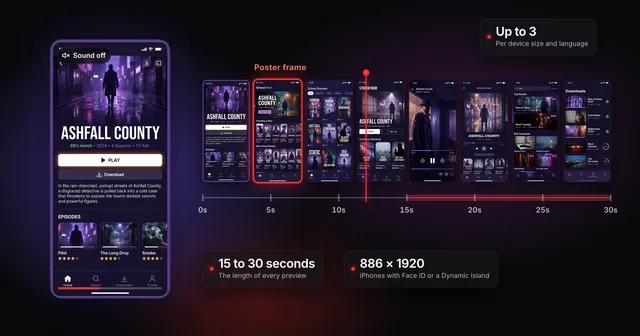 App Store app preview specs (and whether to make one first)Apple's app preview specs: 15 to 30 seconds, up to 500 MB, H.264 or ProRes 422 HQ, max 30 fps, 886 x 1920 for iPhone. Plus when a preview is worth it.
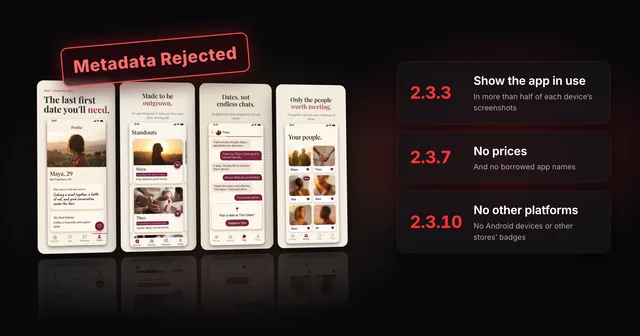 Why App Store screenshots get rejected (guideline 2.3 explained)Guideline 2.3.3 needs more than half of each device's screenshots to show your app in use. The other 2.3 rules, a checklist and how to fix a rejection.
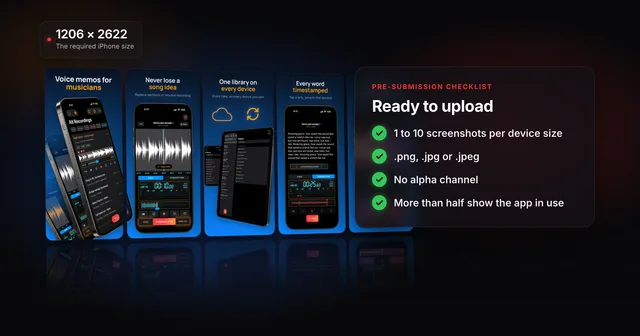 App Store screenshot requirements: the pre-submission checklistApp Store screenshot requirements as a checklist: 1 to 10 per device size, PNG or JPEG without alpha, the exact iPhone and iPad sizes and the 2.3.3 rule.
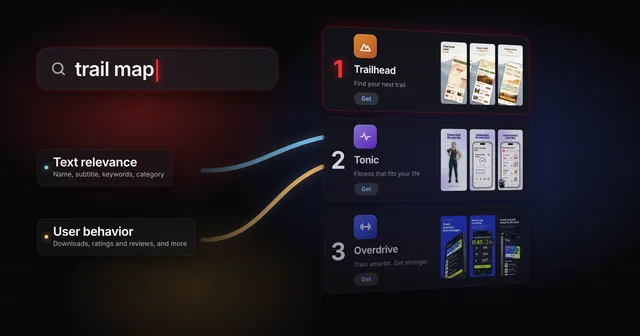 How App Store ranking works (it's not just keywords)App Store ranking from Apple's own docs and search paper: what your title, subtitle and keywords decide, what taps decide, and where a small app has room.