Why App Store screenshots get rejected (guideline 2.3 explained)

By Alistair CooperPublished October 27, 2026
Facts checked against the stores’ own documentation on October 26, 2026.
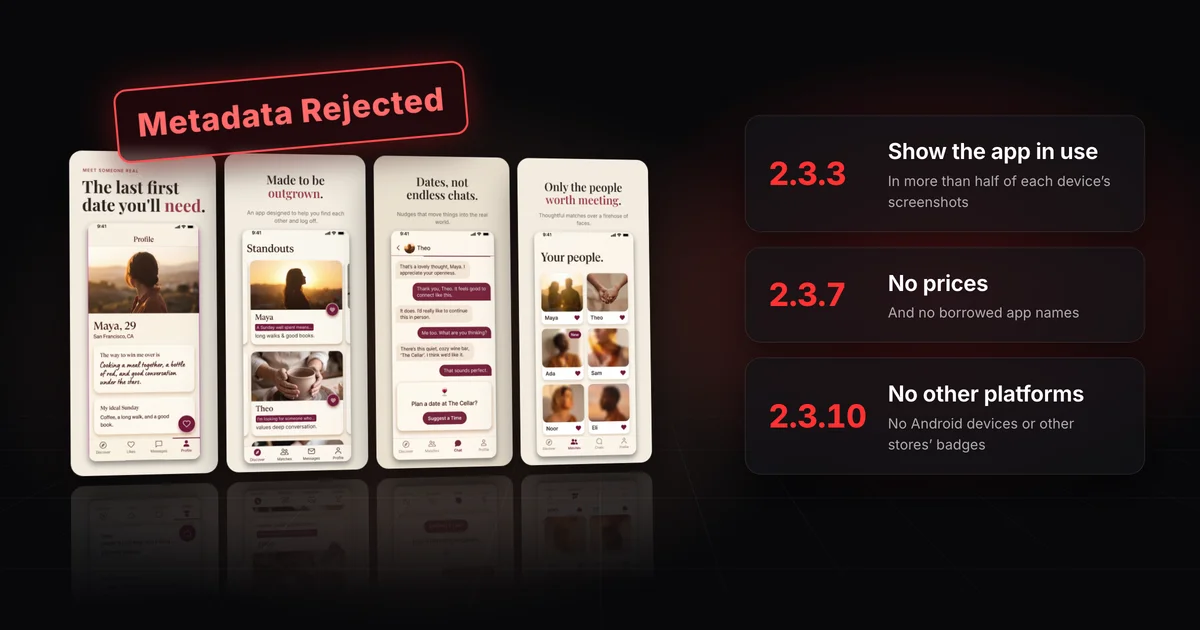
A guideline 2.3.3 rejection means App Review decided your screenshots don't show the app in use.
- For each device, more than half must show the app working, not just title art, a login page or a splash screen.
- The rest of section 2.3 rules out prices, other platforms, content unsuitable for 4+ and material you lack rights to.
- Fix the set, then reply or resubmit with the same build.
On this page
App Review treats your screenshots as metadata, so a set that breaks section 2.3 of the guidelines holds up the release until you fix it.
Each rule below is paraphrased from the App Review Guidelines (last updated October 16, 2026).
The guideline also allows text and image overlays, for example an animated touch point or Apple Pencil to show input, and extended functionality on the device, such as the Touch Bar.
Apple's guidance page for 2.3.3 adds the part that's easy to miss. App Review looks at the set for each supported device and approves a submission only when more than half of the screenshots show the app in use. The others can be marketing images. Apple's examples are two of three, and three of four. With an even number of screenshots, exactly half fails.
Counting the screenshots that show the app in use
App in use Marketing image
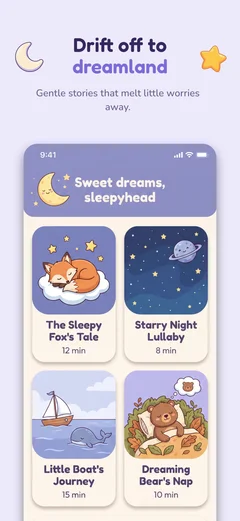 App in use
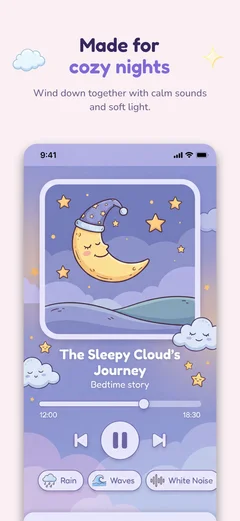 App in use
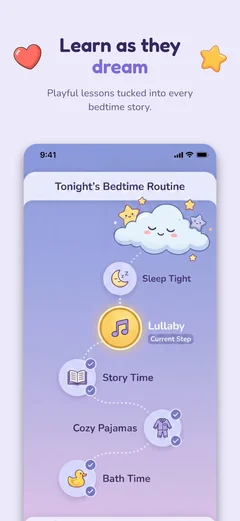 App in use
 Marketing
3 of 4More than half: meets 2.3.3
App in useApp in use MarketingMarketing
2 of 4Exactly half is not more than half
A fictional recipe app submits 6 iPhone screenshots: a title card, a lifestyle photo and 4 app screens. 4 of 6 is more than half, so the iPhone set passes.
Its iPad set has the same title card, the same photo and 2 app screens. 2 of 4 is exactly half, so the iPad set fails. Swapping the photo for a third app screen makes it 3 of 4.
The minimum for other set sizes: 3 of 5, 4 of 7, 6 of 10.
The count can differ between devices, and one screenshot is enough for a device if it shows the app in use. Required sizes and counts per device are in the screenshot requirements checklist.
Apple gives no precise definition, but its guidance marks the edges:
- Captions and overlays are fine as long as they don't hide the app's main functionality.
- Apple says not to show only the hardware, or an overlay with no app interface behind it.
- Screenshots must not misrepresent the real interface, so capture the version you're submitting.
- Another Apple platform can appear when it's part of the experience, such as your Apple Watch app.
Apple's example also says each device's screenshots must show the app in use on that device, so an iPhone capture stretched into the iPad slot is asking for trouble. See iPad App Store screenshot sizes.
An image of your app in use can be spread across two or more screenshots. Apple doesn't say how a spanned image counts toward the majority, so make sure each slice still reads as the app on its own.
Each localization is judged on its own set, so recount whenever a language gains a marketing slide or loses an app screen. How to localize your App Store screenshots covers building those sets.
Section 2.3 starts from one principle: screenshots and previews must reflect the app's core experience and stay current with new versions. A redesign you shipped two versions ago and never reshot is a 2.3 problem.
Four rules that catch screenshots, and the fix for each
2.3.7No prices
 $4.99
$4.99A price on the image
Price taken off
2.3.2Say when it costs extra
 Pro
ProA paid feature with no label
Labeled Pro
2.3.10No other platforms
 Also on Android
An “also on Android” line
Line taken off
2.3.9Fictional account data
 Real name, real emailInvented: Maya, 29
A real customer’s name and email
Invented account details
If featured items, levels or subscriptions need an in-app purchase, the screenshots must make that clear. Apple doesn't prescribe wording. A short "Pro" label on paid features does it without putting a price on the image.
App previews may only use video screen captures of the app itself, with narration and video or text overlays allowed. Apple's app preview guidance adds: don't film people using a device, such as fingers tapping the screen. Formats and sizes are in the app preview specs guide.
Screenshots shouldn't include prices, or terms and descriptions that don't belong in that kind of metadata. The same guideline warns against packing metadata with trademarked terms, popular app names, pricing information or irrelevant phrases to game the system. On a screenshot, the risky versions are a caption that name-drops a popular rival app and a strip of keywords along the bottom.
Screenshots and previews must fit a 4+ age rating even if the app is rated higher. For a violent game, Apple says to avoid images of a gruesome death or a gun pointed at a specific character. "For Kids" and "For Children" are reserved for the Kids Category, and screenshot captions are metadata too.
You're responsible for the rights to every material in your screenshots and previews, such as photos, illustrations, logos and music. Apple asks for fictional account information instead of a real person's data, so seed the build with invented names, messages and balances before you capture.
Names, icons or imagery of other mobile platforms or alternative app marketplaces are out, unless there is specific, approved interactive functionality. Read plainly, that means no Android phone frames, no Google Play badge and no "also on Android" line. Apple notes that a third-party platform shown in a status bar is judged under this rule too.
Guideline 2.3.14, added on October 16, 2026, covers creative assets: images and videos beyond app-in-use screens that appear across the App Store, including the product page header and search results. They must relate to the app's content and functionality or its brand, follow the standard metadata rules and suit all audiences: no misleading references to other apps, no unverifiable claims, no specific or discounted pricing. Their sizes are in the product page header and search result specs.
Apple's asset best practices aren't numbered guidelines, but Apple says they reflect its overall policies and how it judges artwork for featuring. They cover every asset, screenshots included:
- No specific pricing, discounts, website URLs or copyright symbols.
- No awards or recognition the app hasn't received, and no claims that can't be verified.
- Apple asks you not to repeat its own recognitions, such as Editor's Choice, App of the Day or Apple Design Award winner, because they already appear beside your app. That's a request, not a numbered guideline, and plenty of apps show an award they've really won.
- No logos or references to other platforms or marketplaces.
- Don't spend a whole screenshot on accolades or a call to action.
Run this for every device and localization:
- More than half of each device's screenshots show the app in use, counted per language.
- Every screen matches the interface of the version you're submitting.
- Captions leave the app's main functionality visible, and no screenshot shows only hardware.
- iPad screenshots show the app on iPad, not a stretched iPhone capture.
- Anything that needs an in-app purchase is labeled as paid.
- No prices, discounts, URLs, copyright symbols, rival app names or keyword strips.
- Everything suits a 4+ rating.
- You hold the rights to every image, and all account data is fictional.
- No Android devices, other stores' badges or other platforms, including in the status bar.
- No Apple recognitions, and no awards or claims you can't back up.
- Previews use only screen captures of the app, and header and search assets follow 2.3.14.
App Review explains the rejection, and the guidelines it breaks, in a message in App Store Connect. Open the app, follow the unresolved issues link at the top, and click Resolve next to the submission.
After a screenshot rejection: two ways back
Rejected or Metadata Rejected
App Review’s message names the guidelines
Fix everything in the message
Upload new screenshots. Same build, no new binary.
Reply to App Review
A metadata-only fix needs no resubmission
Resubmit the same build
Add for Review, then Resubmit to App Review
Back with App Review
If the screenshots were the only problem, you don't need a new build, and you can upload new screenshots while the version shows Rejected or Metadata Rejected. Apple's help pages then describe two routes:
- Reply. Apple's review status page says a metadata-only fix needs no resubmission: make the changes, then reply to App Review.
- Resubmit. Apple's reply page says you can resubmit the same build once the issue is resolved. On a submission that shows Unresolved Issues, click Edit next to each rejected item, make the changes, click Add for Review, then Resubmit to App Review.
Fix everything in the message before you do either. Apple warns that resubmitting with issues left over delays review and ends the same way. If the set lives in Screenodon, you can correct it in the editor and publish it straight back to App Store Connect.
Click Reply to App Review and be specific, as Apple's contact page asks. Name the guideline, say which screenshots in each set show the app in use, and explain any screen the reviewer may have misread. You can attach files, and after App Review answers you can ask for a call from the same window.
If the reply doesn't settle it, use Apple's form to appeal to the App Review Board, not the Reply field. Cite the guideline, explain point by point how each set meets it, and send one appeal per rejected app. Don't resubmit while it's open: a new submission starts a new review and closes the appeal. If the problem is the count, swapping a marketing slide for an app screen is a smaller job than an appeal.
Yes, as long as more than half of that device's screenshots still show the app in use. The title card doesn't count toward that half.
Not if the screenshots were the only problem. Apple lets the same build go back after a metadata fix.
Apple gives no timing for a reply after a metadata fix, but says most submissions are reviewed within 48 hours. You can't edit screenshots while a submission is Waiting for Review, so check the set before you send it.
No. Guideline 2.3.7 says screenshots shouldn't include prices, and Apple's best practices rule out specific pricing and discounts. Apple doesn't say how it treats a price on a captured paywall screen, so the cautious choice is to leave that screen out.
Alistair Cooper
Founder of Screenodon
I’ve spent over ten years shipping iOS apps, from a blank Xcode project to the App Store, on my own and on large teams. At Fender I was a technical lead on Fender Play and worked on apps used by millions of people.
More about me and how I write these guidesSources
- App Review Guidelines (Last Updated: October 16, 2026)
- 2.3.3: Show your app in use with screenshots
- App Store asset best practices and resources
- App Previews
- Updated App Review Guidelines are now available (October 16, 2026)
- Reply to App Review messages
- Manage a submission with unresolved issues
- App and submission statuses
- Manage your App Store assets
- Track a submission's review status
- Contact App Review for help with a submission
- Appeal to the App Review Board
Put this into practice on your own set
Start a free account, drop in your raw screenshots, and Screenodon lays out a first draft of the whole set for you to edit. Saving and export at every store size need Pro.
Keep reading
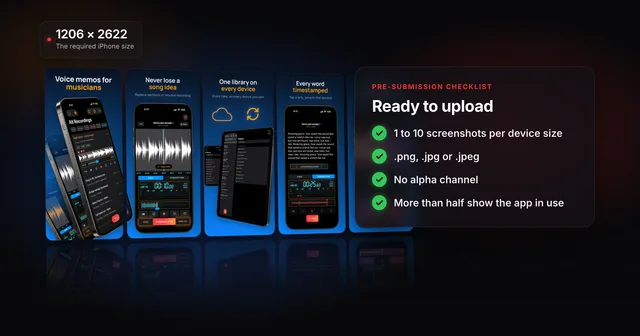 App Store screenshot requirements: the pre-submission checklistApp Store screenshot requirements as a checklist: 1 to 10 per device size, PNG or JPEG without alpha, the exact iPhone and iPad sizes and the 2.3.3 rule.
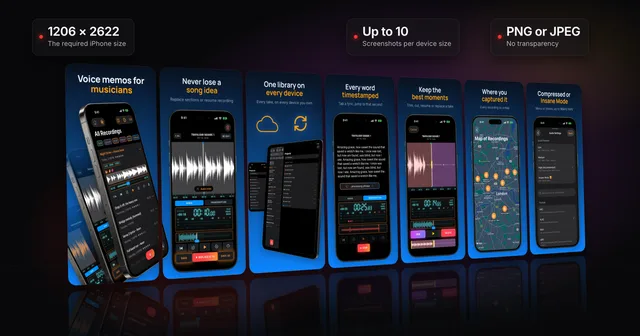 App Store screenshots: the complete guideWhere App Store screenshots appear, the sizes Apple requires now (1206 x 2622 iPhone, 13-inch iPad), the file and review rules, and how to make a set.
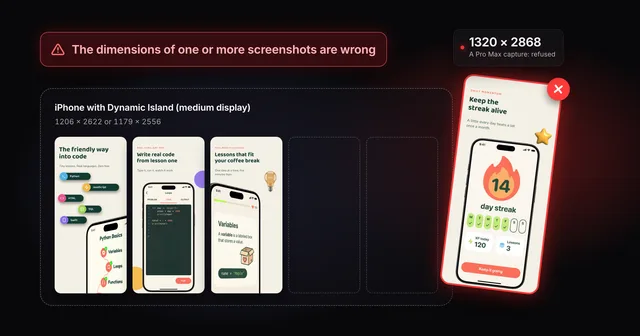 Fix "The dimensions of one or more screenshots are wrong"App Store Connect wants an exact pixel size for each slot. Check your file, then fix the cause: a pixel off, the wrong export scale or the wrong device.
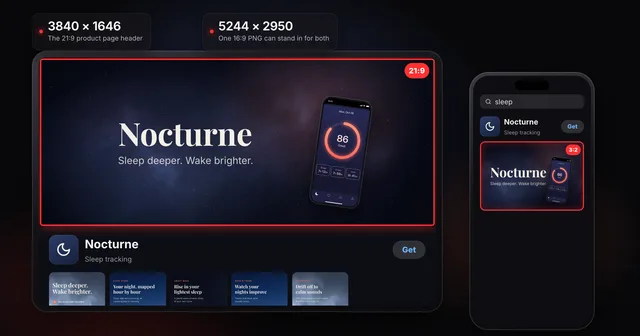 App Store product page header and search result assets: specsThe App Store product page header is 21:9 at 3840 x 1646 and the search results asset is 3:2. Universal PNG, video rules, Asset Library, guideline 2.3.14.
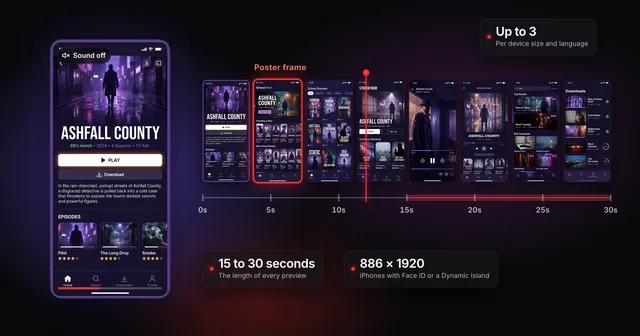 App Store app preview specs (and whether to make one first)Apple's app preview specs: 15 to 30 seconds, up to 500 MB, H.264 or ProRes 422 HQ, max 30 fps, 886 x 1920 for iPhone. Plus when a preview is worth it.