iPad App Store screenshot sizes (and when the 13-inch is required)

By Alistair CooperPublished October 27, 2026
Facts checked against the stores’ own documentation on October 26, 2026.
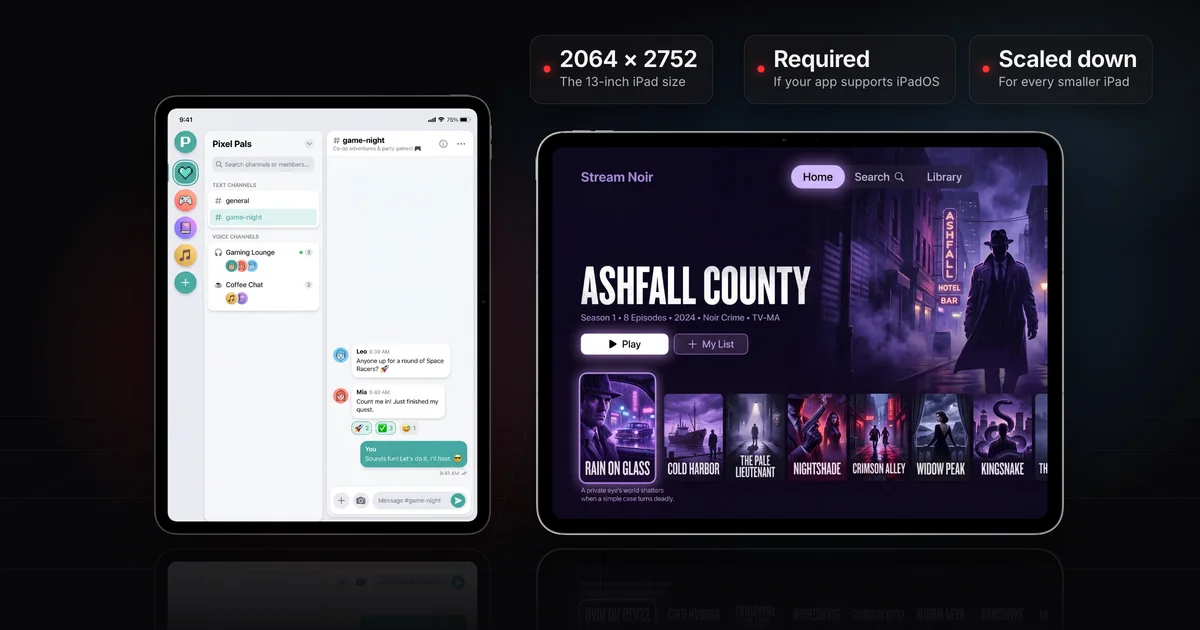
The iPad screenshot size for the App Store is Apple's 13-inch class.
- Portrait: 2064 x 2752 or 2048 x 2732 pixels.
- Landscape: 2752 x 2064 or 2732 x 2048 pixels.
- If your app supports iPadOS, upload at least one screenshot at one of those sizes; App Store Connect scales the set down for the smaller iPad classes.
- Xcode's iOS App template declares iPad support by default, so check your build.
On this page
- Every iPad screenshot size for App Store Connect
- When are iPad screenshots required?
- Why does App Store Connect ask for a 13-inch iPad screenshot?
- Can I use iPhone screenshots for iPad?
- How to design iPad screenshots for the 3:4 canvas
- Check an iPad screenshot's size before you upload
- Frequently asked questions
| Apple’s class and devices | Portrait | Landscape | Status |
|---|---|---|---|
iPad 13" display iPad Pro (M5, M4), iPad Pro (6th generation, 5th generation, 4th generation, 3rd generation, 1st generation), iPad Air (M4, M3, M2) |
|
| Sometimes required Required if app runs on iPad. |
iPad 12.9" display iPad Pro (2nd generation) |
|
| Optional If screenshots with the accepted sizes aren’t provided, scaled screenshots for 13" displays are used. |
iPad 11" display iPad Pro (M5, M4), iPad Pro (4th generation, 3rd generation, 2nd generation, 1st generation), iPad Air (M4, M3, M2), iPad Air (5th generation, 4th generation), iPad (A16), iPad (10th generation), iPad mini (A17 Pro), iPad mini (6th generation) |
|
| Optional If screenshots with the accepted sizes aren’t provided, scaled screenshots for 13" displays are used. |
iPad 10.5" display iPad Pro, iPad Air (3rd generation), iPad (9th generation, 8th generation, 7th generation) |
|
| Optional If screenshots with the accepted sizes aren’t provided, scaled screenshots for 12.9" displays are used. |
iPad 9.7" display iPad Pro, iPad Air, iPad Air 2, iPad, iPad 2, iPad (6th generation, 5th generation, 4th generation, 3rd generation), iPad mini (5th generation), iPad mini 4, iPad mini 3, iPad mini 2 |
|
| Optional If screenshots with the accepted sizes aren’t provided, scaled screenshots for 10.5" displays are used. |
Only the 13-inch class is ever required. The others fall back in a chain: without their own set, the 12.9-inch and 11-inch classes use scaled 13-inch screenshots, the 10.5-inch uses the 12.9-inch, and the 9.7-inch uses the 10.5-inch. Apple says that if your interface is consistent across device sizes, you only need screenshots "for the highest required resolution", which for iPad is the 13-inch.
The iPad screenshot classes, drawn to scale
Required if your app runs on iPad, and the only iPad class you ever have to fill.
If screenshots with the accepted sizes aren’t provided, scaled screenshots for 13" displays are used.
If screenshots with the accepted sizes aren’t provided, scaled screenshots for 13" displays are used.
If screenshots with the accepted sizes aren’t provided, scaled screenshots for 12.9" displays are used.
If screenshots with the accepted sizes aren’t provided, scaled screenshots for 10.5" displays are used.
- 13" displayRequired for iPad apps2064 × 2752 or 2048 × 2732
- 12.9" displayOptional2048 × 2732
- 11" displayOptional1668 × 2420 or 1668 × 2388 or 1640 × 2360 or 1488 × 2266
- 10.5" displayOptional1668 × 2224
- 9.7" displayOptional1536 × 2048 or 1536 × 2008 or 768 × 1024 or 768 × 1004
Scaling never runs upward. An 11-inch capture such as 1668 x 2420 can't stand in for the 13-inch set, because the 13-inch slot takes only 13-inch sizes. For iPhone and the other Apple platforms, see App Store screenshot sizes for every Apple device.
When your app supports iPadOS. Apple's spec page words it two ways: the list of required sizes says "iPad (if your app supports iPadOS)", and the 13-inch row says "Required if app runs on iPad". Neither says how App Store Connect decides, but your build states one thing plainly: its device family.
You choose it in Xcode under Supported Destinations, and it's stored in the Targeted Device Families build setting. Apple's build settings reference says the build system writes that setting into the app's Info.plist as UIDeviceFamily, where 1 is iPhone and 2 is iPad. If your build includes 2, it declares iPad support, so plan on a 13-inch set. Check before you design anything:
# The setting your scheme builds with (1 = iPhone, 2 = iPad)
xcodebuild -showBuildSettings -scheme YourApp | grep TARGETED_DEVICE_FAMILY

# What a built app declares
plutil -extract UIDeviceFamily json -o - YourApp.app/Info.plist
What your build’s device family says
$plutil -extract UIDeviceFamily json -o - YourApp.app/Info.plist
[1]
iPhone only. Apple’s required list asks for no iPad set.
$plutil -extract UIDeviceFamily json -o - YourApp.app/Info.plist
[1,2]
Declares iPad support. Plan on a 13-inch set.
The iOS App template in Xcode 27 targets iPhone and iPad, so a project you never meant for iPad can declare it anyway. An iPhone-only app still opens on iPad: Apple's archived technical note on device support says it "will still run on an iPad in compatibility mode." The spec page doesn't address that case directly, but its required list is keyed to iPadOS support, and an iPhone-only build declares none.
If you drop iPad support to avoid the requirement, do it before your first release. The same note, which Apple no longer updates, says an update can't run on fewer devices than the version on the store, and names a Targeted Device Family change as one cause of that upload error.
Apple doesn't document the prompt itself. Its spec page ties the 13-inch set to iPad support, so when App Store Connect won't let you submit without one, check these in order:
- Confirm the build should be on iPad. Check the device family as above. If iPad support was an accident and the app hasn't shipped, set Supported Destinations to iPhone only, upload a new build and select it for the version.
- Fill the 13-inch slot. Screenodon designs the iPad set at 2064 x 2752 and uploads it to the 13-inch slot for you, in your screen order. By hand: on the version page, click the App Previews and Screenshots tab, pick the iPad tab and add at least one file at 2064 x 2752 or 2048 x 2732, or either size turned sideways. View All Sizes in Media Manager shows where each file landed.
- Check every localization. The language menu at the top right of the version page switches localization. Apple says a newly added language starts with the primary language's screenshots, so once a language has its own set, open its iPad tab too. How to localize your App Store screenshots explains how each language's set works.
- Check any other page you're submitting. Custom product pages and product page optimization treatments carry their own screenshots, so check their iPad tabs as well.
- If the upload itself fails, the file isn't an accepted size. Fixing "The dimensions of one or more screenshots are wrong" covers the usual causes.
Not by stretching them up to 2064 x 2752. Guideline 2.3 asks that screenshots "accurately reflect the app's core experience", and Apple's 2.3.3 guidance judges each device's set separately: in its example, most of a device's screenshots "must show the app in use on that device." A stretched iPhone capture puts a distorted iPhone layout in the slot for your iPad app, and the same guidance lists screenshots that misrepresent the interface as a don't. Why App Store screenshots get rejected covers how App Review applies 2.3.
Putting a 1206 x 2622 iPhone screenshot on the 2064 x 2752 iPad canvas:
- Stretch to fill: the width grows by 2064 / 1206, about 1.71, but the height only by 2752 / 2622, about 1.05. Everything ends up about 1.63 times wider relative to its height, so round avatars turn into ovals.
- Fit to height: about 1266 x 2752, leaving about 798 pixels of width empty. Undistorted, but still an iPhone screen on an iPad canvas.
An iPhone screenshot in the 13-inch iPad slot
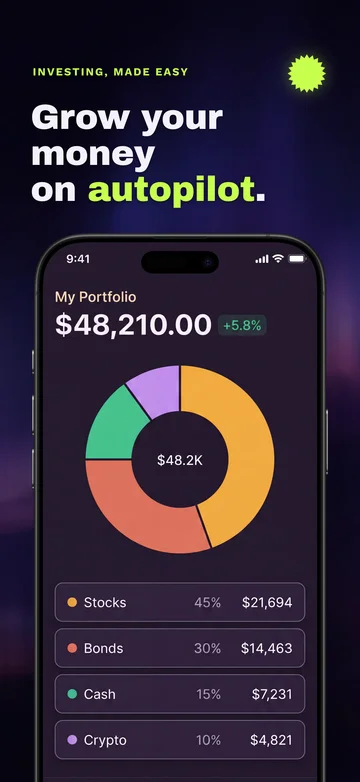
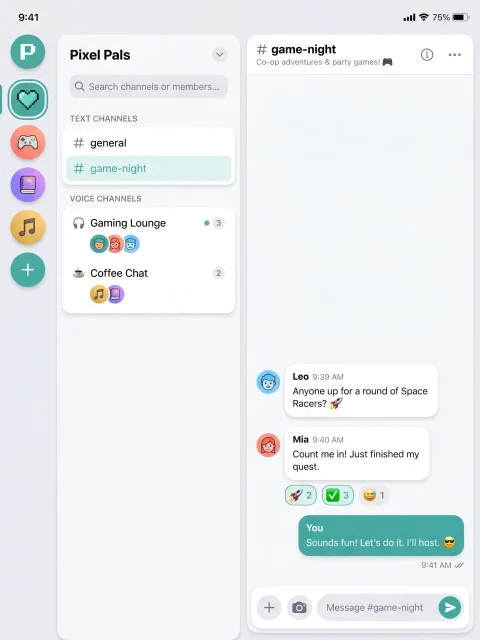
13-inch iPad canvas, 2064 × 2752
- Fitted to height: about 798 px of empty width.
- Stretched to fill: about 1.71 times wider but only 1.05 times taller, so round shapes turn into ovals.
- Captured on iPad: the iPad layout fills the canvas.
Capture the iPad build instead: in Xcode 27, run it on a simulated 13-inch iPad in Device Hub and click Screenshot, which Apple says captures at the device's full resolution.
The 2064 x 2752 canvas is exactly 3:4, and 2048 x 2732 is within a few pixels of it, while the required iPhone class is roughly 9:19.5. That extra width changes the layout: a caption breaks over fewer lines or runs larger, and there's room to set it beside the device instead of above it.
- Show what the iPad layout adds. If your iPad version has a sidebar, a split view or a second column, put it in the shot. Guideline 2.3.3 also allows overlays that demonstrate input such as Apple Pencil.
- Keep the story, rebuild the layout. Keep your iPhone set's order and captions so localization stays one job, but compose each screenshot for the wider canvas.
- Consider landscape. Every iPad class lists landscape sizes, which suit an app people mostly use sideways, such as a drawing or video editing app. Apple says that with no app preview, one to three screenshots show in search results depending on orientation, so check a landscape set in App Store Connect's preview tool. 3 App Store screenshot design mistakes covers what landscape gives up in search.
Screenodon's iPad canvas exports at 2064 x 2752 with real iPad frames, so its files land in the 13-inch class without resizing.
The checker below tells you which Apple class a file's exact pixel size fits and flags an alpha channel, which Apple doesn't accept. The file never leaves your browser.
On a Mac, sips reads the size and alpha flag from Terminal:
sips -g pixelWidth -g pixelHeight -g hasAlpha ipad-01.png
Going by Apple's list of required sizes, no: it asks for the 13-inch set only "if your app supports iPadOS", and an iPhone-only build declares no iPad support, even though it opens on iPad in compatibility mode. Check your build's device family first, because Xcode's iOS App template includes iPad.
A simulated iPad Pro 13-inch (M4 or M5) captures at 2064 x 2752, and a simulated iPad Air 13-inch (M2, M3 or M4) or 12.9-inch iPad Pro (6th gen) at 2048 x 2732. Both are 13-inch sizes, so a full-size screenshot from any of them uploads without resizing; one from an 11-inch model won't.
Yes. Apple lists 2048 x 2732 (2732 x 2048 in landscape) in both the 12.9-inch and 13-inch classes, so a 12.9-inch screenshot meets the requirement.
Alistair Cooper
Founder of Screenodon
I’ve spent over ten years shipping iOS apps, from a blank Xcode project to the App Store, on my own and on large teams. At Fender I was a technical lead on Fender Play and worked on apps used by millions of people.
More about me and how I write these guidesSources
- Apple, App Store Connect Help: Screenshot specifications
- Apple, App Store Connect Help: Manage your App Store assets
- Apple, App Store Connect Help: Localize app information
- Apple, App Review Guidelines (2.3 Accurate Metadata)
- Apple, App Review Help: 2.3.3 Show your app in use with screenshots
- Apple, Xcode build settings reference: Targeted Device Families
- Apple, Technical Q&A QA1623: device support errors when uploading (archived)
- Apple, Creating your product page
- Apple, Xcode documentation: Configuring a multiplatform app (Supported Destinations)
- Apple, Xcode documentation: Capturing screenshots and videos from devices
- Apple Developer News: new creative assets, preview tool and Asset Library
Put this into practice on your own set
Start a free account, drop in your raw screenshots, and Screenodon lays out a first draft of the whole set for you to edit. Saving and export at every store size need Pro.
Keep reading
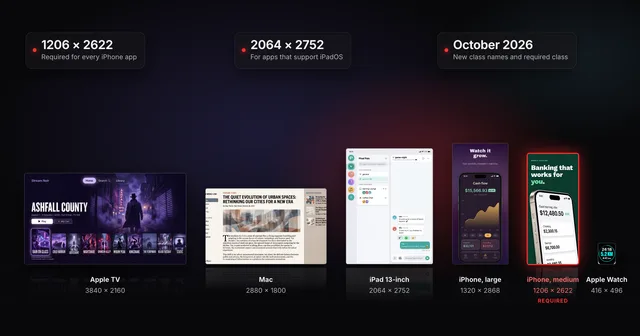 App Store screenshot sizes for every iPhone, iPad and Apple deviceApp Store screenshot sizes after Apple's October 2026 rename: required iPhone 1206 x 2622 or 1179 x 2556, iPad 13-inch, plus Mac, TV, Vision Pro and Watch.
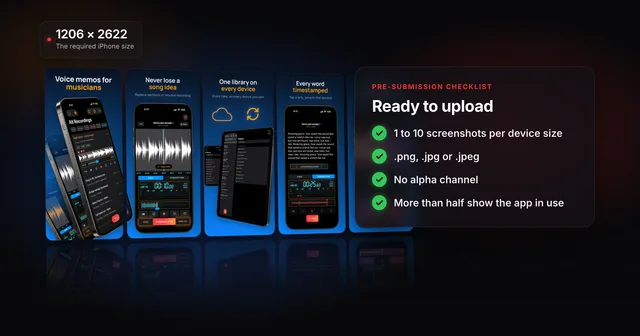 App Store screenshot requirements: the pre-submission checklistApp Store screenshot requirements as a checklist: 1 to 10 per device size, PNG or JPEG without alpha, the exact iPhone and iPad sizes and the 2.3.3 rule.
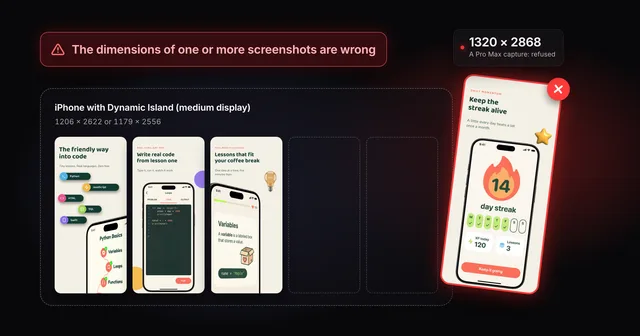 Fix "The dimensions of one or more screenshots are wrong"App Store Connect wants an exact pixel size for each slot. Check your file, then fix the cause: a pixel off, the wrong export scale or the wrong device.
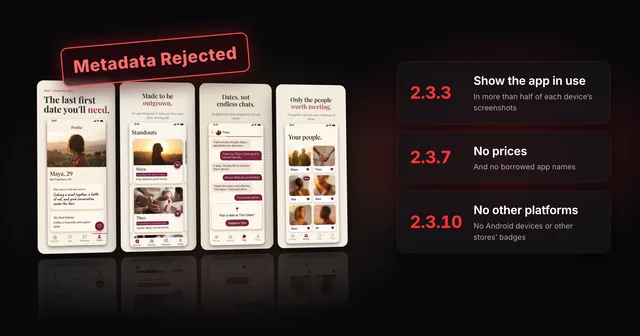 Why App Store screenshots get rejected (guideline 2.3 explained)Guideline 2.3.3 needs more than half of each device's screenshots to show your app in use. The other 2.3 rules, a checklist and how to fix a rejection.
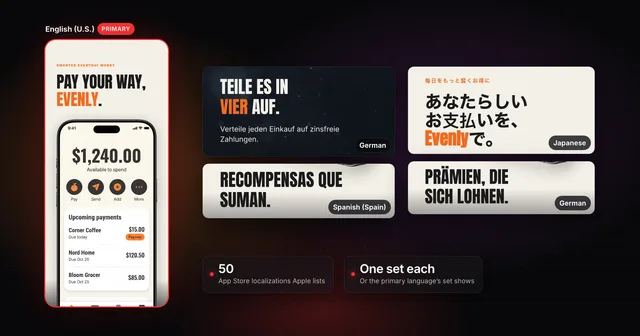 How to localize your App Store screenshotsApple supports 50 App Store localizations. How to add one, upload a screenshot set per language, and fix what breaks in German, Japanese and Arabic.