App Store screenshot requirements: the pre-submission checklist

By Alistair CooperPublished October 27, 2026
Facts checked against the stores’ own documentation on October 26, 2026.
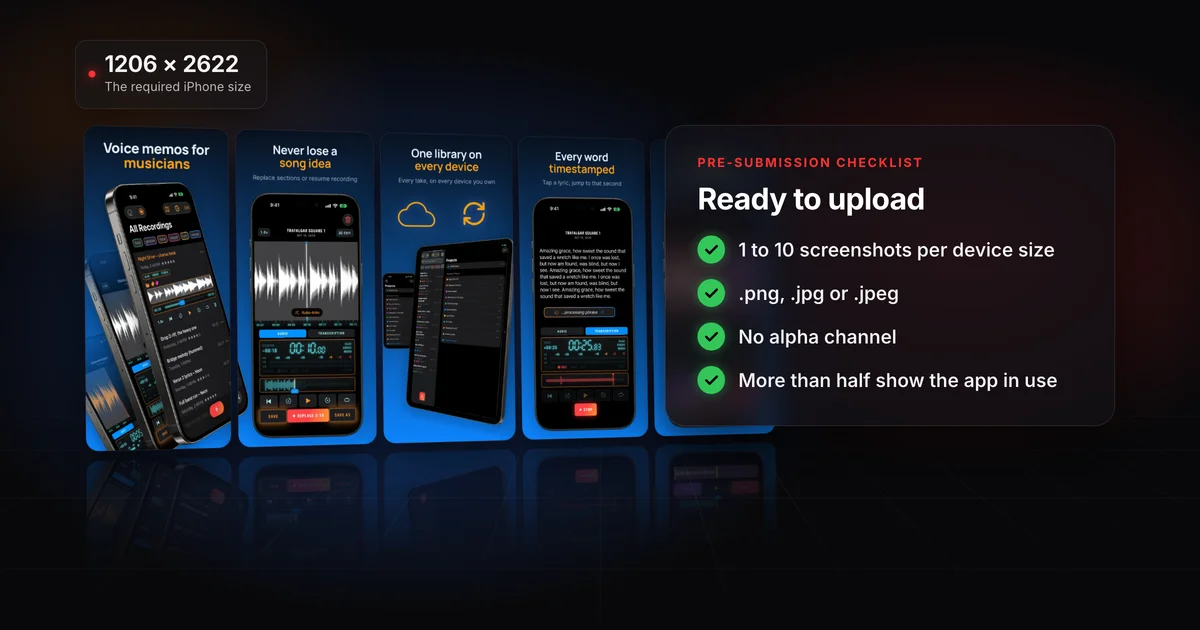
Upload 1 to 10 screenshots per device size, each at one of Apple's exact pixel sizes.
- Files: .jpeg, .jpg or .png, with no alpha channel.
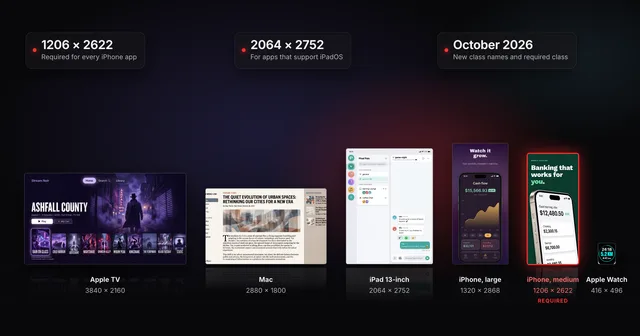
- iPhone: a set for iPhone with Dynamic Island (medium display), at 1206 x 2622 or 1179 x 2556 in portrait.
- iPad: a 13-inch set too, if your app supports iPadOS.
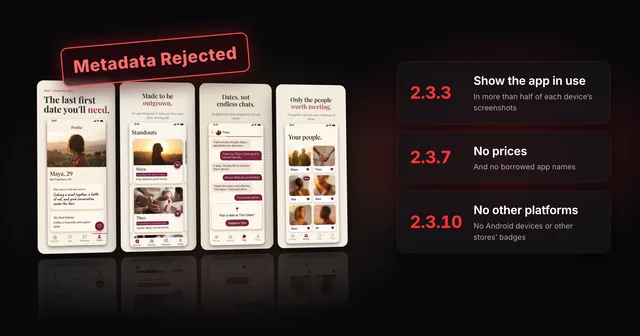
- App Review approves each device's set only if more than half of its screenshots show the app in use.
On this page
The full size table for every class, including which iPhone models fall into which class, is in App Store screenshot sizes for every device. For the whole job, from planning a set to uploading it, see the complete App Store screenshots guide.
Run it once for each device size you upload, and again for each language that has its own set.
- 1 to 10 screenshots for each device size.
- Every file is .jpeg, .jpg or .png.
- No alpha channel and no transparency. Apple's rule names the channel itself, not just see-through pixels, so export without alpha even when the image looks opaque.
- Each file is exactly one of the sizes Apple lists for its class, in an orientation Apple lists for it (Apple lists Mac, Apple TV and Vision Pro sizes in landscape only). A file a few pixels off doesn't count. If App Store Connect refuses the upload, follow the fix for "The dimensions of one or more screenshots are wrong".
Six files through the file rules
 01.png1206 × 2622No alphaReady
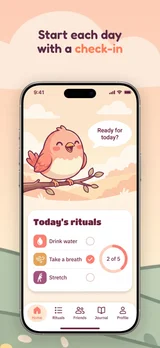 02.png1206 × 2622No alphaReady
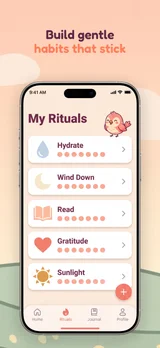 03.jpg1179 × 2556No alphaReady
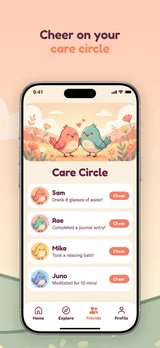 04.png1205 × 2622No alphaNot an accepted size
 05.png1206 × 2622Alpha channelHas an alpha channel
 06.heic1206 × 2622No alphaNot .png, .jpg or .jpeg
3 ready3 to fix
- iPhone: at least one screenshot for iPhone with Dynamic Island (medium display), at 1206 x 2622 or 1179 x 2556 in portrait, or 2622 x 1206 or 2556 x 1179 in landscape.
- iPad, only if your app supports iPadOS: at least one 13-inch screenshot, at 2064 x 2752 or 2048 x 2732 in portrait, or the same sizes turned for landscape. Every iPad class, and when the 13-inch set is required, is in the iPad screenshot sizes guide.
- Mac apps: 1280 x 800, 1440 x 900, 2560 x 1600 or 2880 x 1800.
- Apple TV apps: 1920 x 1080 or 3840 x 2160.
- Apple Vision Pro apps: 3840 x 2160.
- Apple Watch apps: one of Apple's six watch sizes, and the same size in every localization.
- iPhone Duo: not on Apple's required list yet. Apple's spec page says that starting in April 2027, screenshots will be required for any app using the iOS 27.1 SDK or later, and its October 5, 2026 news post says any app or game submitted from then. See the iPhone Duo screenshots guide.
The two sizes most apps need, drawn to scale
iPhone with Dynamic Island (medium display)
Required
1206 × 2622 or 1179 × 2556
iPad 13" display
Required if app runs on iPad.
2064 × 2752 or 2048 × 2732
For iPhone and iPad, Apple's required list names only those two classes. If your interface is consistent across sizes, App Store Connect scales those screenshots down for smaller devices. One older iPhone class still carries a conditional requirement line, which the sizes guide explains.
- More than half of each device's screenshots show the app in use, so a lone screenshot must.
- Captions and other overlays leave the app's primary functionality visible.
- No screenshot shows only the hardware.
- The interface matches the current version of the app.
- Nothing the rest of section 2.3 forbids, such as specific prices or a real person's account data (list below).
- App previews: optional, up to 3 per device size and language for iOS, macOS, tvOS and visionOS apps. Specs are in the app preview guide.
- Product page header and search results assets: separate from screenshots, with their own sizes and their own guideline, 2.3.14. See the header and search assets guide.
One per required device size, and that one has to show the app in use. Apple's spec page asks for "at least one screenshot" and allows "up to 10 screenshots per device size", and Apple's guidance on guideline 2.3.3 says one screenshot is enough "as long as it shows your app in use". The count can differ from one device to the next.
One is the minimum, not a target. Your product page can show up to 10, and Apple says that, depending on orientation, the first one to three appear in search results when you have no app preview. On iOS 27 and iPadOS 27 and later, a search results asset shows there instead if you set one. Nearly half of app store visitors never look past the first two screenshots, and only 7% reach the fifth.[1] So the opening screenshots do most of the work, and how to make App Store screenshots that convert covers what to put in each slot.
The in-use rule also caps your marketing images. Apple's own examples: with three screenshots per device, two must show the app in use, and with four, three must.
How many must show the app in use, set by set
- 11 of 1
- 22 of 2
- 32 of 3
- 43 of 4
- 53 of 5
- 64 of 6
- 74 of 7
- 85 of 8
- 95 of 9
- 106 of 10
Guideline 2.3.3 says screenshots "should show the app in use", not merely title art, a login page or a splash screen. Apple's guidance page for the guideline turns that into a rule you can count: App Review looks at the set for each supported device and approves "only those submissions where more than half of screenshots show the app in use".
The same page spells out what that allows:
- Marketing images, in the minority. The rest of the set can present the app's main benefits and features with marketing material. Apple's own examples include splash screens and marketing text.
- Panoramas. An image of the app in use can be spread across two or more screenshots.
- Per-device and per-language sets. Counts can differ by device, and each localization's set is assessed on its own.
- Overlays that explain. Text and image overlays are fine, including ones that show input such as an animated touch point or Apple Pencil, as long as the primary app functionality isn't obscured.
And what it rules out: overlays or marketing visuals that crowd out the app, images of only the hardware, an overlay with no app interface behind it, and screenshots that misrepresent the actual interface or carry misleading marketing.
Making the interface the main image is the usual design choice anyway, not just a review rule. Of 148 App Store apps we picked for their screenshot design, 93 (63%) used the app’s own interface as the main image in their screenshots.[2]
- 2.3: screenshots must reflect the app's core experience and be kept up to date with new versions.
- 2.3.2: if the items you show need an in-app purchase, make that clear.
- 2.3.7: no prices, terms or descriptions that aren't specific to that metadata type, and no packing in trademarked terms or popular app names. Apple's asset best practices add: no specific pricing, discounts, website URLs or copyright symbols.
- 2.3.8: screenshots must suit a 4+ age rating, even if your app is rated higher.
- 2.3.9: you need the rights to everything shown, and should use fictional account information instead of a real person's data.
- 2.3.10: no names, icons or imagery of other mobile platforms or alternative app marketplaces, unless there is "specific, approved interactive functionality". A status bar that references a third-party platform is judged here.
How to read a rejection message and answer App Review is in why App Store screenshots get rejected.
You don't have to make a set for every language. When you add a language in App Store Connect, Apple says its screenshots "default to those of the primary language". Apple's product page advice is still to localize screenshots for each market you sell in.
76%
of consumers prefer to buy in their own language
40%
will not buy in any other language at all
Once a language has its own set, these rules apply:
- Previews fall back. If a language has no app preview of its own, Apple shows the preview in the next best available language.
- A new primary language needs its own approved screenshots. Before you switch, it needs them for every supported platform, at your current primary language's sizes. If its screenshots were derived from another localization, upload new ones and get a version approved first.
Screenodon translates captions into all 50 of Apple's App Store languages and exports a set per language. Which languages to start with and how to keep the sets in step is in how to localize your App Store screenshots.
Yes. Apple's guidance on guideline 2.3.3 says an image of the app in use can be spread across two or more screenshots, so a panorama that shows the app in use is allowed.
No. Apple's specifications set pixel sizes and file formats, and guideline 2.3.3 doesn't ask for a frame. If you use one, keep the app on its screen: showing only the hardware is on Apple's list of things not to do.
Other Apple devices, yes, when your app runs on them as part of the experience. Other mobile platforms, generally no: guideline 2.3.10 rules out their names, icons and imagery unless there is specific, approved interactive functionality. In practice, leave out Android phones and Google Play badges.
Apple's screenshot specifications page doesn't state one. The rules it does set cover the count, the formats, alpha and the exact pixel sizes.
Alistair Cooper
Founder of Screenodon
I’ve spent over ten years shipping iOS apps, from a blank Xcode project to the App Store, on my own and on large teams. At Fender I was a technical lead on Fender Play and worked on apps used by millions of people.
More about me and how I write these guidesSources
- SplitMetrics, ASO Benchmarks & Mobile Trends Report 2024
- Screenodon design study: 148 App Store screenshot setsApps hand-picked from the US App Store for well-designed screenshots (23 categories, thin categories filled deliberately), 4 to 10 iPhone screenshots saved per listing between June 22 and July 15, 2026 (800 in total), then each app’s set tagged against a fixed list of design categories by an AI vision pass. Counts are tallies of those tags.
- CSA Research, Can’t Read, Won’t Buy (B2C)
- Apple, App Store Connect Help: Screenshot specifications
- Apple, App Review Help: 2.3.3 Show your app in use with screenshots
- Apple, App Review Guidelines (section 2.3, Accurate Metadata)
- Apple Developer, Creating your product page
- Apple, App Store Connect Help: App preview specifications
- Apple, App Store Connect Help: Localize app information
- Apple Developer, App Store asset best practices
Put this into practice on your own set
Start a free account, drop in your raw screenshots, and Screenodon lays out a first draft of the whole set for you to edit. Saving and export at every store size need Pro.
Keep reading
 App Store screenshot sizes for every iPhone, iPad and Apple deviceApp Store screenshot sizes after Apple's October 2026 rename: required iPhone 1206 x 2622 or 1179 x 2556, iPad 13-inch, plus Mac, TV, Vision Pro and Watch.
 Why App Store screenshots get rejected (guideline 2.3 explained)Guideline 2.3.3 needs more than half of each device's screenshots to show your app in use. The other 2.3 rules, a checklist and how to fix a rejection.
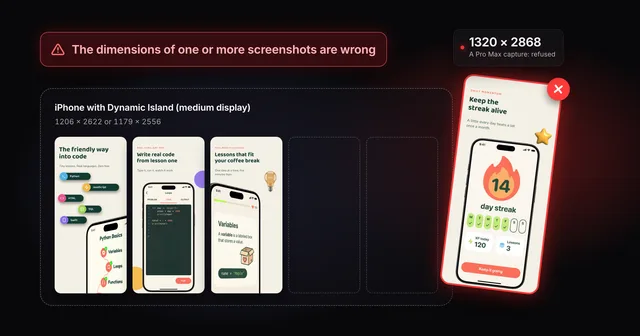 Fix "The dimensions of one or more screenshots are wrong"App Store Connect wants an exact pixel size for each slot. Check your file, then fix the cause: a pixel off, the wrong export scale or the wrong device.
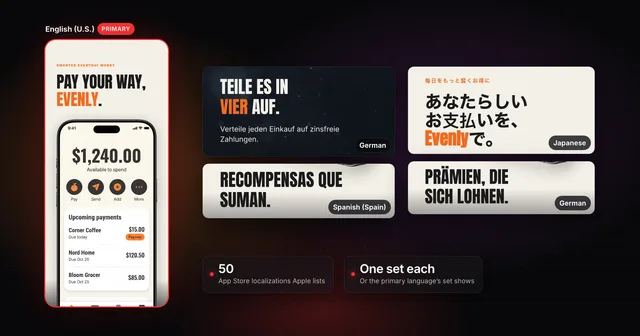 How to localize your App Store screenshotsApple supports 50 App Store localizations. How to add one, upload a screenshot set per language, and fix what breaks in German, Japanese and Arabic.
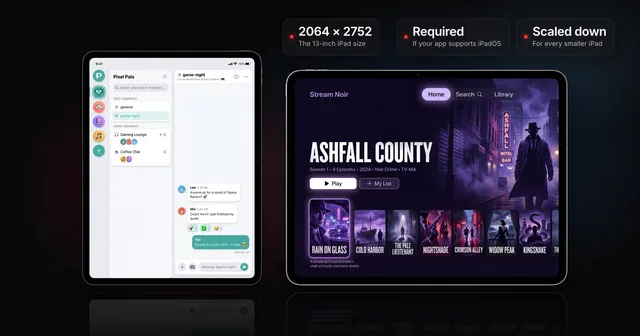 iPad App Store screenshot sizes (and when the 13-inch is required)Apple's iPad screenshot size is 2064 x 2752 or 2048 x 2732 (13-inch), needed if your app supports iPadOS. Every class, and how to clear the 13-inch prompt.