How to localize your App Store screenshots

By Alistair CooperPublished October 27, 2026
Facts checked against the stores’ own documentation on October 26, 2026.
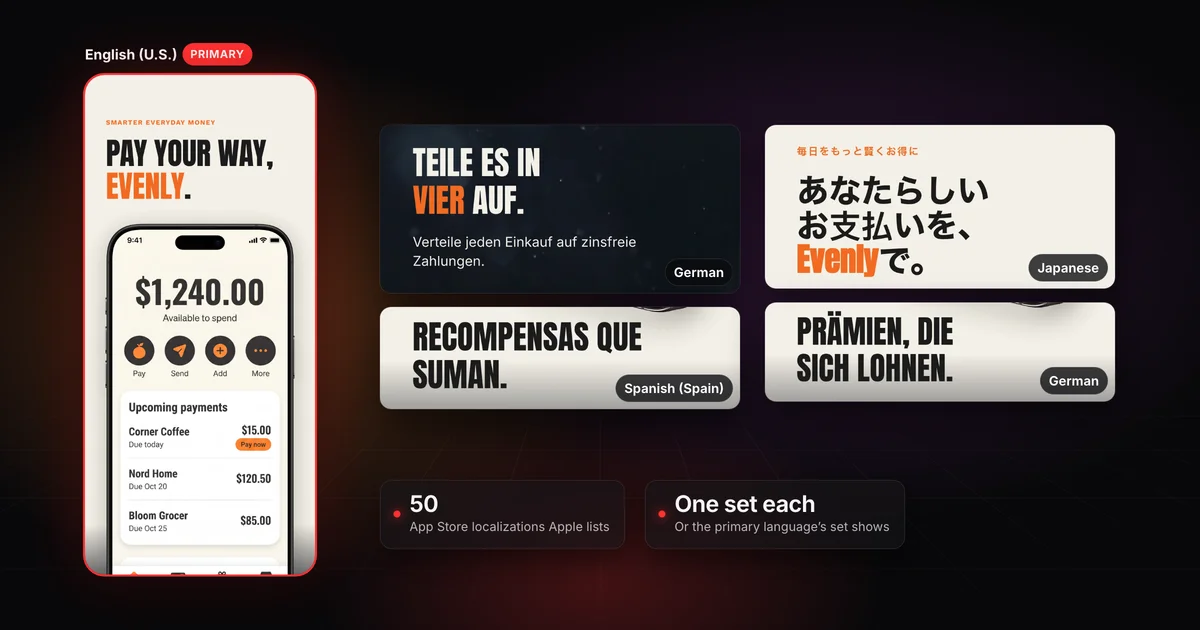
To localize your screenshots, give each language its own set in App Store Connect.
- Add the language to your app in App Store Connect.
- Pick it from the language menu at the top right, and upload a screenshot set for it.
- Until you do, that language shows your primary language's screenshots.
- A finished set rewrites the captions for each market, in type and line breaks that suit the language's script.
On this page
- Why localize your screenshots
- How App Store screenshot localization works in App Store Connect
- What to localize in a screenshot
- What breaks when you translate a screenshot
- How to build a localized screenshot set, step by step
- Which languages to localize first
- Google Play listings and locale codes
- Frequently asked questions
Uploading is the quick part. The real work is a set that reads as if it were made in that language.
Translate the description and keywords but skip the screenshots, and a Japanese shopper gets a Japanese page with English captions on every image. Apple's product page advice, for an app available in more than one language, is to localize the description, keywords, app previews and screenshots for each market where you offer it.
Consumer research points the same way.
76%
of consumers prefer to buy in their own language
40%
will not buy in any other language at all
That survey is about buying in general, not app pages, so it can't tell you what a translated set will do for your app. Your own numbers are a better guide: split product page views and downloads by territory, as the App Store conversion rate guide shows.
Apple lists 50 App Store localizations, including regional variants such as English (U.K.), French (Canada) and Spanish (Mexico). They belong to your app's store metadata and are separate from the languages your binary supports in Xcode.
- In Apps, open your app and click the primary language at the top right.
- Under Not Localized, hold the pointer over the language and click the add button (+).
- Enter the localized description and keywords for the platform, and click Save.
- In App Information, add the app name and privacy policy URL for that language.
You need the Account Holder, Admin, App Manager or Marketing role, and the app's status has to be editable. Apple's steps are in Localize app information.
Screenodon uploads every language's set for you in one run, each to its own localization and in your screen order. To upload a set for a language by hand, choose it from the language menu at the top right, then add files to each device size as usual. Media Manager shows your placements for each device size and each localization.
Until you upload, a new language borrows your primary language's screenshots. Apple says that when you add a language, its screenshots and properties default to those of your primary language, except for the description and keywords. So your French page shows your English screenshots until you upload French ones. App previews fall back differently: a language with no preview shows the preview in the next best available language.
A language with no screenshots shows your primary set
- English (U.S.)Primary3 screenshots
- German3 screenshots
- Spanish (Spain)3 screenshots
- Japanese3 screenshots
- FrenchNo screenshotsUses English (U.S.)
The product page in that language
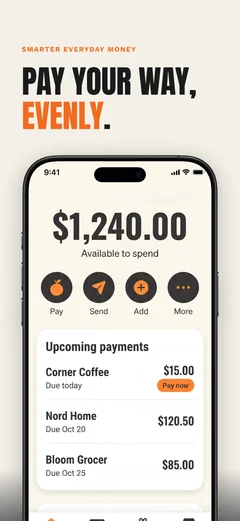
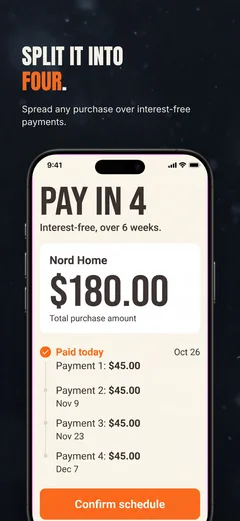
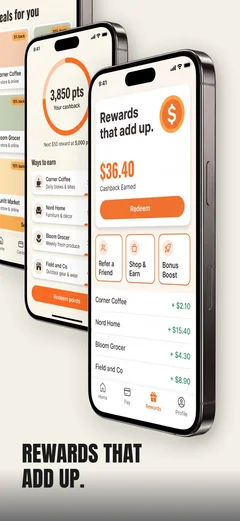
English (U.S.) set
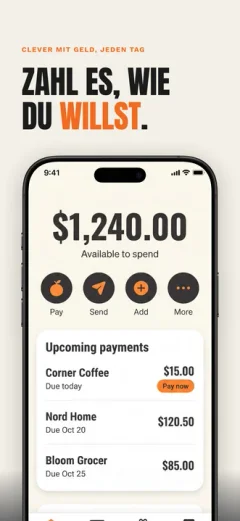
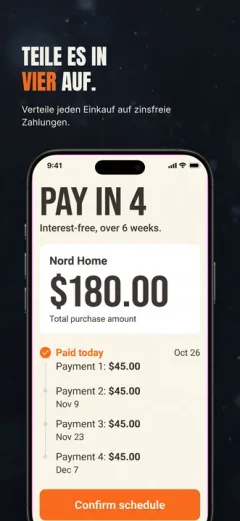
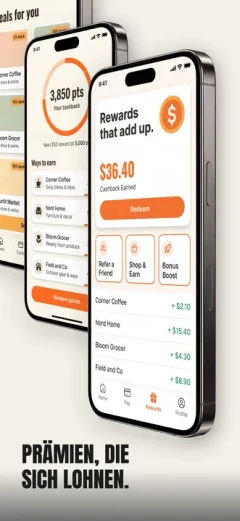
German set
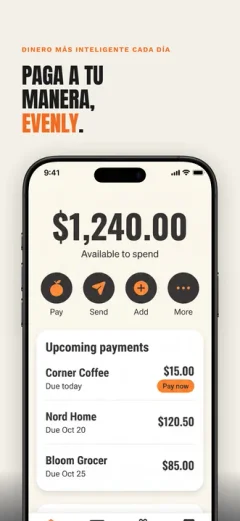
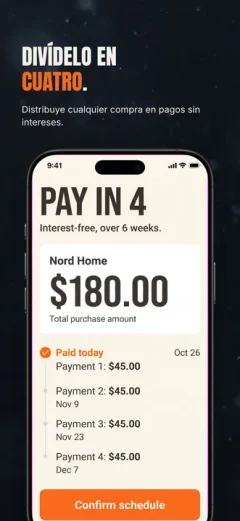
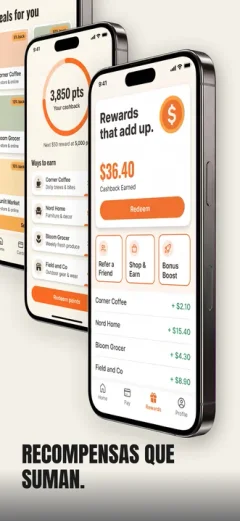
Spanish (Spain) set
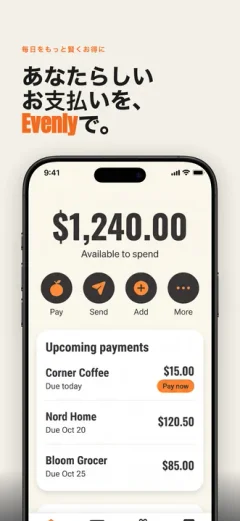
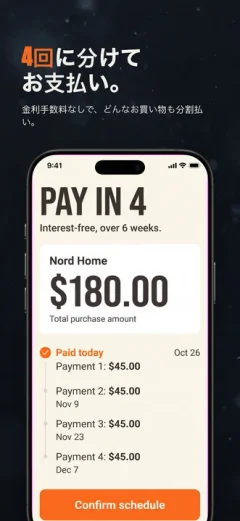
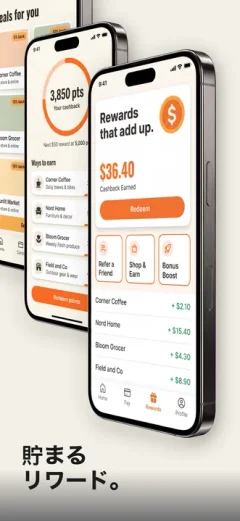
Japanese set
French listing, English (U.S.) screenshots
Apple's guidance for guideline 2.3.3 says screenshots can differ between localizations, and each localization's set is still assessed on whether the majority show the app in use. Why App Store screenshots get rejected explains how that majority is counted.
Each localization also has its own keyword field, which Apple says works in every country or region where the App Store supports that language. How App Store ranking works explains what that field does for search.
Translated captions are the minimum. Apple's localization page goes further and suggests you "tailor your screenshots to reflect the values of each market."
| Element | What to change |
|---|---|
| Captions | Translate, then rewrite to fit. Use the words people in that market use for the job, not a literal rendering of yours. |
| Searched words | Work in the words people in that market type into search, not a translation of your English keywords. |
| Numbers, dates and units | Day and month order, 12 or 24 hour clocks, local currency, metric or imperial units, wherever a caption uses them. |
| Images with text | Photos or illustrations behind your captions work best with no words in them, so one image serves every language. |
These are the usual failures, grouped by script.
The same caption in four languages

English (U.S.)
2 lines

German
2 lines

Spanish (Spain)
3 lines, smaller type

Japanese
3 lines, smaller type
Captions that fill two lines in English often run long in German, Finnish, Dutch, French or Russian, and German compound words leave fewer places to break a line. Leave room in your English captions. When a translation still won't fit, ask for a shorter phrasing instead of shrinking the type until it's unreadable at search size. Run the search-size readability check on every language, not only English.
Chinese and Japanese don't put spaces between words, so a layout engine can break a line almost anywhere, including mid-word. Japanese also has rules about characters that shouldn't start a line, such as closing brackets and small kana, and ones that shouldn't end a line, such as opening brackets. Set caption breaks by hand at phrase boundaries, and have a native speaker check them.
In Arabic and Hebrew the interface mirrors: text aligns right, back buttons point right, and progress runs right to left. Mirror the screenshot layout with it. Apple's right-to-left guidance says not to flip photographs, illustrations or general artwork, since flipping can change their meaning, and to reverse the order of images when the order matters. It also notes that Arabic text may use Western or Eastern Arabic numerals depending on the region. If your art spans several screenshots, check the Arabic or Hebrew page on a device to confirm the frames read in scrolling order.
Right to left: mirror the layout, not the artwork

Left to rightRight to left
- 1Text aligns right.
- 2The back arrow points right.
- 3Progress runs right to left.
- 4Ordered images run right to left.
- 5Some regions use Eastern Arabic numerals.
- 6Artwork keeps its direction, so its lettering still reads.
Thai places vowel marks above and below its letters and stacks tone marks on top, and Devanagari, used for Hindi and Marathi, places marks above its headline bar and below the baseline. Line spacing tuned for Latin text can clip those marks or make lines collide, so give these languages more line height.
Many display fonts cover Latin letters only. A missing glyph can give you a fallback font halfway through a caption, or empty boxes. Pick a caption font per script, or one family with wide coverage, and check every language in the exported files.
- Write captions as plain strings. One sheet or strings file, one row per screenshot, with a note on meaning and maximum length. Keep words out of images, so a translation never means redrawing art.
- Translate, then have a native speaker review. Machine translation is a reasonable first draft. A reviewer who knows your category catches literal phrasing and words nobody uses, so send them the screenshots with the strings.
- Check fit at search size. View every language at search result size on a phone, and fix breaks and overflow one language at a time.
- Export one set per localization at the accepted sizes (listed in App Store screenshot sizes), in folders named by locale code.
- Upload per localization. Pick the language at the top right, upload each device's set, and recount the in-use screenshots for that language.
- Keep the sets in step. When the interface or your source captions change, every language changes too, since guideline 2.3 asks you to keep screenshots up to date with new versions.
A caption sheet for a fictional meal planner might start like this:
key,en-US,max,note
shot1.title,Plan a week of dinners,2 lines,"Dinners means evening meals, not events"
shot2.title,Shop from one list,2 lines,"The list is shared with the household"
Screenodon handles the translation, export and upload steps in the browser: it translates captions into all 50 of Apple's App Store languages (still worth a native review), exports a set per language and publishes straight to App Store Connect.
There's no universal order. Start from evidence you already have:
- Where your users already are. App Store Connect's analytics can show product page views and downloads by territory. A territory with page views but few downloads, in a language your page doesn't speak, is a candidate.
- Where that language is searched. A localization's keywords work in every storefront that supports its language, and Apple's table shows which those are.
- Languages your app already speaks. A localized page for an app that opens in English sets up a disappointment. Localize the app first, or alongside the page.
- What you can maintain. Every language is a set to update with each redesign, so add only the ones you'll keep current.
Google Play has localized store listings too. In Play Console you add listing translations through Manage translations, and you can add localized graphic assets per language. If you add translated text without localized graphics, Google says your graphics show from the default language. Google also offers machine translations of listing text, which it says are not reviewed or approved by humans.
The locale codes differ between the stores, which matters when you script uploads or name folders by code:
| Language | App Store Connect | Google Play |
|---|---|---|
| Japanese | ja | ja-JP |
| Korean | ko | ko-KR |
| Hebrew | he | iw-IL |
| Arabic | ar-SA | ar |
| Chinese (Simplified) | zh-Hans | zh-CN |
| Spanish for Latin America | es-MX, Spanish (Mexico) | es-419, Spanish (Latin America) |
Google's full list is in Translate and localize your app. Play's screenshot rules differ from Apple's, and the complete App Store screenshots guide covers what carries over.
No. A new localization uses your primary language's screenshots until you upload its own. Localize where you have users and can keep a set current.
It's the start. Rewrite each translation to fit the market, using the words people there search for, and have a native speaker check it. Then check every language at search size, since translations often run longer than English.
As a first draft, yes. Apple's localization advice is to have native speakers check any machine translation, and captions are short lines where tone and word choice carry the meaning.
Not if your interface looks the same across device sizes and localizations: Apple says the highest required resolution is then enough, and App Store Connect scales it down. For Apple Watch, use the same screenshot size in every localization.
Apple says the countries and regions that showed your app information in that language go back to the information entered for your primary language. Apple doesn't document what happens to that language's screenshots if you add it back, so keep your exported files.
Alistair Cooper
Founder of Screenodon
I’ve spent over ten years shipping iOS apps, from a blank Xcode project to the App Store, on my own and on large teams. At Fender I was a technical lead on Fender Play and worked on apps used by millions of people.
More about me and how I write these guidesSources
- CSA Research, Can’t Read, Won’t Buy (B2C)
- Apple, App Store Connect Help: App Store localizations
- Apple, App Store Connect Help: Localize app information
- Apple, App Store Connect Help: Manage your App Store assets
- Apple, App Store Connect Help: Screenshot specifications
- Apple Developer, Creating your product page
- Apple Developer, Localization: Expand your app to new markets
- Apple, Human Interface Guidelines: Right to left
- Apple, App Store Connect API: Managing metadata in your app by using locale shortcodes
- Google, Play Console Help: Translate and localize your app
- Apple, App Review: Guideline 2.3.3 Screenshots
- Apple, App Review Guidelines
- Apple, Xcode: Testing localizations when running your app
- Apple, App Store Connect Analytics Help: Filters and dimensions
Put this into practice on your own set
Start a free account, drop in your raw screenshots, and Screenodon lays out a first draft of the whole set for you to edit. Saving and export at every store size need Pro.
Keep reading
 App Store screenshots: the complete guideWhere App Store screenshots appear, the sizes Apple requires now (1206 x 2622 iPhone, 13-inch iPad), the file and review rules, and how to make a set.
 App Store screenshot requirements: the pre-submission checklistApp Store screenshot requirements as a checklist: 1 to 10 per device size, PNG or JPEG without alpha, the exact iPhone and iPad sizes and the 2.3.3 rule.
 Why App Store screenshots get rejected (guideline 2.3 explained)Guideline 2.3.3 needs more than half of each device's screenshots to show your app in use. The other 2.3 rules, a checklist and how to fix a rejection.
 How App Store ranking works (it's not just keywords)App Store ranking from Apple's own docs and search paper: what your title, subtitle and keywords decide, what taps decide, and where a small app has room.
 App Store conversion rate: two numbers, one nameApp Store Connect divides downloads by impressions, while most ASO articles divide by page views. Work out both rates and benchmark yours against peers.