3 App Store screenshot design mistakes (and how to fix them)

By Alistair CooperPublished October 27, 2026
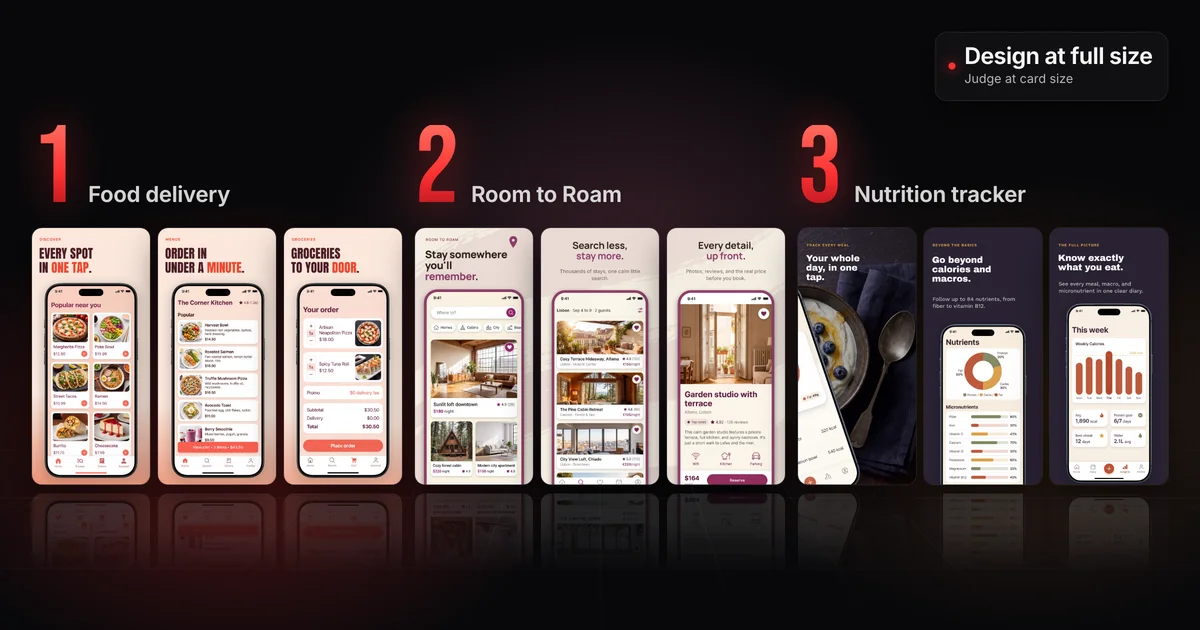
The App Store screenshot design mistakes worth fixing first look fine at full size and fail in search.
- Captions that list features: give each screenshot one benefit instead.
- Text you can't read at search-result size: judge the set at the size search shows it.
- Captions with none of the words people search for: work one searched phrase into each caption.
On this page
They all look fine. That's the problem.
The App Store screenshot design mistakes worth fixing first don't look like mistakes on the monitor where you made them. They show up at the size a stranger sees your set in search: captions that tour features instead of selling a benefit, headlines that blur into the background, and captions that share no words with what people type into the search field. Below are three example sets, each hiding one, with before and after captions and the check that catches it.
Screenshots get designed at full size, on a large monitor, by someone who knows the app inside out. They get judged on a phone, in a search result, by a stranger who has never heard of you.
Apple says that if you have no app preview, the first one to three screenshots appear in search results, depending on orientation. On iOS 27 and iPadOS 27 and later you can also add an optional search results asset, and Apple says that without one, your In-App Events, app previews and screenshots appear. Someone who decides from the results never opens your page, so those few small images are all of your screenshots they see. Even on the product page, attention drops off fast.
Nearly half
of app store visitors never look past the first two screenshots
7%
reach the fifth screenshot
So the opening screenshots do most of the work, and they have to work at thumbnail size first and full size second.
Nobody in the usual review loop checks that. Teammates look at the full-size exports, and App Review checks them against the guidelines that get screenshots rejected, not whether they persuade anyone.
Before: the food delivery set
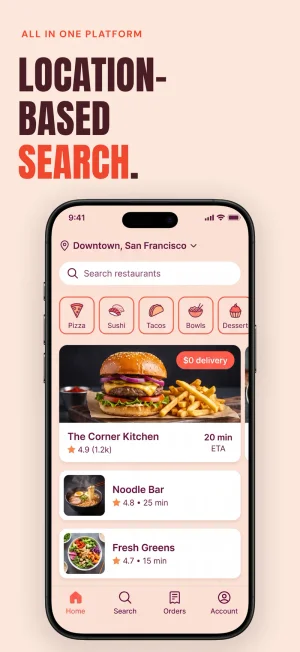
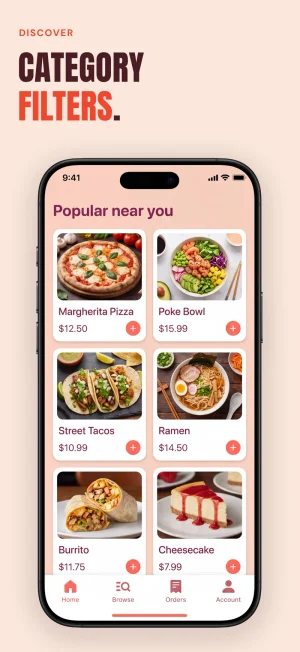
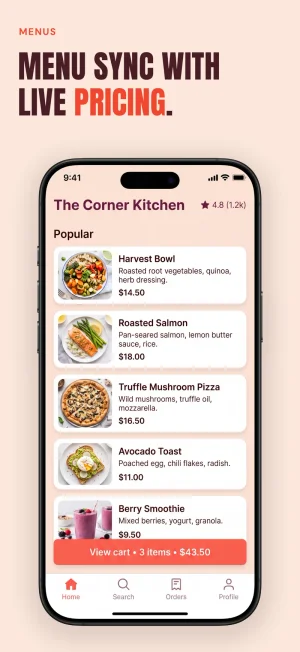
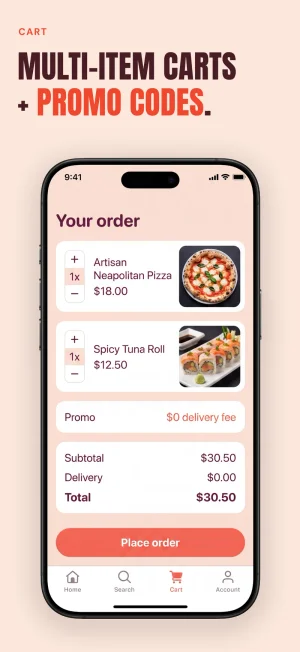
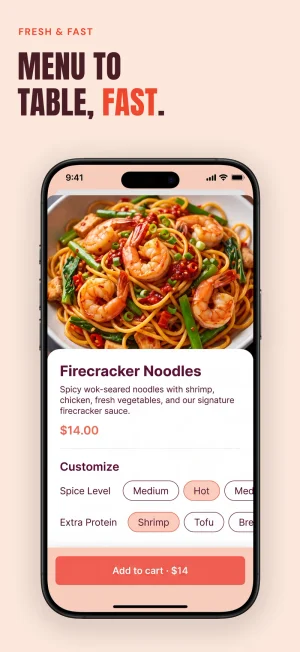
The first example is a food delivery app. The set is clean: a good typeface, consistent colors, everything aligned. Now read the headlines on their own: "Location-based search." "Category filters." "Menu sync with live pricing."
That's not a screenshot set. That's a spec sheet. Every caption names a feature, and none of them tells a hungry stranger why their evening gets better.
Read your captions aloud with the images hidden. It's a feature tour if:
- Most headlines are nouns from your codebase, settings screen or changelog: filters, sync, search.
- One screenshot joins two ideas with "and" or a plus sign, like "Multi-item carts + promo codes."
- Your accent color lands on the jargon. In the example set, the red accent picks out "search", "filters" and "pricing": the design works perfectly, in service of the wrong message.
For each feature, ask "so what?" until the answer is something the user feels. Location-based search becomes food at the door. Live menu pricing becomes ordering in under a minute. Give each screenshot one of those benefits, and only one.
Here are the four captions, with the eyebrow (the small label above the headline) in capitals:
| Screen | Before: features | After: benefits |
|---|---|---|
| 1 | ALL IN ONE PLATFORM / Location-based search. | FOOD, GROCERIES & MORE / Your next craving, delivered. |
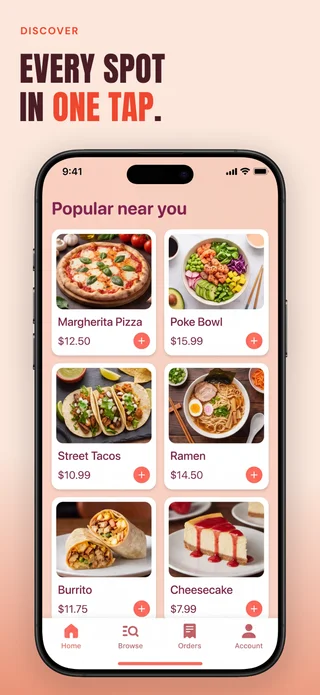
| 2 | DISCOVER / Category filters. | DISCOVER / Every spot in one tap. |
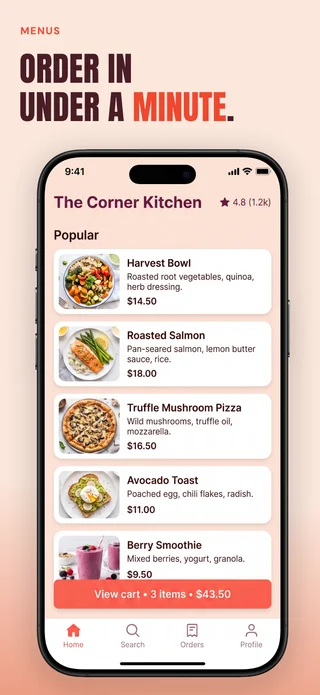
| 3 | MENUS / Menu sync with live pricing. | MENUS / Order in under a minute. |
| 4 | CART / Multi-item carts + promo codes. | CART / From cart to doorstep. |
Same screens, new words: from feature to benefit
DISCOVER
Category filters.
 Benefit
Category filters.Every spot in one tap.
MENUS
Menu sync with live pricing.
 Benefit
Menu sync with live pricing.Order in under a minute.
Only the words changed, and screen 4 now carries one idea instead of two. Features are what it does. Benefits are why they tap. The guide to App Store screenshots that convert goes further into writing benefit captions and picking which one leads.
Before: the Room to Roam set
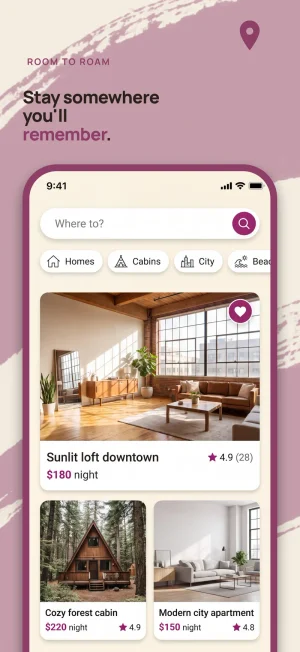
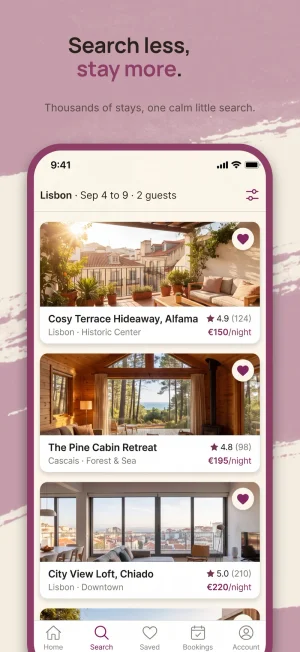
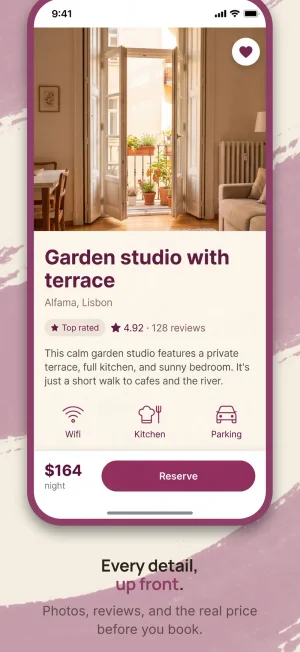
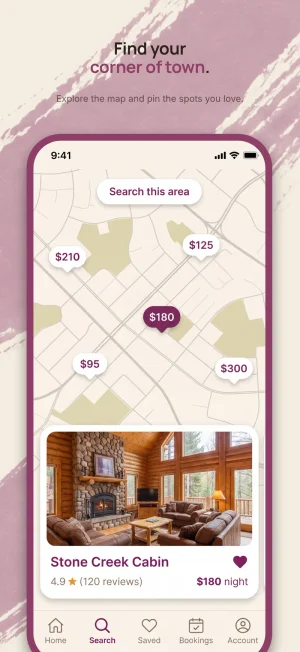
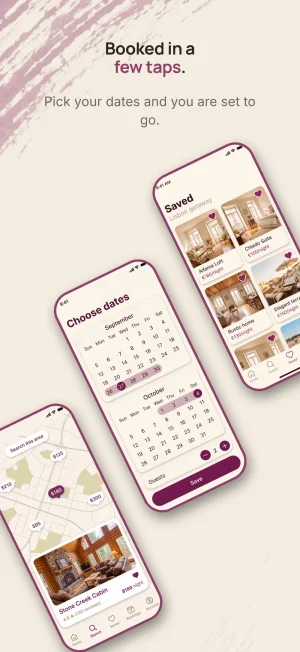
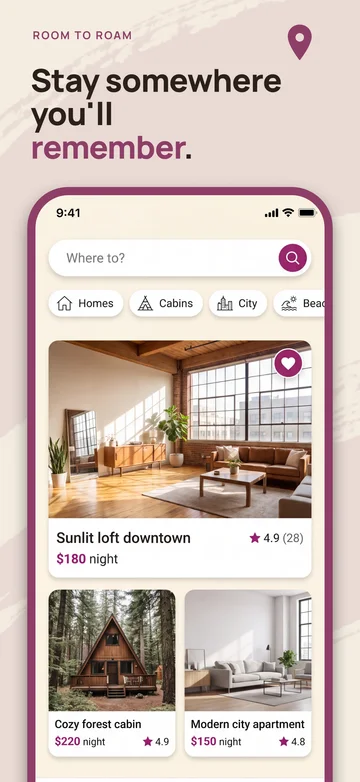
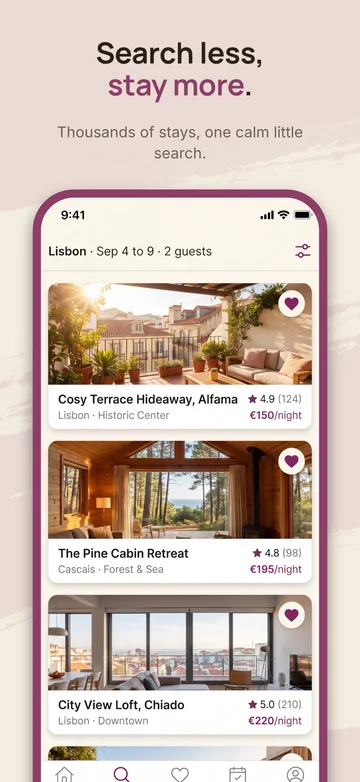
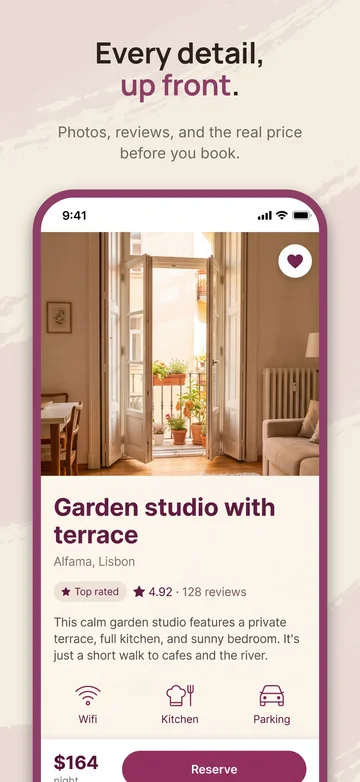
The second example is Room to Roam, a vacation stays app. Its captions already pass mistake 1: each one sells a benefit. The background is a bold pink brush-stroke design that looks artistic at full size.
Shrink the set to search-result size and all you can see is pink.
Four things work against the headlines in the example set:
- Accent words on a same-hue field. The highlighted words are a darker pink on a pink background, so the words that carry the promise have the least contrast.
- Strokes behind the headlines. The brush strokes run under the type, so the edges of the letters compete with the edges of the paint.
- A tiny sub-line. It reads fine at full size and turns into a smudge when shrunk.
- A flipped layout. Screen 3 puts its headline at the bottom while the others put it at the top, so the eye has to hunt across the row.
Apple's asset best practices ask you to keep all key elements readable, "especially any text", because assets can appear differently across the App Store. In the example, the brush strokes give way to a plain cream background, and the pink moves into the headline type, where it adds emphasis instead of noise. The headline and sub-line get bigger, and screen 3 goes back in line. Same captions, same palette, and now the first thing you read is the promise.
Placement matters because a search result can show your first screenshots together, so they get read as a row, not one image at a time. Of 148 App Store apps we picked for their screenshot design, 129 (87%) put the caption at the top of each screenshot and the main image below it.[2] Whichever position you pick, keep it on every screen. Thin type weights tend to break up first when an image shrinks, so a heavier weight is the safer choice for headlines.
Design at full size. Judge at card size.
- On your iPhone, search the App Store for a term your app targets and look at how small the screenshots are in the results. That's the size to judge at.
- Export your first three screenshots, the ones search can show.
- Place them side by side, in order, in one image.
- Send that image to your phone, open it in Photos and zoom until the row is about as wide as the search result from step 1.
- Hold the phone at normal reading distance and read every headline out loud. If you hesitate on a word, that headline fails.
- Turn on the Grayscale color filter (Settings > Accessibility > Display & Text Size > Color Filters) and look again. If a headline vanishes in grayscale, its contrast depends on color alone.
- Fix what failed and run the check again until every headline survives.
The card-size check, on the Room to Roam example
- 1
Full size
How the set looks on the monitor it was made on.
- 2
Card size
About the size a search result shows on an iPhone.
- 3
Gray
Color removed, to test contrast on its own.
Every headline still reads at card size, in gray
Once the set is in App Store Connect, Apple suggests its Preview tool for seeing how your assets appear before they go live.
Before: the nutrition tracker set
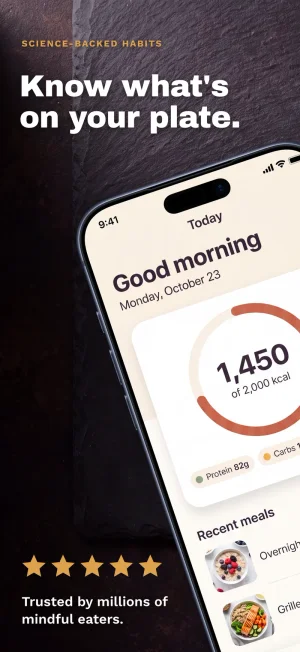
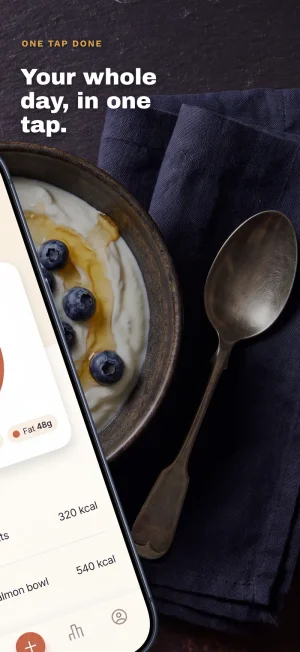
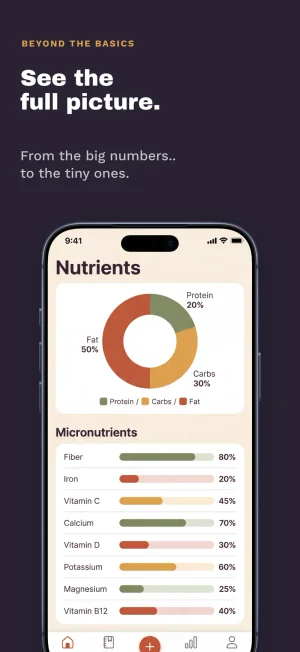
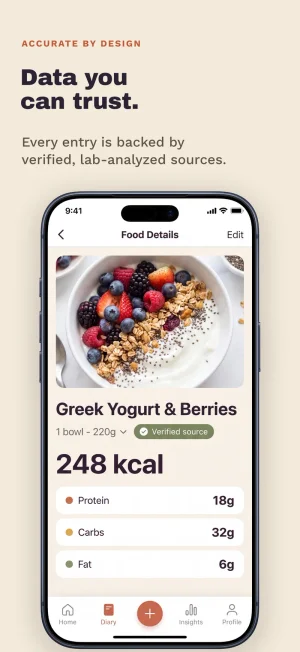
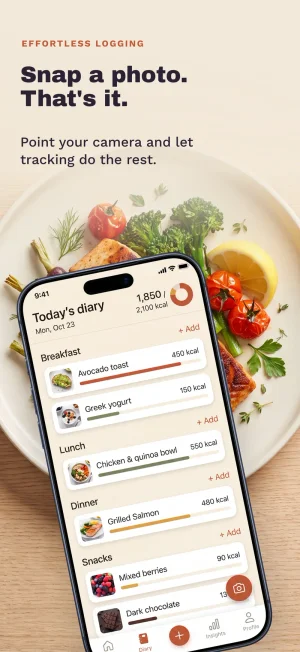
The third example is a nutrition tracker on a dark, moody template. It passes the first two checks: each screenshot sells one benefit, and the text is big and clear at card size. Nothing looks wrong.
Read the first three captions: "Know what's on your plate." "Your whole day, in one tap." "See the full picture." They're well written, and they could belong to a banking app or a calendar.
For each caption, ask: would anyone type any of these words into App Store search while looking for an app like mine? If the answer is no on every screenshot, your captions share nothing with the words that bring people to your page. A caption nobody searches for is a billboard on an empty road.
Next, list the phrases people would type, starting from the words in your app name, subtitle and keyword field. For the example app: calorie counter, food diary, macro tracker, nutrition tracker. Those were picked for a fictional app with no search volume data behind them, so do your own research. How App Store ranking works covers how Apple matches words like these to searches.
Keep the benefit and work one searched phrase into it. One phrase per screenshot, no stuffing:
| Screen | Before: keyword-blind | After: one searched phrase each |
|---|---|---|
| 1 | SCIENCE-BACKED HABITS / Know what's on your plate. | NUTRITION TRACKER / Calorie counter, backed by science. |
| 2 | ONE TAP, DONE / Your whole day, in one tap. | MEAL LOG / Your food diary, in one tap. |
| 3 | BEYOND THE BASICS / See the full picture. | BEYOND CALORIES / Macro tracker, plus 84 nutrients. |
Would anyone type that?
Before: keyword-blind
SCIENCE-BACKED HABITS
Know what’s on your plate.
ONE TAP, DONE
Your whole day, in one tap.
BEYOND THE BASICS
See the full picture.
No searched words
After: one searched phrase each
NUTRITION TRACKER
Calorie counter, backed by science.
MEAL LOG
Your food diary, in one tap.
BEYOND CALORIES
Macro tracker, plus 84 nutrients.
One phrase in each, still a benefit
The after captions still read like promises, not like a keyword field pasted onto an image. Apple's guideline 2.3.7 warns against packing metadata with "irrelevant phrases just to game the system", and section 2.3 asks that screenshots accurately reflect the app's core experience. "Backed by science" and "84 nutrients" are claims made for a fictional app. Yours have to be true of your app.
Apple has said screenshots are one of the inputs for its App Store tags, as TechCrunch reported, but it has never said caption text counts toward search ranking. The guide to App Store screenshots that convert covers what is and isn't known.
So the case you can count on for searched words in captions is the person reading. Someone who typed "calorie counter" and sees "Calorie counter" on the first screenshot knows at a glance they found the right kind of app. If you localize, repeat this in each language with the words people in that market use; the guide to localizing App Store screenshots walks through it.
Run your own set through these before you upload:
- Does each screenshot sell one benefit, in words a stranger would use?
- Does every headline survive the card-size check?
- Do your captions share words with what people search for?
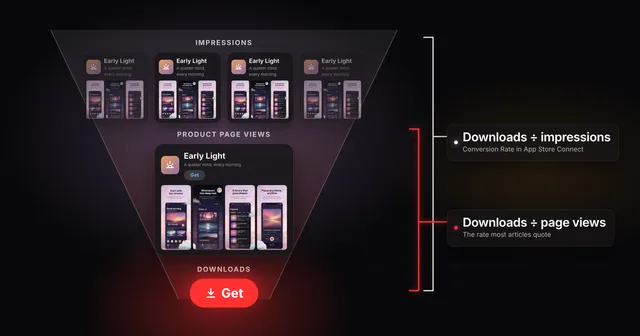
If one fails, the fix is usually a caption edit or a background change, not a redesign. And when you open App Store Connect afterward, know which number you're looking at: the App Store conversion rate guide explains why the dashboard figure isn't the one ASO blogs quote.
These didn't make the video.
Someone who searched a broad term sees several apps, one after another. If your first screenshot never says what kind of app this is, they have to work it out from a thumbnail. Apple's advice for the images that show in search is to "make sure these highlight the essence of your app." Put the category and the main benefit on screenshot one, in plain words. "Calorie counter, backed by science" does both.
Apple says the number of screenshots in a search result depends on the platform and image orientation, without spelling out each case. In practice, three portrait screenshots sit side by side in an iPhone search result, while a landscape one fills the row on its own. Search on your iPhone for a game with landscape screenshots to see it. If your app runs in landscape, that trade can be worth making. Otherwise, use portrait. App Store screenshot sizes lists the exact pixels for both orientations.
Apple lists your app name and subtitle among the parts of your page that show in search results, so they already sit in the same result as your screenshots. A first caption like "Welcome to Room to Roam" spends your opening line repeating them. Use that line for the category or the benefit instead.
No. Neither Apple's screenshot specifications nor its review guidelines set a type size, and the asset best practices ask only that key elements, especially text, stay readable. The practical minimum is whatever passes the card-size check.
No. Guideline 2.3.3 asks that screenshots show the app in use and allows text overlays, but doesn't require them. Without words, your interface has to explain the benefit on its own at thumbnail size, which is hard to pull off.
Nothing in Apple's guidelines rules it out. Guideline 2.3.7 warns against packing any of your metadata, screenshots included, with irrelevant phrases, so use only words that describe your app. Keep to one natural phrase per screenshot.
The first two carry over: Google's guidance for Play screenshots asks you to avoid "text in small font sizes or backgrounds that compete with the text" and to add taglines only when they're needed to convey the app's key characteristics. Google says screenshots may appear in search on Play too, so run the card-size check on an Android phone as well. Google doesn't say whether Play reads screenshot text for search, so for the third, write for the person reading.
Alistair Cooper
Founder of Screenodon
I’ve spent over ten years shipping iOS apps, from a blank Xcode project to the App Store, on my own and on large teams. At Fender I was a technical lead on Fender Play and worked on apps used by millions of people.
More about me and how I write these guidesSources
- SplitMetrics, ASO Benchmarks & Mobile Trends Report 2024
- Screenodon design study: 148 App Store screenshot setsApps hand-picked from the US App Store for well-designed screenshots (23 categories, thin categories filled deliberately), 4 to 10 iPhone screenshots saved per listing between June 22 and July 15, 2026 (800 in total), then each app’s set tagged against a fixed list of design categories by an AI vision pass. Counts are tallies of those tags.
- Apple Developer, Creating your product page
- Apple Developer, App Store asset best practices and resources
- Apple Developer, App Store search
- Apple Developer, App Review Guidelines (section 2.3)
- App Store Connect Help, Screenshot specifications
- Play Console Help, Add preview assets to showcase your app
- TechCrunch, report on App Store tags in the iOS 26 developer beta (Sarah Perez, June 14, 2025)
Put this into practice on your own set
Start a free account, drop in your raw screenshots, and Screenodon lays out a first draft of the whole set for you to edit. Saving and export at every store size need Pro.
Keep reading
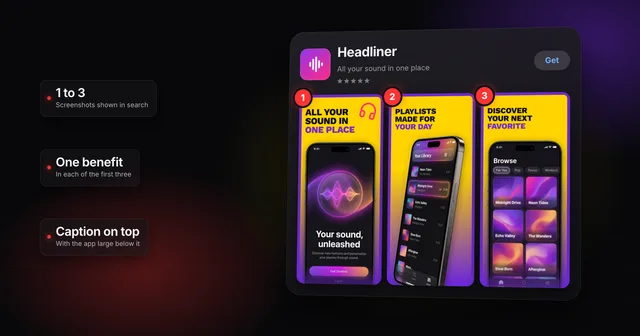 How to make App Store screenshots that actually convertHow to make App Store screenshots that convert: one benefit in each of the first three, captions for people and search, and a layout that stands out.
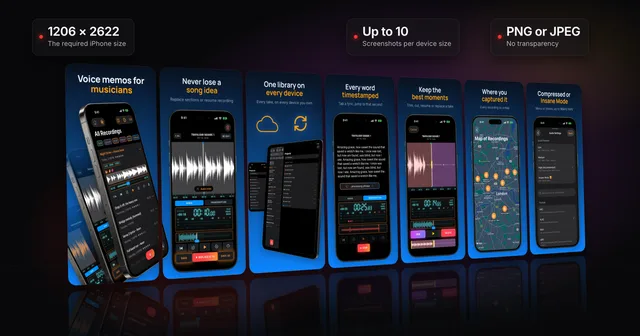 App Store screenshots: the complete guideWhere App Store screenshots appear, the sizes Apple requires now (1206 x 2622 iPhone, 13-inch iPad), the file and review rules, and how to make a set.
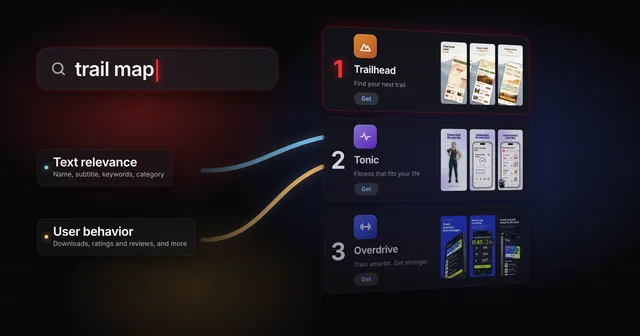 How App Store ranking works (it's not just keywords)App Store ranking from Apple's own docs and search paper: what your title, subtitle and keywords decide, what taps decide, and where a small app has room.
 App Store conversion rate: two numbers, one nameApp Store Connect divides downloads by impressions, while most ASO articles divide by page views. Work out both rates and benchmark yours against peers.
 Why App Store screenshots get rejected (guideline 2.3 explained)Guideline 2.3.3 needs more than half of each device's screenshots to show your app in use. The other 2.3 rules, a checklist and how to fix a rejection.