How to make App Store screenshots that actually convert

By Alistair CooperPublished October 27, 2026
Facts checked against the stores’ own documentation on October 26, 2026.
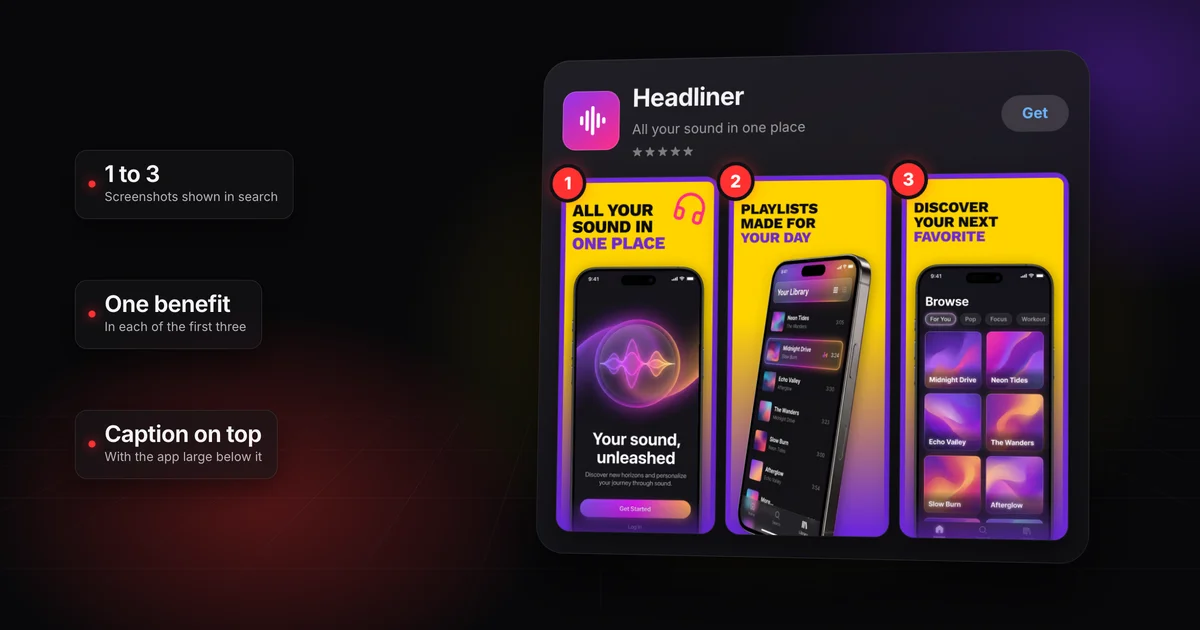
App Store screenshots that convert put most of the work into the first three, because search results show three at most.
- Give each one a single benefit-led caption in your customers' words.
- Put the caption on top, with the real app large below it.
- Use a background that contrasts with your brand color.
- Check the set at search size before you upload.
On this page
You can ship a good app with a clean listing and still lose people before they read a word of it, because they judge the app by its screenshots.
App Store screenshots that convert get three things right. Each of the first three sells one clear benefit, the way a movie poster does, instead of touring every feature like a manual. The captions work for two readers: the person scanning search results and the App Store's own systems. And the set stands out from the listings around it, with a background that contrasts with your app, the headline on top and the app itself shown large.
Apple says that, depending on orientation, "the first one to three images will appear in search results" when the app has no preview. For someone searching, those images are most of your listing. In a typical result, your icon, name and subtitle sit in a strip above them, and the description is a tap away.
Since October 2026 there's one exception: an optional search results image or video you can add, shown on iOS 27 and iPadOS 27 and later. Apple says that if you don't use one, your in-app events, app previews and screenshots appear. Product page header and search result assets has the specs for that asset.
People also don't look for long, or very far.
Nearly half
of app store visitors never look past the first two screenshots
7%
reach the fifth screenshot
Most visitors scan a store page for about 3 to 6 seconds before deciding to install or leave.[2] Both measure where attention goes, not why anyone leaves. Still, the opening screenshots get most of the looking, so they deserve most of your effort.
Apple's product page guidance asks for the same thing: make the first images highlight the essence of the app, and give each later screenshot a main benefit or feature of its own.
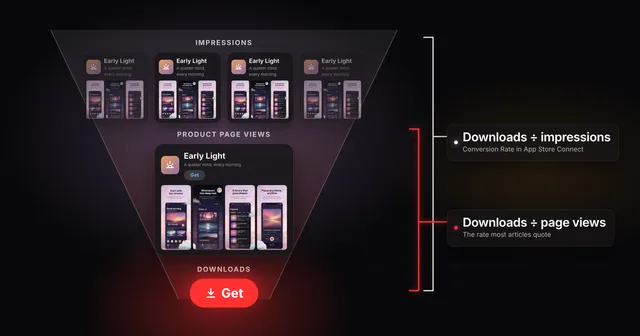
If a low conversion rate in App Store Connect sent you here, check which number you're reading before you redesign anything: the App Store conversion rate is two numbers with one name.
A movie poster doesn't explain the plot or list the cast. It gives you one impression at a glance, and you decide whether you're in. Your first three screenshots have the same job.
Each screenshot should land one idea, led by a benefit rather than a feature. A feature is what the app does. A benefit is why someone would care. The feature can still appear in the image; the caption sells the reason.
| Fictional app | Feature caption (a label) | Benefit caption (a reason to tap) |
|---|---|---|
| Plant care | Photo-based plant identification | Find out what's wrong with your plant from one photo |
| Running | GPS tracking with interval support | Run your first 5K without guessing the pace |
| Recipes | Pantry sync across devices | Cook dinner from what's already in the fridge |
| Budgeting | Bank connections and custom categories | See where your money went this month |
Feature captions speak to people who already want the app. Benefit captions speak to people still deciding.
Order matters too. Screenshot one answers "what is this, and why would I want it?" The next two carry new reasons, not the first one reworded.
You're too close to your own app to see the set fresh. Borrow someone who isn't.
- Put the first three screenshots on a phone, at roughly the size they appear in search results.
- Show them for about five seconds to someone who has never seen your app, then take the phone back.
- Ask: "What does this app do, and who is it for?"
- Compare the answer with what you meant. If they describe a feature, or guess the wrong kind of app, rewrite the captions before you touch the design.
The friend test, in five seconds
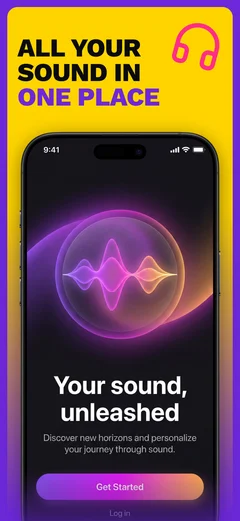
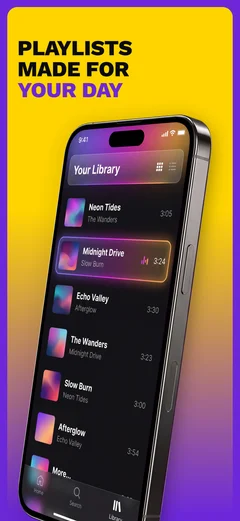
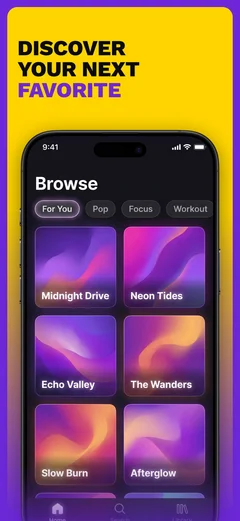
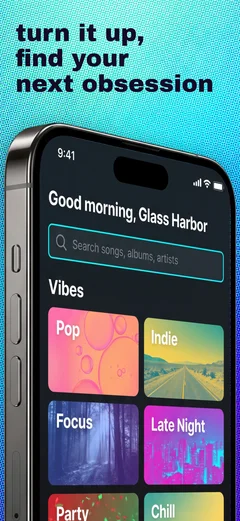
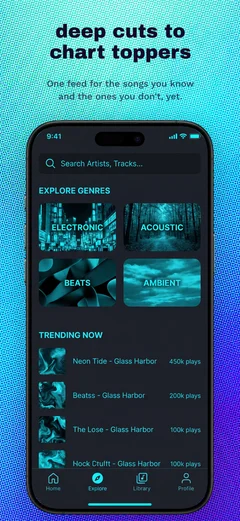
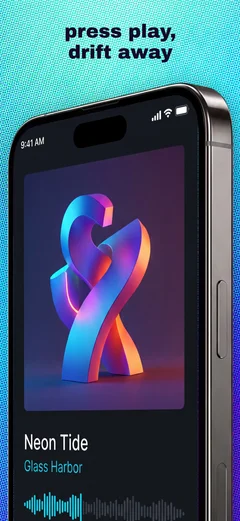
- 1
Show the first three
About five seconds, at roughly the size they appear in search results.
5 seconds
- 2
Take the phone back
No second look.
- 3
Ask what it does, and who it’s for
“A music app, with playlists made for your day.”
Matches what the captions meant
Try two or three people if you can. One guess is a hint, not a verdict.
Every caption has two readers: the person deciding whether to tap, and the App Store's systems working out what your app is about.
The human reads at search-card size, in a few seconds, with no context.
- Keep it short. One line of large type beats three lines of small type.
- Lead with the outcome ("Split the bill in seconds"), not the noun ("Bill splitting").
- Use the words your customers use, not the names your team gave the features.
- One caption, one idea.
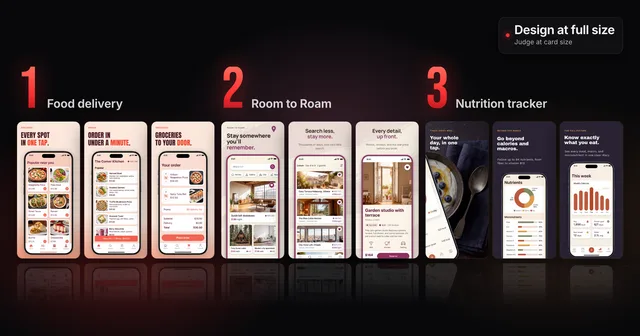
Type that reads fine on your monitor can turn to mush at card size, and 3 App Store screenshot design mistakes shows how to check for it.
TechCrunch reported that at WWDC 2025, Apple said it would draw on an app's screenshots, along with its description, category and other metadata, to assign App Store tags that help people discover apps. The same report says developers shouldn't need to add keywords to their screenshots to influence those tags.
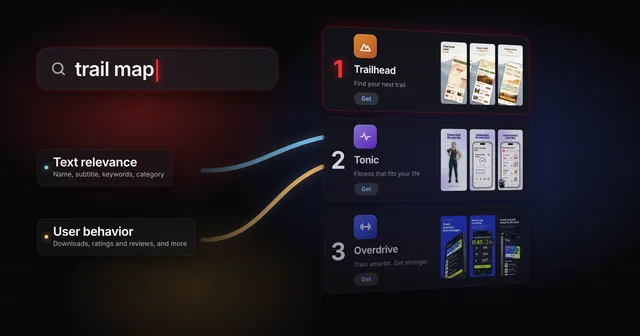
What Apple hasn't said is that the text in your captions counts toward search ranking. Some ASO analysts believe it does. Until Apple says so, treat it as an open question, not a ranking tactic. How App Store ranking works sums up what Apple has published about its search ranking.
Keyword-aware captions are a safe bet either way. If the search side reads them, good. If it doesn't, a person who searched for "receipt scanner" and sees the word "receipt" in your first caption knows at a glance they found what they asked for.
- Start from the two or three phrases your title, subtitle and keyword field already target.
- Work one into each of the first three captions, inside a benefit, not as a list.
- Don't stuff. A caption written for an algorithm reads like spam to a person, and the person is the one who taps Get.
A fictional receipt and expense app targets "receipt scanner", "expense report" and "mileage tracker". Its first draft used labels. The rewrite keeps one target phrase per screenshot and wraps it in a benefit:
- "Smart capture" became "Snap a receipt and it's already filed"
- "Reports" became "Your expense report, done before you land"
- "Trips" became "Mileage logged on every trip, automatically"
Each caption still makes sense to someone who never searched for anything.
A set can get the poster and the captions right and still vanish in search results, stacked between other listings. It's a wall of posters, and yours has to pop off it.
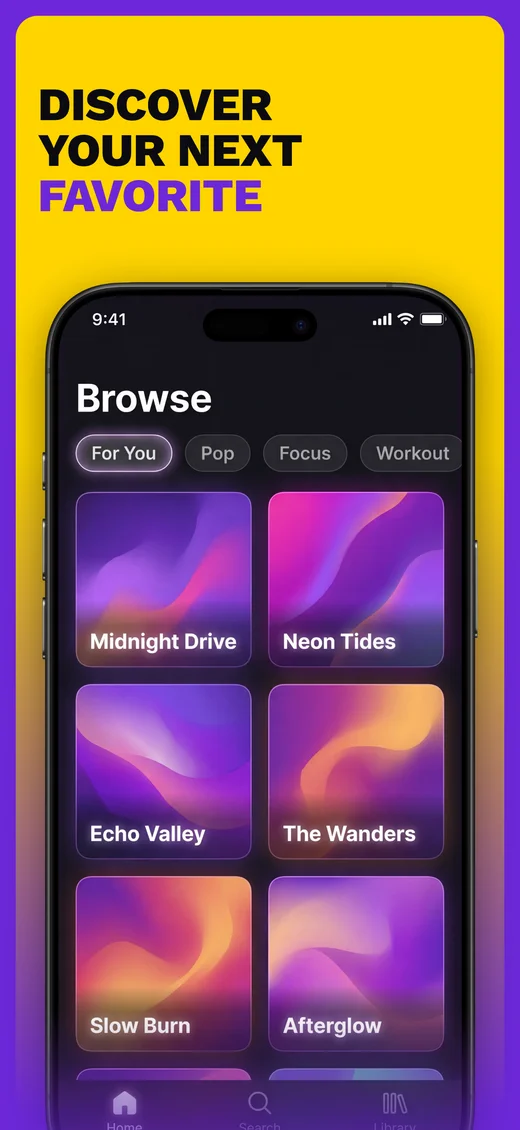
Headline on top, the app below, a background that stands apart
 123
123- 1
Caption on top
One benefit, in type big enough to read in a search result.
- 2
The real app, large
Its own interface, proving the caption true.
- 3
A background that stands apart
Solid yellow against a purple app, so neither blends into the other.
Picture a fictional sleep app with a near-black interface and a soft violet accent. To match the app, its designer puts the screenshots on a charcoal background. On a big monitor it looks calm and premium. At search size, between brighter listings, the dark phone and the dark field merge into one shape, and the set reads like a phone that's switched off.
The fix is a background that fights the brand color instead of hiding it. Move the same screens onto a warm, light field and set the captions in the violet, and the phone and the words both separate from the background. A dark app on a dark field is camouflage.
People browse the App Store in light and dark appearance, so check the set against both a white page and a black one.
Put the caption at the top, where the eye starts, and the app underneath it as the proof. It's the poster layout: title up top, star below. Most of the sets we studied put the caption on top (see the box at the end of this section).
Keep the caption in the same spot on every screenshot, so the first three read as one row of headlines. Then shrink the set to phone width and read it again. If you have to squint, it's fine print, not a headline. App Store Connect's preview tool also shows how your screenshots will appear in search results before you submit.
Posters still show the star. Your interface proves the caption true, so give it most of the frame instead of burying it behind illustration or stock photos.
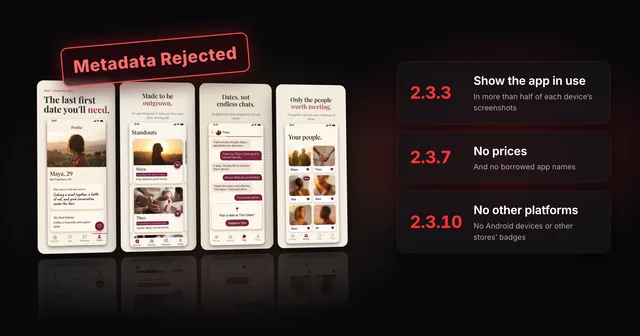
Apple's rules point the same way. Guideline 2.3.3 says screenshots should show the app in use, not only title art, a login page or a splash screen. Apple's App Review help page adds the count: for each device type, App Review approves a submission only when more than half of the screenshots show the app in use. With three screenshots for a device, that means two; with four, three. The rest can carry marketing panels. Why App Store screenshots get rejected covers the rule in detail.
The same help page asks you to update screenshots with each new version so they match the current interface. A set that shows last year's design undercuts the proof it's there to give.
What 148 hand-picked App Store sets do
0Half148 sets
Run this before every upload, not just the first one. It covers what's on the screenshots; the complete guide to App Store screenshots covers sizes, review rules and uploading.
- Each of the first three carries one benefit, and no two repeat the same one.
- Someone who has never seen the app can say what it does after a few seconds.
- Captions use the words your customers search for, not internal feature names.
- Captions are readable when the set is shrunk to phone width.
- The background contrasts with your interface and brand color on light and dark pages.
- The caption sits on top, with the app below it, in the same spot on every screenshot.
- More than half the screenshots for each device type show the app in use.
- The screens match the version of the app you're shipping.
- Every image is the right size for its device (App Store screenshot sizes has the table).
- If you ship in more than one language, each localization passes the same checks (how to localize your screenshots).
If you'd rather not rebuild the set by hand every release, Screenodon designs and exports App Store and Google Play screenshot sets in the browser, with real device frames and ready-made templates.
None of this promises more installs. The only way to know what a new set did for your app is to measure it.
With enough traffic, Apple's product page optimization in App Store Connect lets you test alternate versions of your product page, with different screenshots, against your current one. Without that traffic, change one thing at a time and wait several weeks before you read anything into the numbers, because a small app's rates swing from week to week on their own.
Apple lets you feature up to 10 on a product page. Put most of your effort into the first three, since search results show three at most and few visitors look much further. The App Store screenshot requirements checklist covers the per-device rules.
Portrait, for most iPhone apps. Apple says orientation affects how many screenshots appear in search results, up to three, and three tall images fit side by side in a phone-width result where three wide ones can't. Landscape suits apps that only run in landscape, as some games do; check either choice in App Store Connect's preview tool before you submit.
Get the screenshots right first: Apple shows them in search results when no app preview is available, so a preview changes what people see first. Previews autoplay with muted audio on the product page, so one has to work without sound from the first second. App Store app preview specs covers the limits and when a preview is worth making.
Alistair Cooper
Founder of Screenodon
I’ve spent over ten years shipping iOS apps, from a blank Xcode project to the App Store, on my own and on large teams. At Fender I was a technical lead on Fender Play and worked on apps used by millions of people.
More about me and how I write these guidesSources
- SplitMetrics, ASO Benchmarks & Mobile Trends Report 2024
- Storemaven, Bible of User Behavior: The Apple App Store (archived)
- Screenodon design study: 148 App Store screenshot setsApps hand-picked from the US App Store for well-designed screenshots (23 categories, thin categories filled deliberately), 4 to 10 iPhone screenshots saved per listing between June 22 and July 15, 2026 (800 in total), then each app’s set tagged against a fixed list of design categories by an AI vision pass. Counts are tallies of those tags.
- Screenodon design study: 148 App Store screenshot setsApps hand-picked from the US App Store for well-designed screenshots (23 categories, thin categories filled deliberately), 4 to 10 iPhone screenshots saved per listing between June 22 and July 15, 2026 (800 in total), then each app’s set tagged against a fixed list of design categories by an AI vision pass. Counts are tallies of those tags.
- Screenodon design study: 148 App Store screenshot setsApps hand-picked from the US App Store for well-designed screenshots (23 categories, thin categories filled deliberately), 4 to 10 iPhone screenshots saved per listing between June 22 and July 15, 2026 (800 in total), then each app’s set tagged against a fixed list of design categories by an AI vision pass. Counts are tallies of those tags.
- Apple Developer, Creating your product page
- Apple Developer, App Store asset best practices and resources
- Apple Developer News, Showcase your apps with new assets on the App Store (October 5, 2026)
- Apple Developer, App Review Guidelines (2.3.3 Screenshots)
- Apple Developer, 2.3.3: Show your app in use with screenshots
- Apple Developer, Product page optimization
- TechCrunch, report on App Store tags in the iOS 26 developer beta (Sarah Perez, June 14, 2025)
Put this into practice on your own set
Start a free account, drop in your raw screenshots, and Screenodon lays out a first draft of the whole set for you to edit. Saving and export at every store size need Pro.
Keep reading
 3 App Store screenshot design mistakes (and how to fix them)Three App Store screenshot design mistakes that look fine at full size and fail in search, with before and after captions and a card-size check to run.
 How App Store ranking works (it's not just keywords)App Store ranking from Apple's own docs and search paper: what your title, subtitle and keywords decide, what taps decide, and where a small app has room.
 App Store conversion rate: two numbers, one nameApp Store Connect divides downloads by impressions, while most ASO articles divide by page views. Work out both rates and benchmark yours against peers.
 Why App Store screenshots get rejected (guideline 2.3 explained)Guideline 2.3.3 needs more than half of each device's screenshots to show your app in use. The other 2.3 rules, a checklist and how to fix a rejection.
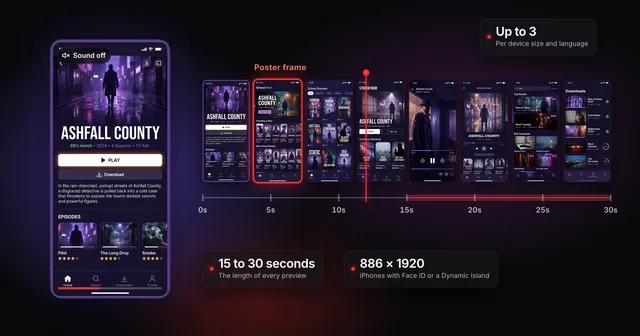 App Store app preview specs (and whether to make one first)Apple's app preview specs: 15 to 30 seconds, up to 500 MB, H.264 or ProRes 422 HQ, max 30 fps, 886 x 1920 for iPhone. Plus when a preview is worth it.