App Store app preview specs (and whether to make one first)

By Alistair CooperPublished October 27, 2026
Facts checked against the stores’ own documentation on October 26, 2026.
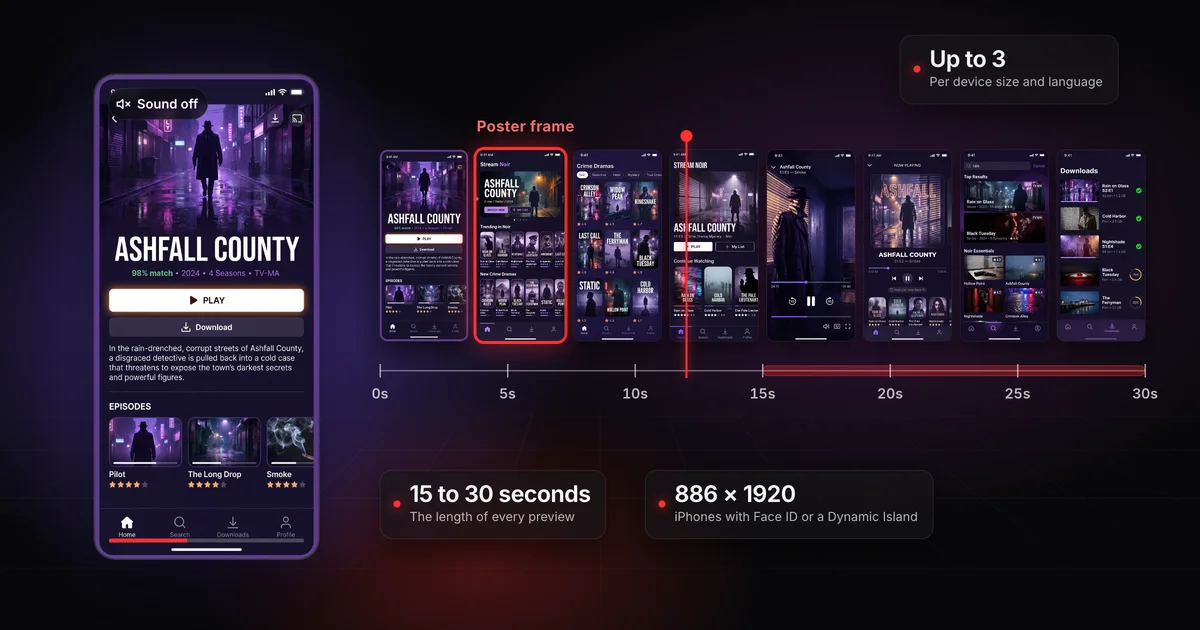
Apple accepts up to 3 app previews per device size and language.
- Length and file size: 15 to 30 seconds, up to 500 MB.
- Format: H.264 or ProRes 422 HQ, at no more than 30 fps.
- Resolution is fixed per device class, not your screen: 886 x 1920 portrait or 1920 x 886 landscape for every iPhone with Face ID or a Dynamic Island.
- Current iPads: 1200 x 1600 portrait.
On this page
An app preview is a short video of your app that plays before your screenshots on the App Store product page. Previews are optional; screenshots are not.
From Apple's app preview specifications:
| Spec | Apple's requirement |
|---|---|
| How many | Up to 3 per device size and language |
| Length | 15 to 30 seconds |
| File size | Up to 500 MB |
| Formats | H.264 in .mov, .m4v or .mp4; ProRes 422 (HQ only) in .mov |
| Frame rate | 30 fps at most |
| Orientation | Portrait or landscape for iOS apps; landscape only for Mac, Apple TV and Apple Vision Pro |
| Poster frame | Defaults to the 5-second mark; you can pick another |
| Processing | Up to 24 hours after upload |
Previews cover iOS, macOS, tvOS and visionOS apps. There's no Apple Watch size, and none for apps on the App Store for iMessage.
How a preview plays on your product page
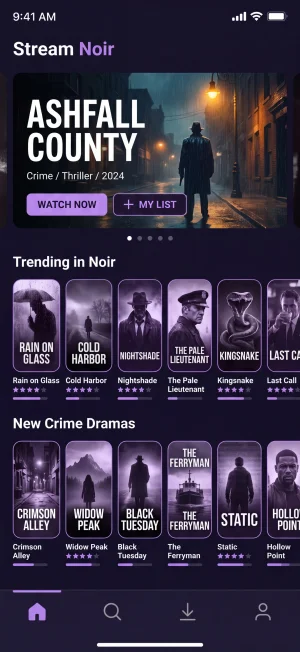
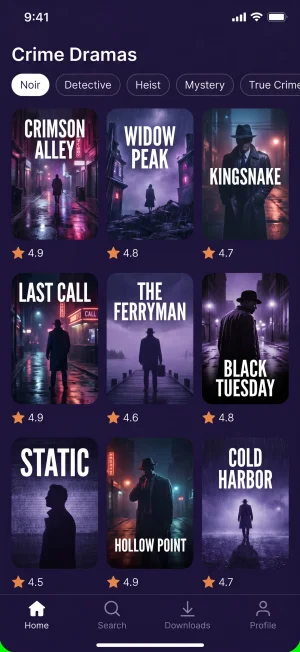
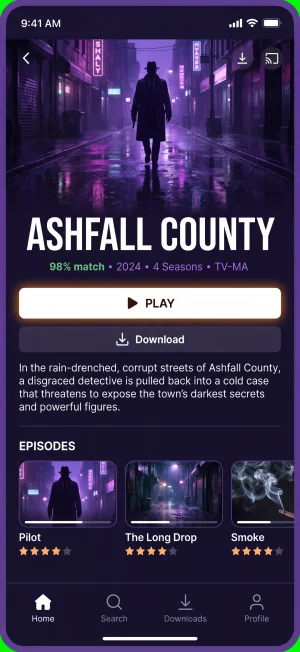
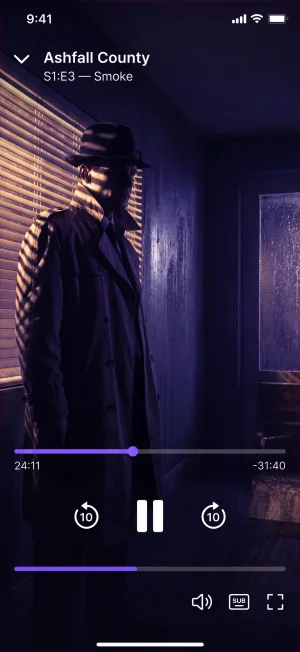
- Autoplays with the sound off, on the product page and in search results.
- Poster frame: the 5 second mark unless you pick another.
- Autoplay turned off: people see the poster frame.
Apple separates the device resolution (the screen's own pixels) from the accepted resolution (what App Store Connect takes for the file). Whatever size you record at, export the final cut at an accepted one:
| Device class | Portrait | Landscape |
|---|---|---|
| iPhone with Dynamic Island (large and medium display) | 886 x 1920 | 1920 x 886 |
| iPhone with Face ID (large and medium display) | 886 x 1920 | 1920 x 886 |
| iPhone Duo | 886 x 1920 | 1920 x 886 |
| iPhone with Home Button (large display) | 1080 x 1920 | 1920 x 1080 |
| iPhone with Home Button (medium display) | 750 x 1334 | 1334 x 750 |
| iPhone with Home Button (4-inch display) | 1080 x 1920 | 1920 x 1080 |
| iPhone with Home Button (3.5-inch display) | Not supported | Not supported |
| iPad 13-inch display | 1200 x 1600 | 1600 x 1200 |
| iPad 12.9-inch display | 1200 x 1600 or 900 x 1200 | 1600 x 1200 or 1200 x 900 |
| iPad 11-inch and 10.5-inch displays | 1200 x 1600 | 1600 x 1200 |
| iPad 9.7-inch display | 900 x 1200 | 1200 x 900 |
| Mac | Not accepted | 1920 x 1080 |
| Apple TV | Not accepted | 1920 x 1080 |
| Apple Vision Pro | Not accepted | 3840 x 2160 |
Screenshots use different numbers, listed in App Store screenshot sizes.
Every iPhone class with Face ID or a Dynamic Island takes the same 886 x 1920 file, but Apple doesn't say which upload feeds the others: its fallback notes send Dynamic Island (medium display) to Face ID (large display) and Face ID (medium display) to Dynamic Island (medium display), and the two large-display classes point at each other. After you upload, open View All Sizes in Media Manager and add the file to any iPhone size that doesn't show your preview.
On iPad, the 13-inch, 11-inch and 10.5-inch classes share 1200 x 1600. Whether your app needs an iPad set at all is covered in iPad App Store screenshot sizes.
Which device classes share one preview file
886 × 1920
One portrait file
- iPhone with Dynamic Island, large display
- iPhone with Dynamic Island, medium display
- iPhone with Face ID, large display
- iPhone with Face ID, medium display
- iPhone DuoListed by Apple: test an upload first
1200 × 1600
One portrait file
- iPad 13-inch display
- iPad 11-inch and 10.5-inch displays
Apple's iPhone Duo row lists the same 886 x 1920 (1920 x 886 in landscape). Those are accepted resolutions, not the Duo's display sizes (2034 x 1398 and 2853 x 2007), so export a Duo preview at 886 x 1920 like any other current iPhone. Duo screenshot sizes and the deadline are in the iPhone Duo screenshot guide.
- H.264: .mov, .m4v or .mp4, a 10 to 12 Mbps target bit rate, progressive, up to High Profile Level 4.0, 30 fps at most.
- ProRes 422 HQ: .mov only, variable bit rate around 220 Mbps, progressive, no external references, 30 fps at most.
- Audio: stereo, with every track enabled. H.264 takes 256 kbps AAC at 44.1 or 48 kHz. ProRes takes 16, 24 or 32-bit PCM, or 256 kbps AAC.
- Poster frame: the still shown on your product page, during install and to people who turned off autoplay. It defaults to the 5-second mark, and Apple says it can't be edited once the preview is approved, so pick it before you submit.
- Processing: up to 24 hours after upload, so don't leave it for release day.
Apple suggests recording a connected device with QuickTime Player on a Mac and editing in iMovie or Final Cut Pro. Whatever you capture with, check the exported file's resolution, frame rate and codec against the tables above before you upload. If your editor can't hit the spec, this ffmpeg command turns a silent portrait iPhone recording into an 886 x 1920, 30 fps H.264 file:
ffmpeg -i capture.mov \
  -f lavfi -i anullsrc=channel_layout=stereo:sample_rate=48000 \
  -vf "scale=886:1920,setsar=1,fps=30" \
  -c:v libx264 -profile:v high -level 4.0 -pix_fmt yuv420p \
  -b:v 11M -maxrate 12M -bufsize 12M \
  -c:a aac -b:a 256k -shortest -movflags +faststart \
  preview.mp4
The anullsrc line adds an empty stereo track, because Apple lists stereo audio among the requirements. If your recording has sound, delete that line.
Guideline 2.3.4 says previews "may only use video screen captures of the app itself". Narration and video or text overlays are allowed, to explain what the footage alone doesn't. Apple's app preview guidance and the rest of section 2.3 add:
- Stay inside the app. No filmed fingers tapping a screen and no over-the-shoulder shots. Show a gesture with a touch hotspot added in the edit.
- Don't imply features you don't have. Transitions shouldn't suggest missing functionality, and a game should show more gameplay than cutscenes.
- Say what costs extra. Under guideline 2.3.2, if featured items need an in-app purchase, the preview must make that clear. Apple's preview guidance also asks you to disclose a subscription model or a required login, in the footage or in the end frame.
- No prices, under guideline 2.3.7. Apple also suggests leaving out dates and seasonal lines that age the video.
- Content fit for a 4+ rating, under guideline 2.3.8, even if the app is rated higher.
- Keep it current with new versions, under guideline 2.3.
The screenshot side of these rules is in why App Store screenshots get rejected.
- Ahead of your screenshots. On iPhone, iPad, Mac and Apple TV, previews appear before your screenshots, even if you reorder them in App Store Connect.
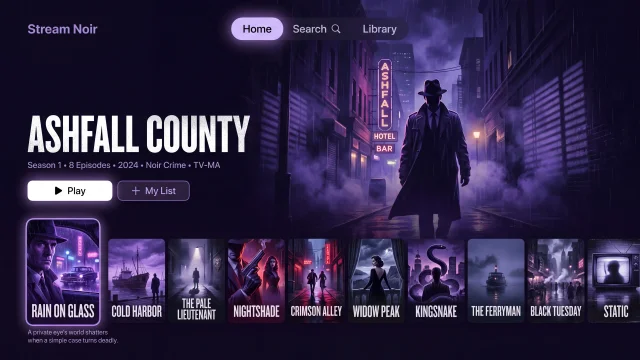
- In A Closer Look if the shape differs. A preview in a different aspect ratio from your screenshots goes to the "A Closer Look" section instead. A landscape gameplay video next to portrait screenshots lands there.
- Muted autoplay. Previews autoplay with the sound off on the product page and in search results. People who turned autoplay off see the poster frame.
- In search results. Apple's product page guidance says the first one to three screenshots appear in search results when no app preview is available. With a preview, the preview plays in the result. Apple doesn't spell out what fills the rest of it.
- Per language, with a fallback. A language with no preview of its own shows the one in the next best available language. Planning per-language sets is in how to localize your App Store screenshots.
A preview in a different shape moves to A Closer Look
Preview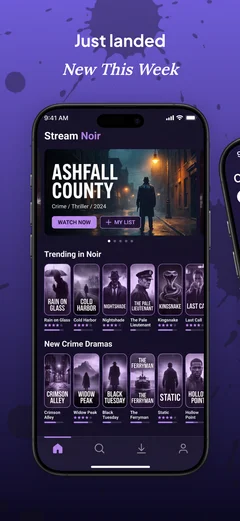
A Closer Look
 Preview
- 1
Same shape as your screenshots
The preview plays first, ahead of them, even if you reorder them.
- 2
A different shape
A landscape preview next to portrait screenshots goes to A Closer Look.
The first position gets the most eyes. Nearly half of app store visitors never look past the first two screenshots, and only 7% reach the fifth.[1] With a preview there, its muted opening seconds do the job your first screenshot would otherwise do. Apple's product page guidance says the same from its side: previews autoplay muted, so make the first few seconds visually compelling.
On iOS 27 and iPadOS 27 and later there are also separate creative assets for the product page header and search results, covered in product page header and search result assets.
Make the screenshots first. The rules and the costs both point that way.
- Screenshots are required; previews aren't. Every iPhone app needs at least one screenshot in the required class (see the App Store screenshot requirements checklist). No app needs a preview.
- A preview costs more to make: a 15 to 30 second edit per device family, a poster frame you can't edit after approval, and up to 24 hours of processing.
- And more to keep. Previews have to stay current, so a redesigned screen means a new edit for every language that has its own preview. A screenshot fix is a re-export. A preview fix is a re-shoot.
Attention is short, too.
3 to 6 seconds
is about how long most visitors scan a store page before deciding to install or leave
Against a 15 to 30 second video, the opening seconds carry almost all the weight, so a logo sting there is expensive.
A preview is worth making early when stills can't show the point:
- Games, where the feel of play is the product.
- Apps built on motion, such as video editors, cameras, drawing or music making.
- AR apps, where Apple suggests opening on a virtual object being placed in the room.
It can wait when one screen explains the app (lists, trackers, forms, utilities, readers), or when your interface changes every release and you don't have time to re-cut.
If you can't decide, test it: Apple's product page optimization can show visitors alternate versions of your page with different app previews. Read the result knowing that "conversion rate" can mean two different numbers, explained in App Store conversion rate.
What the first screenshots should say is in App Store screenshots that convert. Screenodon designs and exports App Store and Google Play screenshot sets in the browser. It doesn't make videos, so a preview needs a video editor.
- Accepted resolution for its class, 15 to 30 seconds, 500 MB or less
- H.264 or ProRes 422 HQ, 30 fps or less, stereo audio
- Only screen captures of the app, readable with the sound off
- Poster frame chosen on purpose
- Same aspect ratio as your screenshots, unless you want it in A Closer Look
Between 15 and 30 seconds. Apple lists both limits as requirements, so trim or extend your cut to fit.
Not on current iPhones. App Store Connect takes a fixed resolution per display size, and for every iPhone with Face ID or a Dynamic Island that's 886 x 1920 portrait or 1920 x 886 landscape. Scale the recording to that size first.
No. Apple says previews are device-specific, like screenshots. An iPhone preview is 886 x 1920 and an iPad preview is 1200 x 1600, two different shapes, so make a separate iPad edit, ideally from footage of the iPad layout.
No. Apple asks you not to film people interacting with a device, since previews show only what's inside the app. To show a tap or a swipe, add a touch hotspot in the edit.
Google Play takes one preview video as a YouTube link instead of an uploaded file. It must be public or unlisted, with ads off, and not age restricted. It may autoplay muted, but only the first 30 seconds, so the opening matters there too.
Alistair Cooper
Founder of Screenodon
I’ve spent over ten years shipping iOS apps, from a blank Xcode project to the App Store, on my own and on large teams. At Fender I was a technical lead on Fender Play and worked on apps used by millions of people.
More about me and how I write these guidesSources
- SplitMetrics, ASO Benchmarks & Mobile Trends Report 2024
- Storemaven, Bible of User Behavior: The Apple App Store (archived)
- Apple, App Store Connect Help: App preview specifications
- Apple Developer, App previews
- Apple, App Review Guidelines (section 2.3, Accurate Metadata)
- Apple Developer, Creating your product page
- Apple, App Store Connect Help: Screenshot specifications
- Apple, App Store Connect Help: Manage your App Store assets
- Google, Play Console Help: Add preview assets to showcase your app
Put this into practice on your own set
Start a free account, drop in your raw screenshots, and Screenodon lays out a first draft of the whole set for you to edit. Saving and export at every store size need Pro.
Keep reading
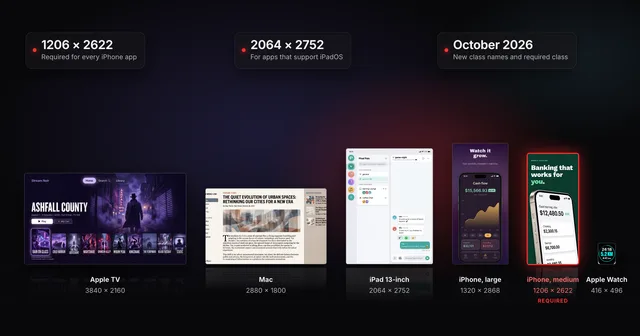 App Store screenshot sizes for every iPhone, iPad and Apple deviceApp Store screenshot sizes after Apple's October 2026 rename: required iPhone 1206 x 2622 or 1179 x 2556, iPad 13-inch, plus Mac, TV, Vision Pro and Watch.
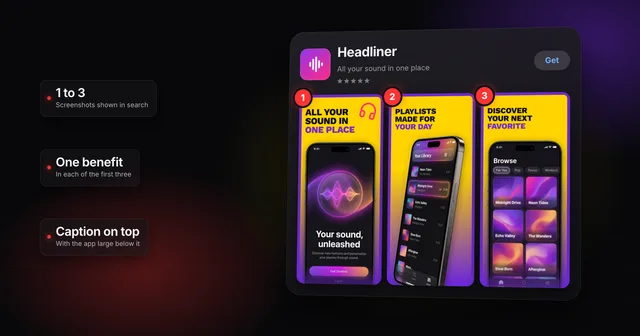 How to make App Store screenshots that actually convertHow to make App Store screenshots that convert: one benefit in each of the first three, captions for people and search, and a layout that stands out.
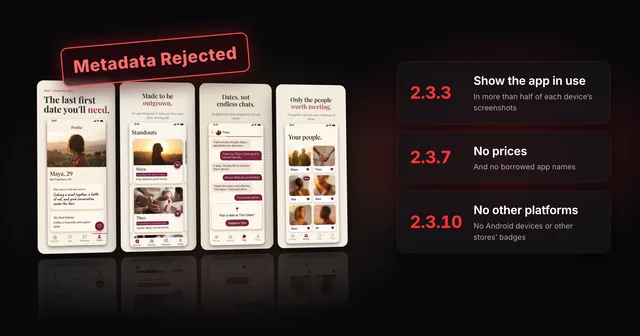 Why App Store screenshots get rejected (guideline 2.3 explained)Guideline 2.3.3 needs more than half of each device's screenshots to show your app in use. The other 2.3 rules, a checklist and how to fix a rejection.
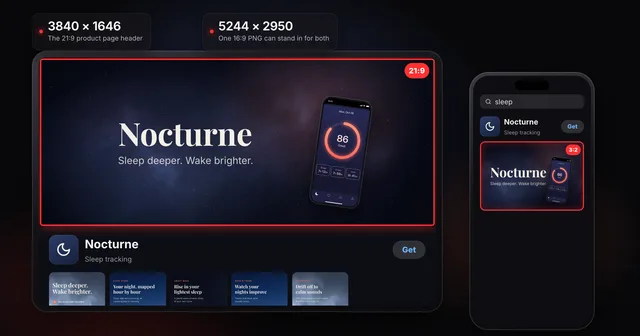 App Store product page header and search result assets: specsThe App Store product page header is 21:9 at 3840 x 1646 and the search results asset is 3:2. Universal PNG, video rules, Asset Library, guideline 2.3.14.
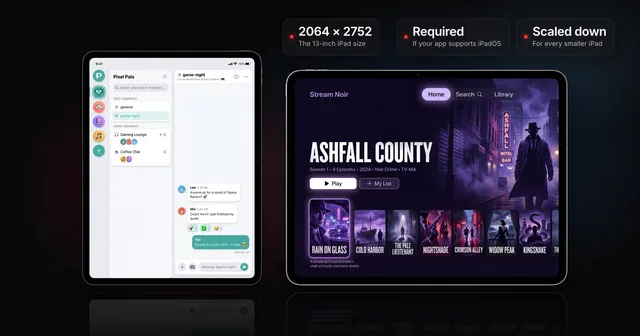 iPad App Store screenshot sizes (and when the 13-inch is required)Apple's iPad screenshot size is 2064 x 2752 or 2048 x 2732 (13-inch), needed if your app supports iPadOS. Every class, and how to clear the 13-inch prompt.