Fix "The dimensions of one or more screenshots are wrong"

By Alistair CooperPublished October 27, 2026
Facts checked against the stores’ own documentation on October 26, 2026.
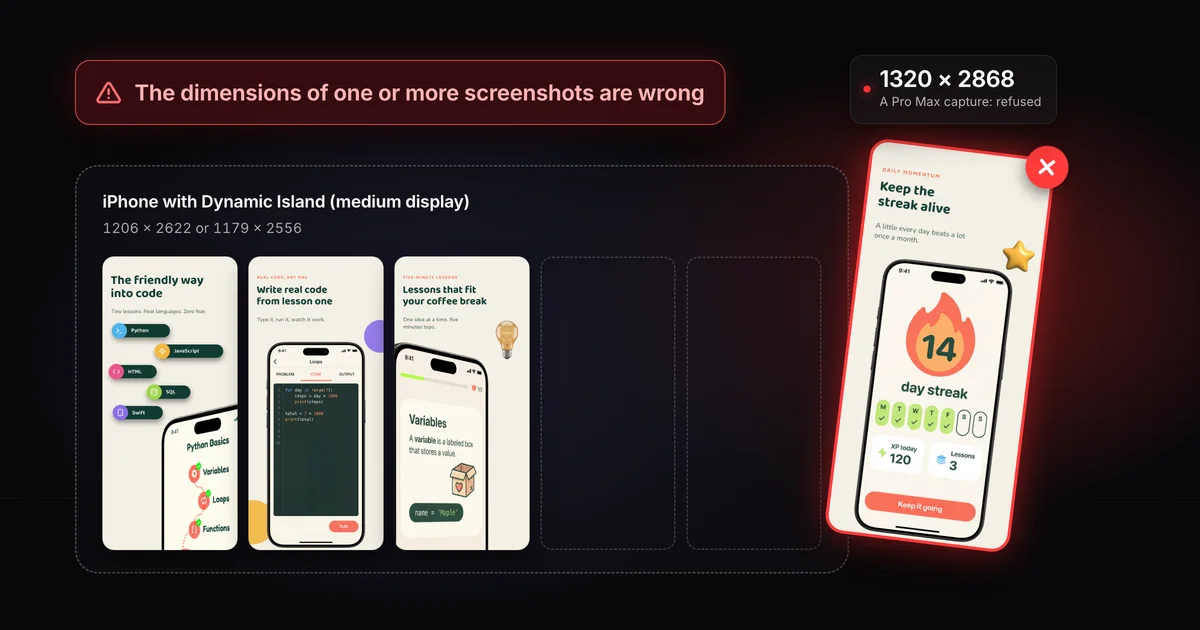
The message means at least one file's exact pixel size isn't one Apple lists for the slot you dropped it into.
- Close doesn't count: the required iPhone slot takes only 1206 x 2622 or 1179 x 2556 in portrait.
- So a 1205 x 2622 file fails, and so does a 1320 x 2868 Pro Max capture.
- Check each file's pixel size, then re-export or recapture at a listed size.
On this page
Apple doesn't document the message itself, but its screenshot specifications explain it. Each display class has a short list of exact pixel sizes, with portrait and landscape versions for iPhone and iPad, and you drag files into the slot (Apple calls it a well) for one device size at a time. A file with the right aspect ratio but the wrong pixel count still doesn't match.
The message says "one or more", so check every file in the batch.
This is an upload check, not App Review. For problems review raises later, see why App Store screenshots get rejected.
One slot, five files
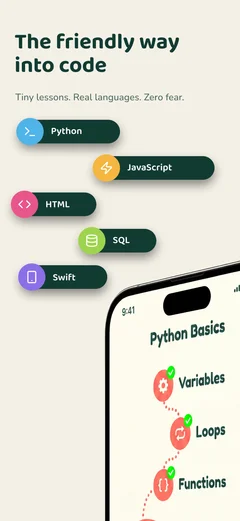 1206 × 2622Simulated iPhone 17 Pro
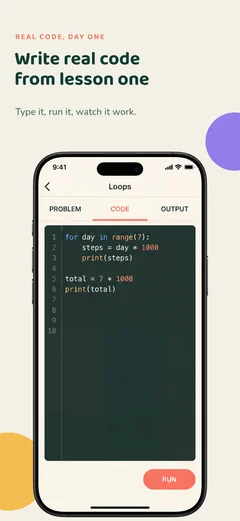 1205 × 2622Cropped by hand
 1320 × 2868iPhone 17 Pro Max capture
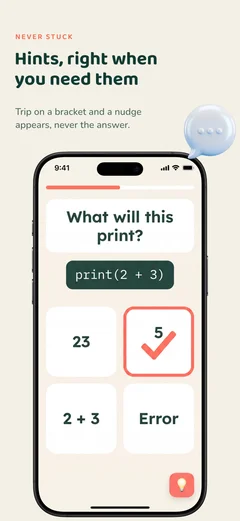 1170 × 2532iPhone 17e capture
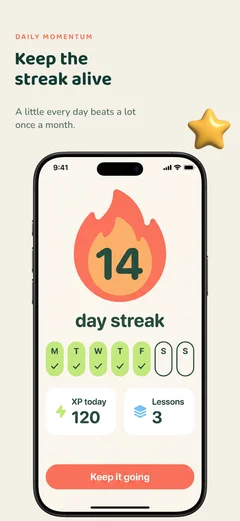 1179 × 2556Simulated iPhone 16
iPhone with Dynamic Island (medium display)
1206 × 2622 or 1179 × 2556
- 1206 × 2622Accepted
- 1205 × 2622One pixel off
- 1320 × 2868A size for iPhone with Dynamic Island (large display)
- 1170 × 2532A size for iPhone with Face ID (medium display)
- 1179 × 2556Accepted
A hand crop or a canvas size typed from memory can leave you at 1206 x 2621 or 1205 x 2622. The required iPhone class takes only 1206 x 2622 or 1179 x 2556 in portrait, so neither is accepted.
Design tools export a frame at a scale you choose. A frame drawn at an iPhone's size in points needs a scale of 3 (an iPad's needs 2); a frame already drawn in pixels needs a scale of 1. Mix them up and the file comes out far too small or far too big.
The iPhone 17 Pro's screen is 402 x 874 points at a scale of 3.
- 402 x 874 frame at a scale of 3: 1206 x 2622, an accepted size.
- The same frame at a scale of 1: 402 x 874, which fits no class.
- A 1206 x 2622 frame at a scale of 3: 3618 x 7866, which fits no class either.
One frame, three export scales, drawn to scale
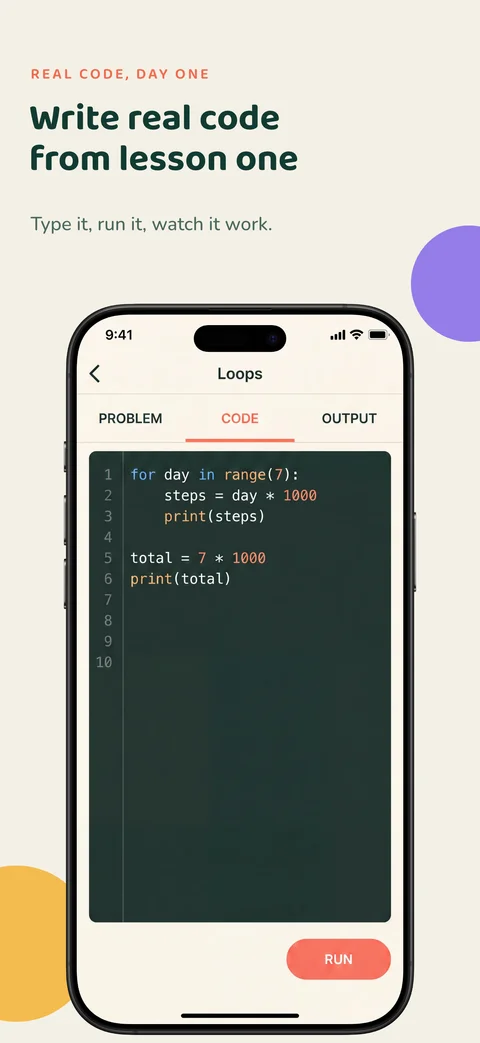
402 × 874
402 × 874 pt frame, scale 1
Too small
1206 × 2622
402 × 874 pt frame, scale 3
Accepted
3618 × 7866
1206 × 2622 px frame, scale 3
Too big
The phone you captured on decides the class:
- A Pro Max or Air screenshot in the required slot. The iPhone 18 Pro Max, 17 Pro Max and 16 Pro Max capture at 1320 x 2868, and the iPhone Air at 1260 x 2736. Both are sizes for iPhone with Dynamic Island (large display), a different class, so the required medium display slot refuses them.
- An "e" model. The iPhone 17e and 16e capture at 1170 x 2532, a size for iPhone with Face ID (medium display), not the required class.
- An iPhone 11 or XR. Apple lists both under Face ID (large display), which accepts 1284 x 2778 or 1242 x 2688. Their screens are 828 x 1792, which fits no class at all.
- An iPhone Duo screenshot. Apple's Duo sizes, 1398 x 2034 for the outer display and 2007 x 2853 for the inner, belong only to the iPhone Duo class. The iPhone Duo screenshot guide covers that set.
Apple's model list for every class is in App Store screenshot sizes for every device.
Messaging apps and some photo services can resize or recompress the images you send through them, so upload the original, not the copy from the chat. A macOS screenshot of the Device Hub or Simulator window has the same problem: it records the window as drawn on your display, not the device's pixels.
Cropping off the status bar breaks the size too. Apple lists "without status bar" sizes only for the 4-inch and 3.5-inch iPhone classes and the 9.7-inch iPad (640 x 1096 next to 640 x 1136, for example).
Every iPhone and iPad class lists landscape sizes too, so 2622 x 1206 is as valid as 1206 x 2622. Mac, Apple TV and Apple Vision Pro sizes are all wider than tall, and Apple Watch sizes are all taller than wide, so a file turned the other way matches nothing.
On a Mac, sips prints the size in Terminal, plus whether the file has alpha, which Apple's specifications also rule out:
sips -g pixelWidth -g pixelHeight -g hasAlpha screenshot.png
Preview's inspector (Tools > Show Inspector) and Finder's Get Info show the size too. Or drop the file on the checker below, which names the class the size fits and never uploads the file.
Screenodon exports the iPhone set at 1206 x 2622 (and 1320 x 2868 when you ask for it), and its iPad canvas is 2064 x 2752, so there's no frame size or export scale to get wrong. Anywhere else, set the frame to the accepted size, or to the matching point size with an export scale of 3 for iPhone (2 for iPad).
Pick a simulated device whose capture is already an accepted size. In Xcode 27.2:
- iPhone 18 Pro, 17 Pro, 17 or 16 Pro: 1206 x 2622
- iPhone 16, 15 Pro, 15 or 14 Pro: 1179 x 2556
- iPad Pro 13-inch (M4 or M5): 2064 x 2752
- iPad Air 13-inch: 2048 x 2732
Both iPhone sizes are accepted for the required class, iPhone with Dynamic Island (medium display), and those eight iPhones are the models Apple lists for it.
Apple's capture documentation says Device Hub (the Simulator in earlier Xcode releases) saves screenshots "at the full resolution of the simulated or physical device", whatever your Mac's display. Use its Screenshot button, not a macOS screenshot of the window. The rest of the job, from planning the set to uploading it, is in the complete App Store screenshots guide.
When a file is a pixel or two over, crop it instead of resampling it. sips takes the height first:
sips -c 2622 1206 screenshot.png --out screenshot-fixed.png
Check the result. A file that's short can't be cropped to fit, so export it again.
Check, trim a pixel, check again
%sips -g pixelWidth -g pixelHeight -g hasAlpha screenshot.png
/Users/you/screenshot.png
pixelWidth: 1206
pixelHeight: 2623One pixel too tall
hasAlpha: no
%sips -c 2622 1206 screenshot.png --out screenshot-fixed.png
/Users/you/screenshot.png
/Users/you/screenshot-fixed.png
%sips -g pixelWidth -g pixelHeight -g hasAlpha screenshot-fixed.png
/Users/you/screenshot-fixed.png
pixelWidth: 1206
pixelHeight: 2622An accepted size
hasAlpha: no
Any screenshot size your app supports. Apple's In-App Purchase information page asks you to "upload a screenshot that meets any of the screenshot specifications your app supports", so for an iPhone app a 1206 x 2622 screenshot of the item or service on offer works. It goes in the Review Information section, and only App Review sees it. Subscriptions, an in-app purchase type in Apple's docs, follow the same rule. The promotional image is a separate field at 1024 x 1024.
- Alpha channel. Apple's specifications say images "can't include alpha channels or transparencies", even at a correct size. Export without alpha, or save as JPEG. The App Store screenshot requirements checklist covers the other file rules.
- The 13-inch iPad set is missing. If your app supports iPadOS, Apple requires at least one 13-inch screenshot. An 11-inch capture, such as 1668 x 2420 from an iPad Pro 11-inch (M5), belongs to the 11-inch class and won't satisfy it. See iPad screenshot sizes and when the 13-inch is required.
- Uploads still in progress. That message is about timing, not size: let each upload finish before you save or submit.
Only in proportion, then crop the leftover pixels. Stretching to a different shape squashes your interface, so if the shape is far off, re-export or recapture instead.
Their screens are 828 x 1792, a size no class accepts, even though Apple lists both under Face ID (large display). Capture on a simulated device from the class you're filling.
Not for screenshots. Apple's screenshot specifications are in pixels and don't mention DPI, and changing the DPI metadata leaves the pixel size as it was. The in-app purchase promotional image is different: Apple asks for 72 dpi there.
Alistair Cooper
Founder of Screenodon
I’ve spent over ten years shipping iOS apps, from a blank Xcode project to the App Store, on my own and on large teams. At Fender I was a technical lead on Fender Play and worked on apps used by millions of people.
More about me and how I write these guidesSources
- Apple, App Store Connect Help: Screenshot specifications
- Apple, App Store Connect Help: Manage your App Store assets
- Apple, App Store Connect Help: In-App Purchase information
- Apple, App Store Connect Help: View and edit In-App Purchase information
- Apple, App Store Connect Help: In-App Purchase types
- Apple, App Store Connect Help: Offer auto-renewable subscriptions
- Apple Developer Documentation: Capturing screenshots and videos from devices
- Apple Developer Documentation: Xcode 27 release notes
Put this into practice on your own set
Start a free account, drop in your raw screenshots, and Screenodon lays out a first draft of the whole set for you to edit. Saving and export at every store size need Pro.
Keep reading
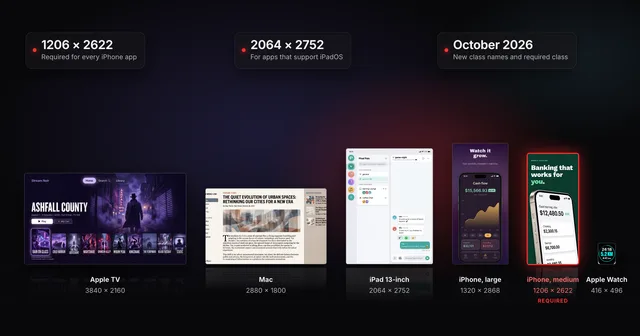 App Store screenshot sizes for every iPhone, iPad and Apple deviceApp Store screenshot sizes after Apple's October 2026 rename: required iPhone 1206 x 2622 or 1179 x 2556, iPad 13-inch, plus Mac, TV, Vision Pro and Watch.
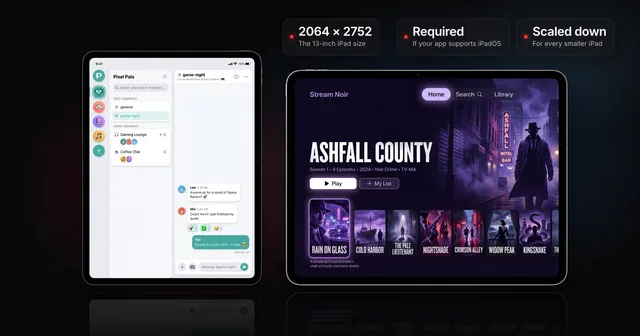 iPad App Store screenshot sizes (and when the 13-inch is required)Apple's iPad screenshot size is 2064 x 2752 or 2048 x 2732 (13-inch), needed if your app supports iPadOS. Every class, and how to clear the 13-inch prompt.
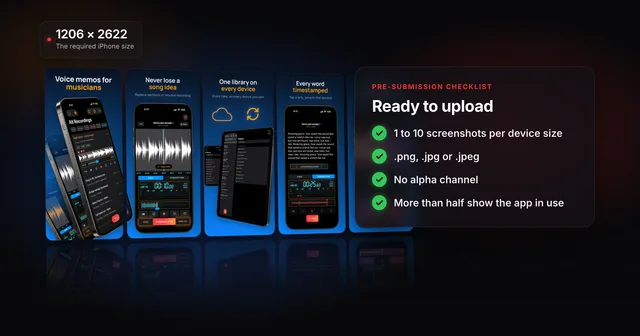 App Store screenshot requirements: the pre-submission checklistApp Store screenshot requirements as a checklist: 1 to 10 per device size, PNG or JPEG without alpha, the exact iPhone and iPad sizes and the 2.3.3 rule.
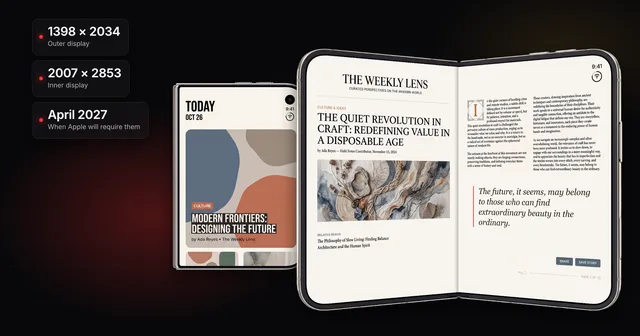 iPhone Duo App Store screenshots: sizes, deadline and badgeiPhone Duo screenshot sizes for the outer (1398 x 2034) and inner (2007 x 2853) displays, the April 2027 deadline, the badge, and how to upload them.
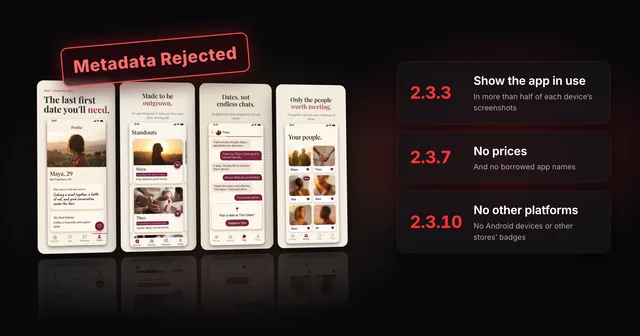 Why App Store screenshots get rejected (guideline 2.3 explained)Guideline 2.3.3 needs more than half of each device's screenshots to show your app in use. The other 2.3 rules, a checklist and how to fix a rejection.