How to update your App Store screenshots from Claude Code

By Alistair CooperPublished November 17, 2026
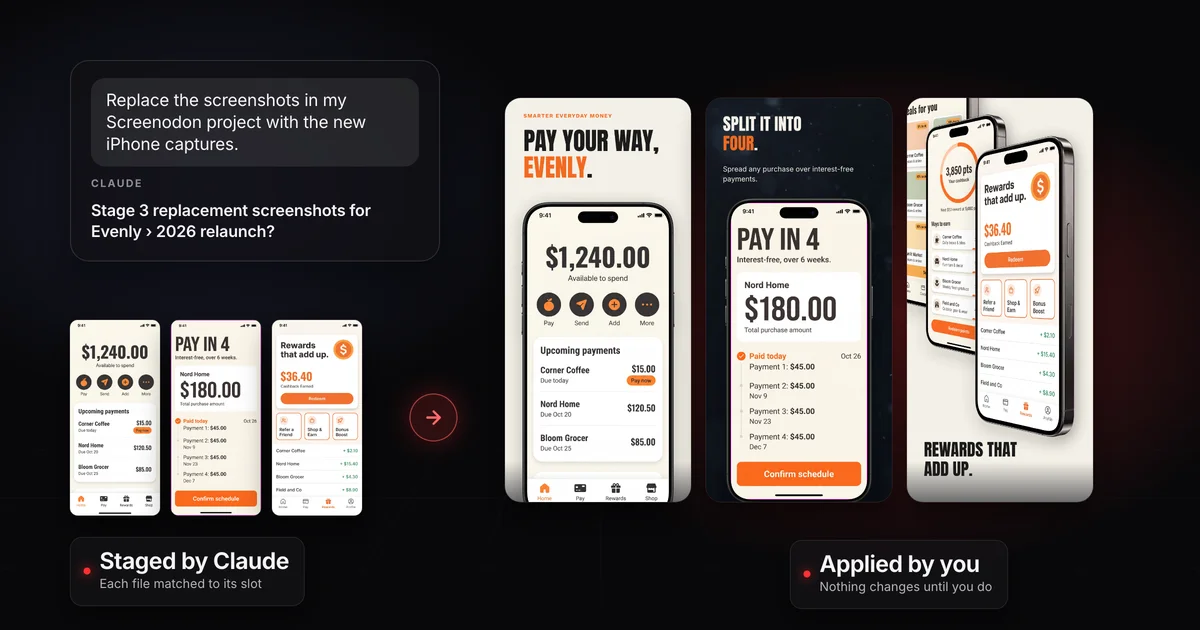
Connect Screenodon to Claude once, then ask Claude to bring the screenshots from your new build into your Screenodon project.
- Claude matches each new capture to the screenshot it replaces and stages them for you to review.
- Nothing in your project changes until you check each pairing and click Apply in Screenodon.
- Claude can't change your designs, export, or publish to the App Store or Google Play.
On this page
Every release changes your app, and the store screenshots fall behind. With Screenodon connected to Claude, updating them is one request: Claude puts each new capture in the right slot of your project, and you approve the result before anything changes.
- You ask. In the Claude app or Claude Code, say which project to update and where the new captures are.
- Claude matches. It reads the project's screenshot slots and pairs each new file with the screenshot it replaces.
- Screenodon checks. The files wait in a holding area of your project while Screenodon checks each one: the right size for the device, the slot it replaces, no duplicates.
- You apply. You compare each pairing in the review and click Apply. Then you export and upload as usual.
- A Screenodon project for the app. Claude replaces screenshots in a project you've already designed. It doesn't make new projects.
- Claude. The Claude app on the web, desktop or phone, or Claude Code. Every Claude plan can add custom connectors, and the Free plan can add one.
- Your new captures, straight from the device or simulator. Screenodon reads each file's pixel size to tell which device it's for, so don't crop or resize them. The complete App Store screenshots guide shows how to capture clean ones, and App Store screenshot sizes lists the device classes Apple asks for.
You do this once, in the Claude you use.
Claude app
-
Open Customize, then Connectors.
-
Click + Add, then Add custom connector.
-
Name it Screenodon, paste this server URL, and click Continue:
https://www.screenodon.com/api/mcp -
Under Authentication, choose Sign in now. Leave OAuth client on Use Claude's published identity (Recommended), because Screenodon doesn't support Register automatically. Then click Add.
-
Sign in to Screenodon. The next screen lists what Claude will be allowed to do. Click Allow Claude.
-
In a chat, click the + button at the lower left and check that Screenodon is switched on.
Adding Screenodon to Claude
Add custom connector
Claude Code
-
Run this once in your terminal:
claude mcp add --transport http --scope user screenodon https://www.screenodon.com/api/mcp--scope usermakes Screenodon available in every project folder, not only the current one. -
Start Claude Code and type
/mcp. -
Pick screenodon, then sign in to Screenodon in the browser window that opens and click Allow Claude Code.
Say which project to update and where the new captures are. Plain words work:
Replace the screenshots in my Screenodon project with the new iPhone captures.
In Claude Code, add where the files are, such as a folder on your Desktop. In a Claude chat, attach the captures to your message. Then Claude works through it with you:
- It finds the project. An app can hold several projects, so Claude names the one it means as App › Project, such as Evenly › 2026 relaunch, and confirms it with you before staging anything.
- It matches the files. Claude compares each new capture with the screenshots already in the project and tells you which file goes where.
- It stages them. In Claude Code, Claude uploads the files from your computer. In a Claude chat, it sets up the batch, and you drag the same files into the review on your computer, where Screenodon matches them by name.
- It gives you a review link, where Screenodon shows its checks on each file.
Claude matches each capture to its slot
New captures
Evenly › 2026 relaunch
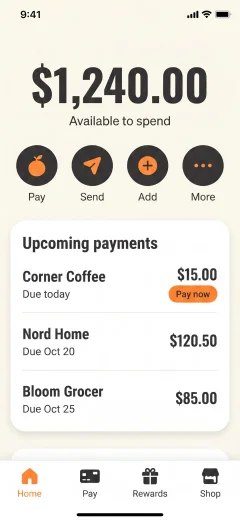 IMG_2039.PNG
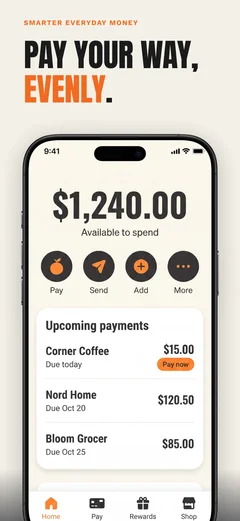 Screenshot 1HomeStaged
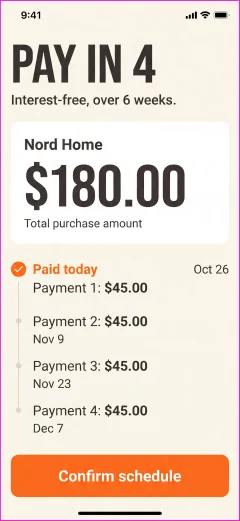 IMG_2041.PNG
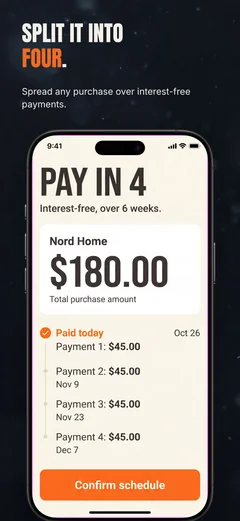 Screenshot 2ScheduleStaged
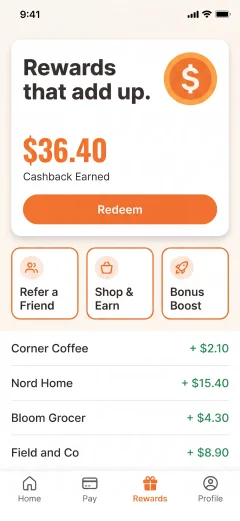 IMG_2038.PNG
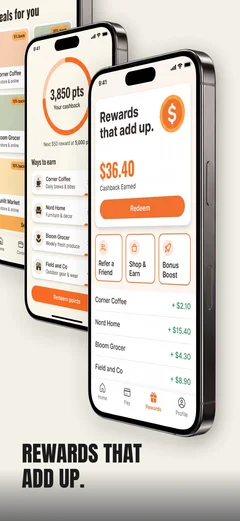 Screenshot 3RewardsStaged
- Open the review link Claude gives you, or click Review screenshots on the banner in your project.
- Check each new screenshot against the slot it's going to. A row marked Claude + Screenodon agree means Claude and Screenodon's own matching picked the same slot.
- If a pick looks wrong, choose another slot on that row, or Don't use this file.
- Click the Apply button, which counts what you're applying (such as Apply all 3), then Save. ⌘Z undoes Apply, and your old files are kept.
- Export and upload to the stores as usual.
Review, then apply
Review screenshots from Claude
- Screenshot 1 · HomeClaude + Screenodon agree
- Screenshot 2 · ScheduleClaude + Screenodon agree
- Screenshot 3 · RewardsClaude + Screenodon agree
Applied 3 screenshots from Claude (3 replaced). The old files are kept.
Evenly › 2026 relaunch
Claude can:
- List your Screenodon apps and projects
- Read a project's screenshot slots and preview the current captures
- Stage replacement screenshots for an existing project, for you to review
- Report Screenodon’s checks and give you a review link
- Show or discard a staged batch
Claude can't:
- Create, rename, duplicate or delete apps or projects
- Edit captions, layouts, templates, colors or slots
- Overwrite or delete any existing file
- Apply staged screenshots: only you can, by clicking Apply in Screenodon
- Export, or upload to App Store Connect or Google Play
The connection has no tool for anything on the second list, so no request can make Claude do it.
Any Screenodon account can connect and let Claude see its projects. Staging new screenshots needs Pro, like uploading them yourself.
All of them, once connected: Claude on the web, desktop and phone, Cowork, and Claude Code. Claude Code is the smoothest, because it uploads the files from your computer for you. In a Claude chat, you drag the same files into the review yourself, so do that part on a computer.
No. The connection has no tool for it. Export and store upload stay in Screenodon, where you click them yourself.
No. Claude can't edit captions, layouts, templates or colors. New screenshots wait in a holding area until you click Apply, and Apply only swaps the screenshots inside your design.
Nothing changes until you apply, so fix it in the review: pick the right slot on that row, or choose Don't use this file. To start over, click Discard batch, confirm with Discard all?, and ask Claude again.
In Screenodon, open Settings, go to Use Screenodon with Claude, and click Disconnect next to the connection. It stops working at once.
Alistair Cooper
Founder of Screenodon
I’ve spent over ten years shipping iOS apps, from a blank Xcode project to the App Store, on my own and on large teams. At Fender I was a technical lead on Fender Play and worked on apps used by millions of people.
More about me and how I write these guidesSources
Put this into practice on your own set
Start a free account, drop in your raw screenshots, and Screenodon lays out a first draft of the whole set for you to edit. Saving and export at every store size need Pro.
Keep reading
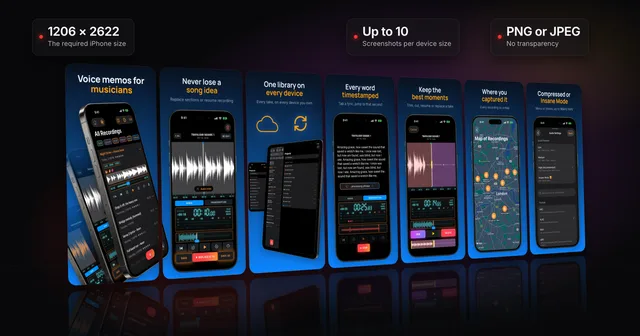 App Store screenshots: the complete guideWhere App Store screenshots appear, the sizes Apple requires now (1206 x 2622 iPhone, 13-inch iPad), the file and review rules, and how to make a set.
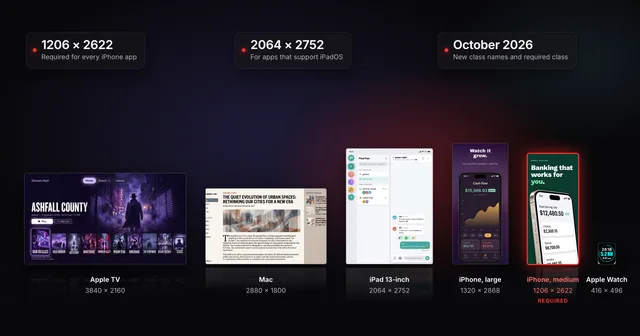 App Store screenshot sizes for every iPhone, iPad and Apple deviceApp Store screenshot sizes after Apple's October 2026 rename: required iPhone 1206 x 2622 or 1179 x 2556, iPad 13-inch, plus Mac, TV, Vision Pro and Watch.
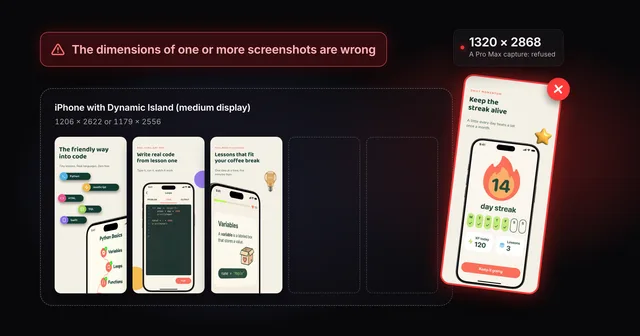 Fix "The dimensions of one or more screenshots are wrong"App Store Connect wants an exact pixel size for each slot. Check your file, then fix the cause: a pixel off, the wrong export scale or the wrong device.
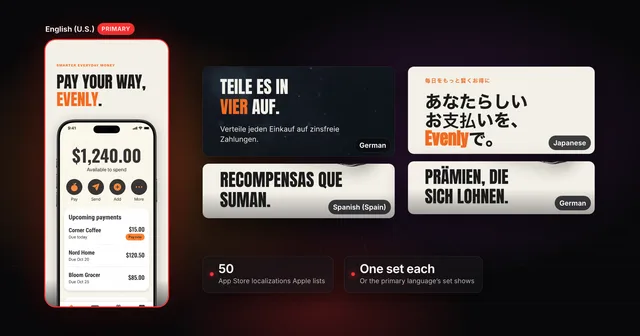 How to localize your App Store screenshotsApple supports 50 App Store localizations. How to add one, upload a screenshot set per language, and fix what breaks in German, Japanese and Arabic.
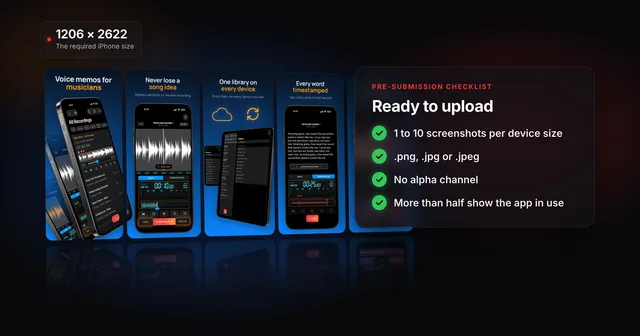 App Store screenshot requirements: the pre-submission checklistApp Store screenshot requirements as a checklist: 1 to 10 per device size, PNG or JPEG without alpha, the exact iPhone and iPad sizes and the 2.3.3 rule.